

Overview
When you send documents for electronic signature through SignatureAPI, delivery failures can occur if a recipient’s email address is invalid or unreachable. This tutorial walks you through building a Power Automate flow that automatically detects recipient bounce events from SignatureAPI and sends a notification to a designated Slack channel. By the end, your team will be alerted within seconds of a bounce, allowing you to correct the issue and resend the envelope without delay.What You’ll Learn
- How to create an automated flow triggered by a SignatureAPI recipient bounce event.
- How to set up a Slack channel dedicated to error notifications.
- How to configure the Slack connector in Power Automate to post messages.
- How to use dynamic content from the SignatureAPI trigger to build informative notifications.
- How to test your flow end-to-end with a simulated bounce.
- How to extend this pattern to other SignatureAPI event triggers.
The Problem
In HR departments and other teams that rely on electronic signatures, it is common to send employment contracts, policy acknowledgements, tax forms, and other critical documents for signing. However, delivery issues can disrupt the process:- Invalid email addresses - A typo in the recipient’s email or an outdated address causes the delivery to bounce, and the signer never receives the document.
- Delayed awareness - Without real-time monitoring, teams may not discover a bounce for hours or even days, stalling onboarding, compliance deadlines, or business transactions.
- Manual follow-up burden - Tracking down bounced envelopes, identifying the correct email, and resending documents manually takes time and introduces the risk of further errors.
How Automation Helps
By connecting SignatureAPI to Slack through Power Automate, you can eliminate these gaps:- Instant detection - The flow triggers automatically the moment a recipient bounce occurs, with no polling or manual checks required.
- Real-time team notifications - A Slack message is posted immediately, ensuring the right people know about the problem within seconds.
- Actionable context - The notification includes envelope and recipient details from SignatureAPI dynamic content, so your team can take corrective action right away.
- Reduced manual overhead - No more checking envelope statuses one by one or relying on someone to remember to follow up.
Requirements
Before starting, make sure you have:- Power Automate - To build the automated workflow. A Premium license is required for the SignatureAPI connector.
- SignatureAPI account - For sending documents and receiving event triggers. You will need your API key.
- Slack account - For receiving bounce notifications. You need permission to create channels and install apps.
Flow Overview
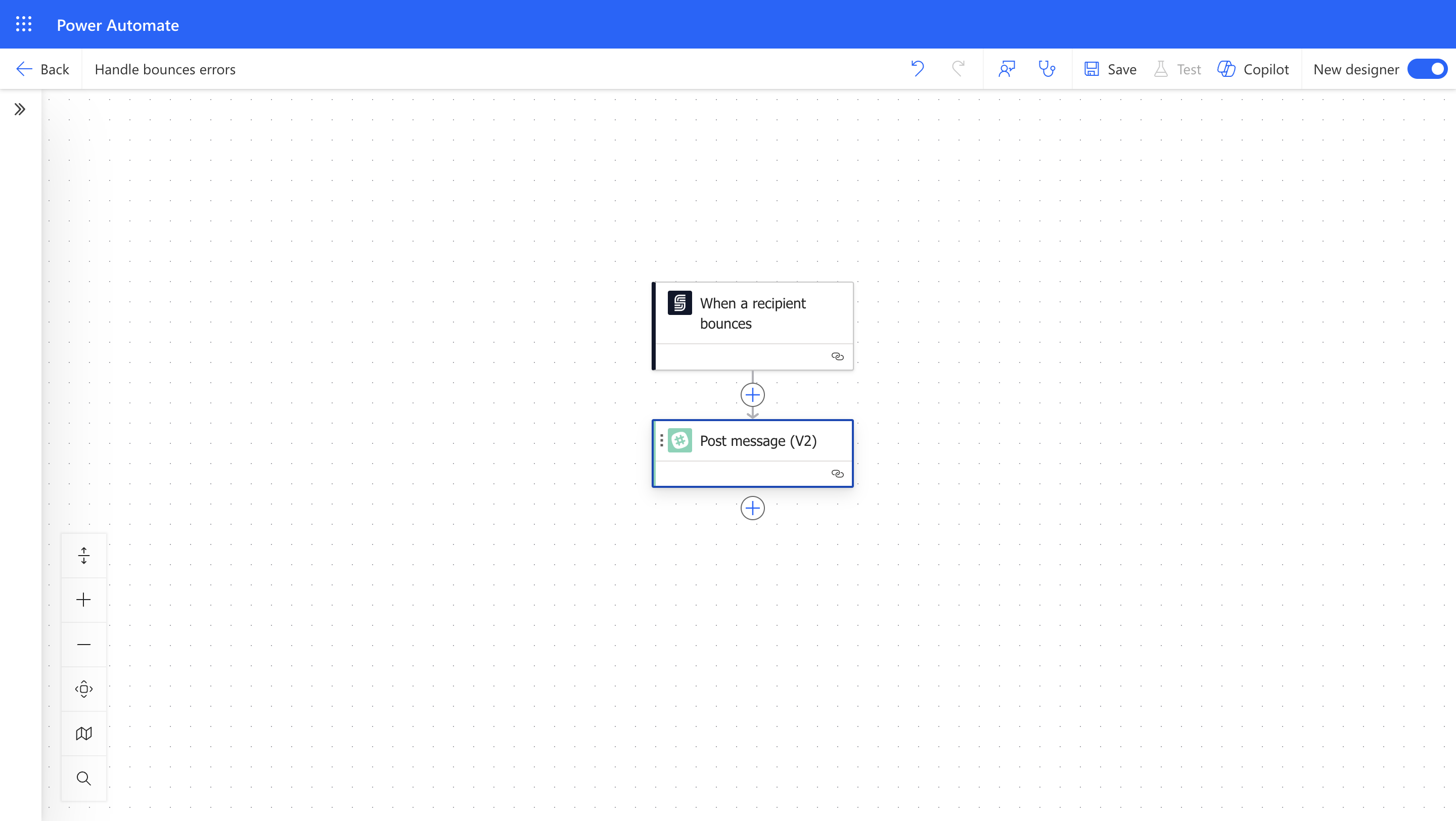
The automation process follows these steps:- Trigger: A SignatureAPI “When a recipient bounces” event fires when an envelope delivery fails.
- Notify Slack: Power Automate posts a message to your designated Slack channel with the bounce details.
Step-by-Step Tutorial
Follow these steps to build a Power Automate flow that sends Slack notifications whenever a SignatureAPI recipient bounce occurs.Step 1: Create the Slack Channel
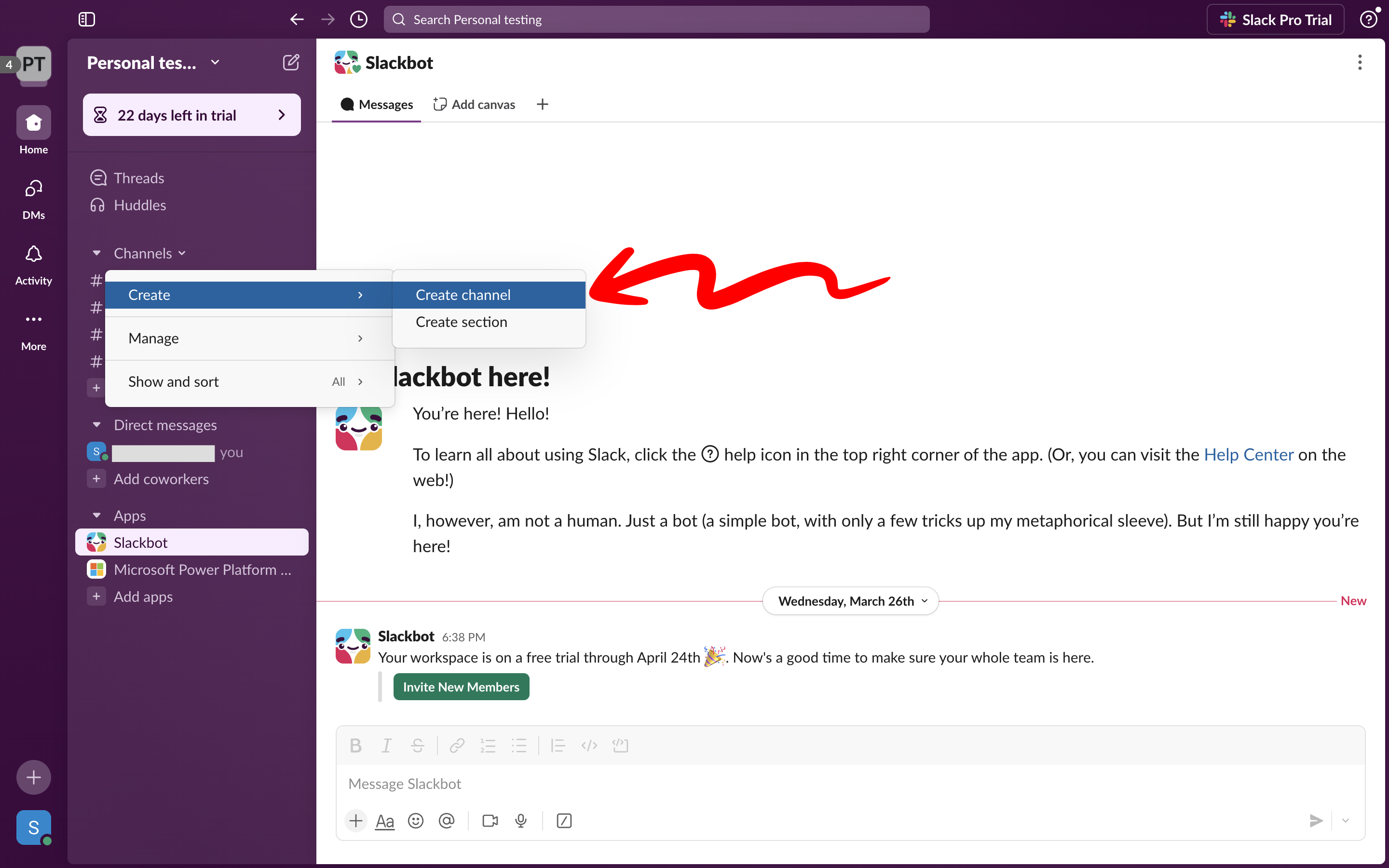
Start by creating a dedicated Slack channel where bounce notifications will be posted. Using a dedicated channel keeps error alerts organized and easy to monitor.-
Open Slack and click “Create Channel” from the sidebar.
-
Name the channel something descriptive (for example,
bounced-emailsorsignature-errors). Choose whether the channel should be public or private based on your team’s needs, then click “Create”.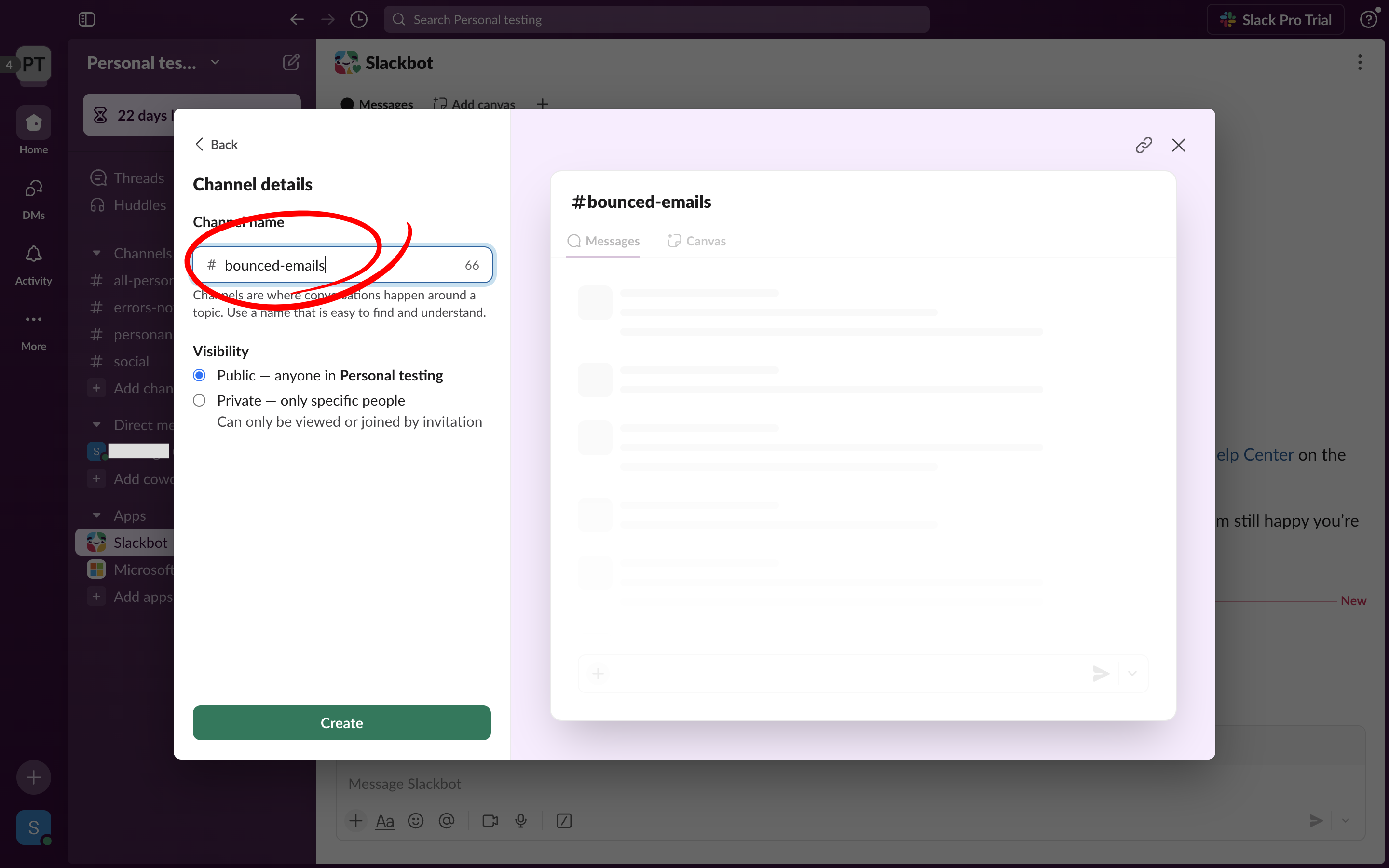
Step 2: Set Up the Power Automate Flow
Now create the automated workflow in Power Automate that listens for bounce events and posts to Slack.2.1 Configure the Trigger
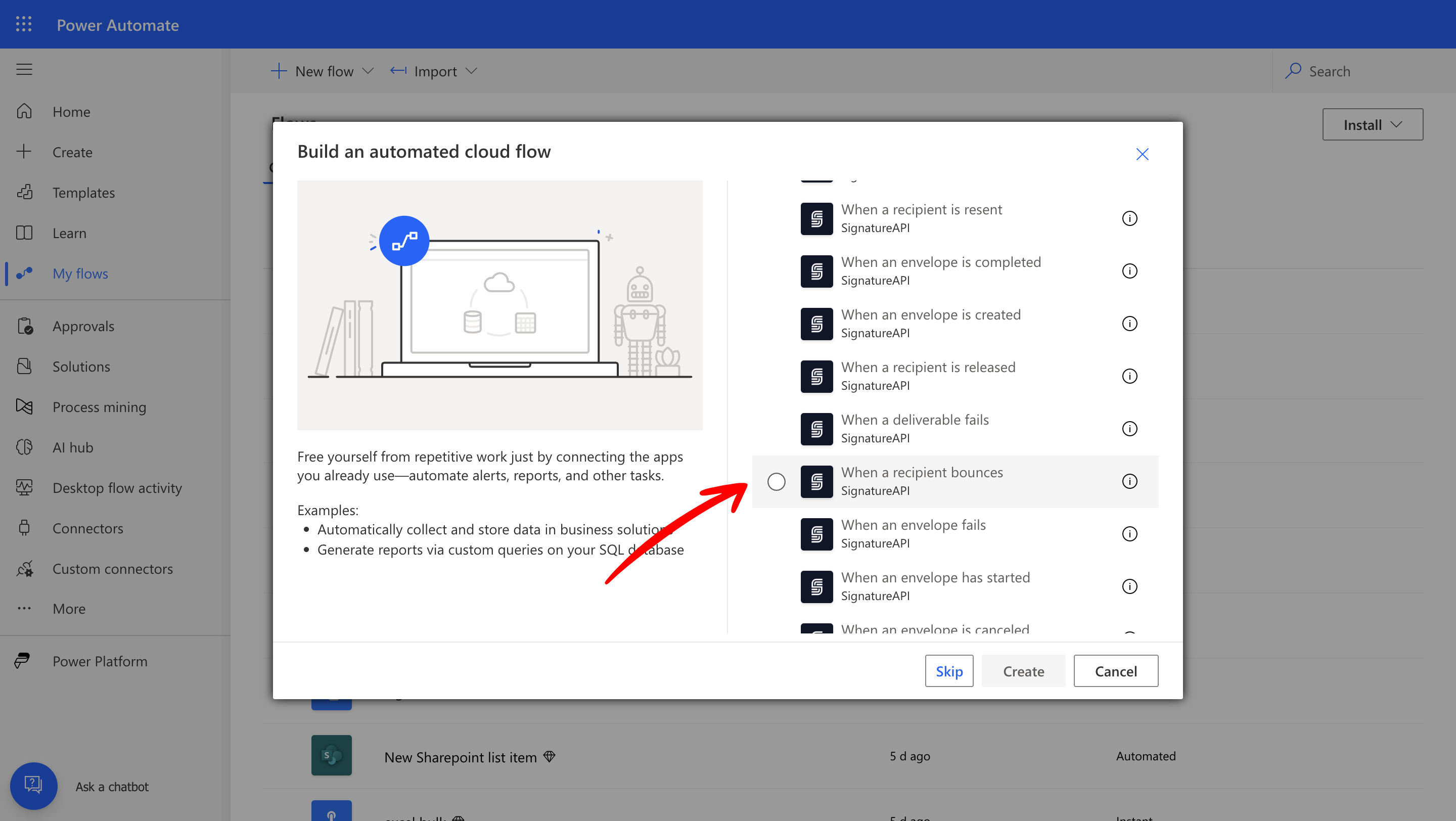
- Go to Power Automate and select “Create”, then choose “Automated Cloud Flow”.
-
Search for and select the trigger “When a recipient bounces” from the SignatureAPI connector. If this is your first time using the SignatureAPI connector, you will be prompted to enter your API key to authenticate.
2.2 Send the Notification to Slack
With the trigger in place, add the action that posts a message to your Slack channel.-
Click “New step” and search for the “Post message” action from the Slack connector. If you have not connected Slack to Power Automate before, you will be prompted to authorize the connection with your Slack account.
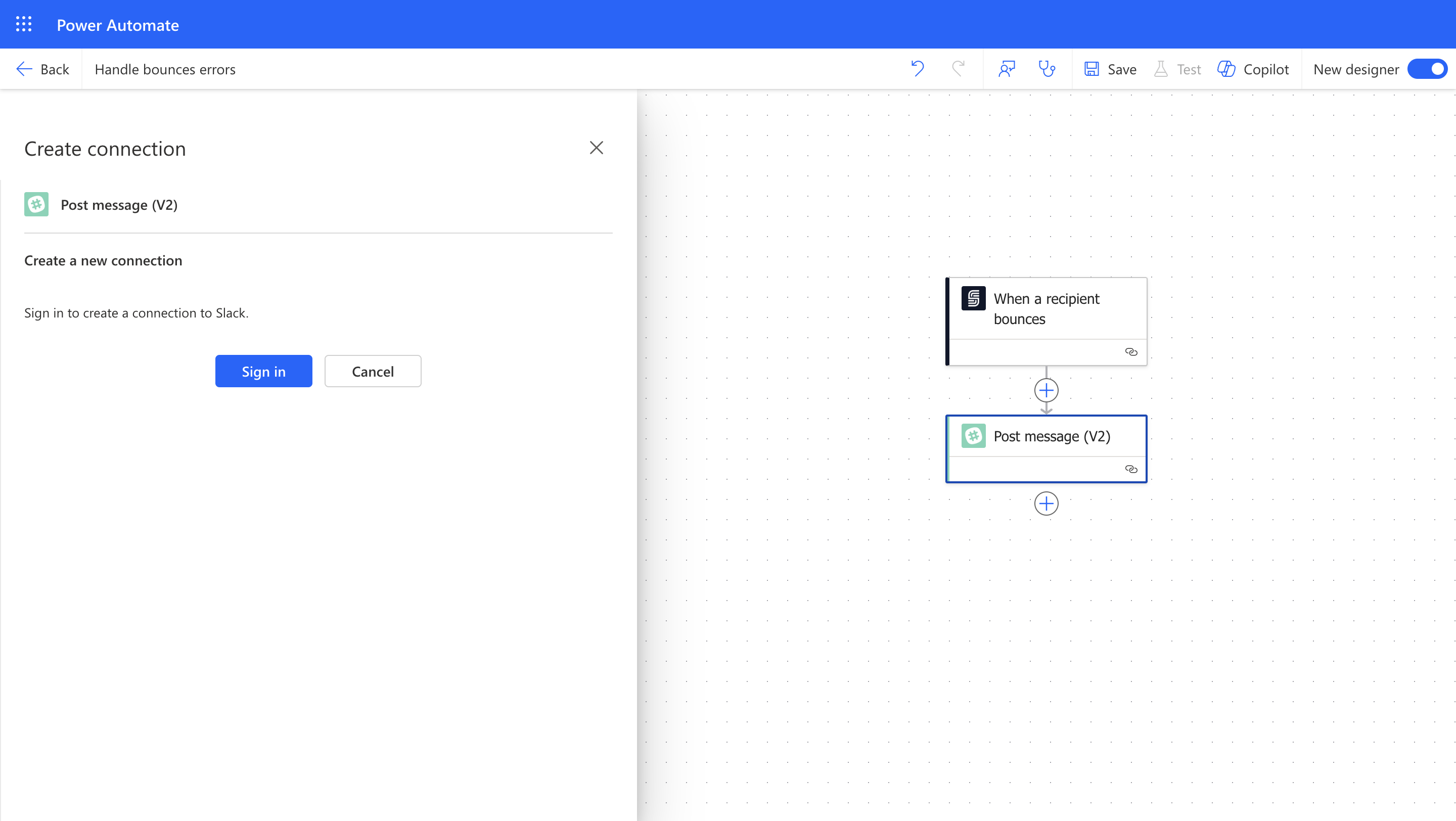
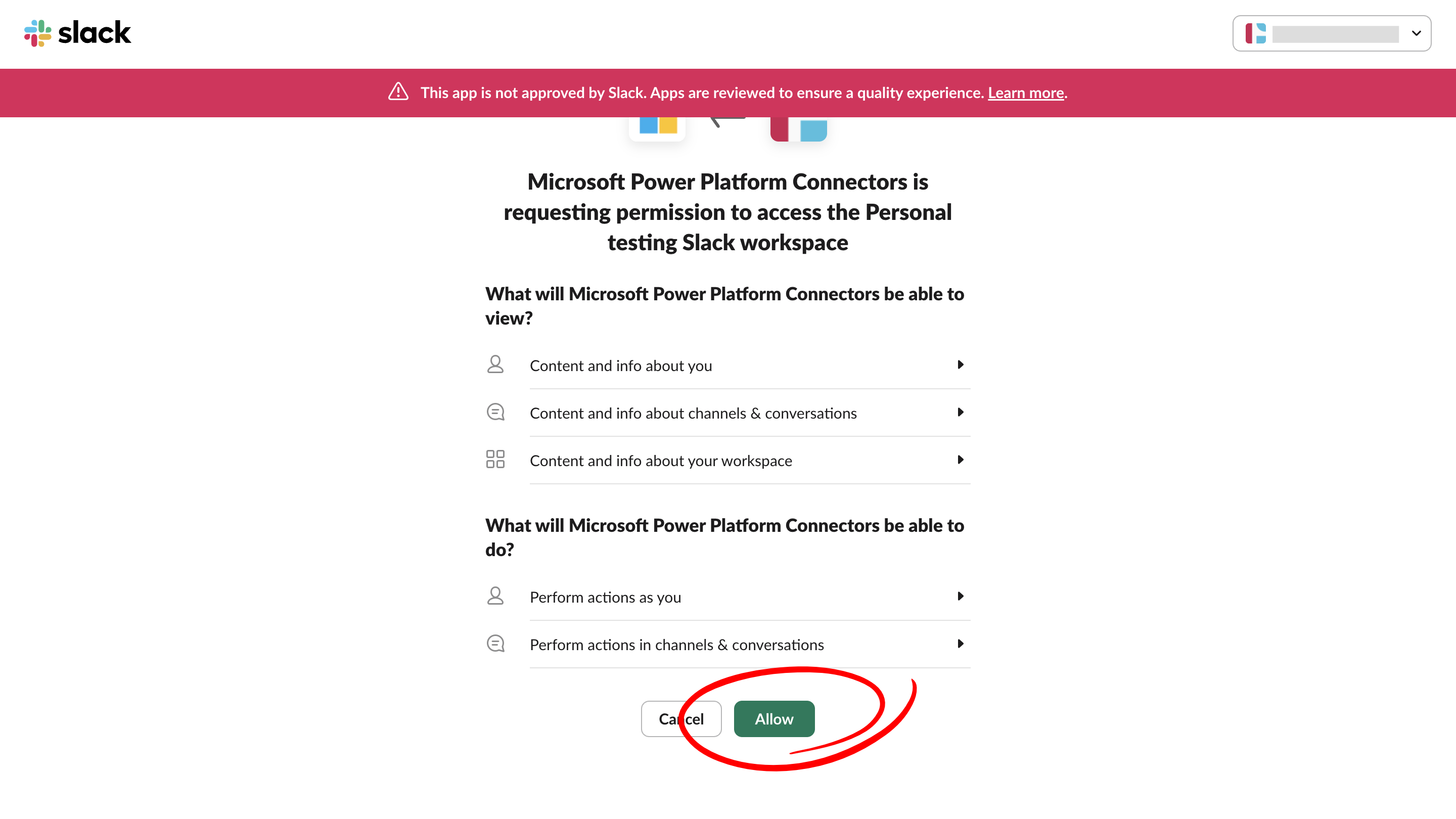
-
In the Channel Name field, select the Slack channel you created in Step 1 (for example,
bounced-emails). -
In the Message Text field, compose a notification message using Dynamic Content from the SignatureAPI trigger. You can include properties such as the envelope title, recipient name, and recipient email address to give your team the context they need to act quickly.
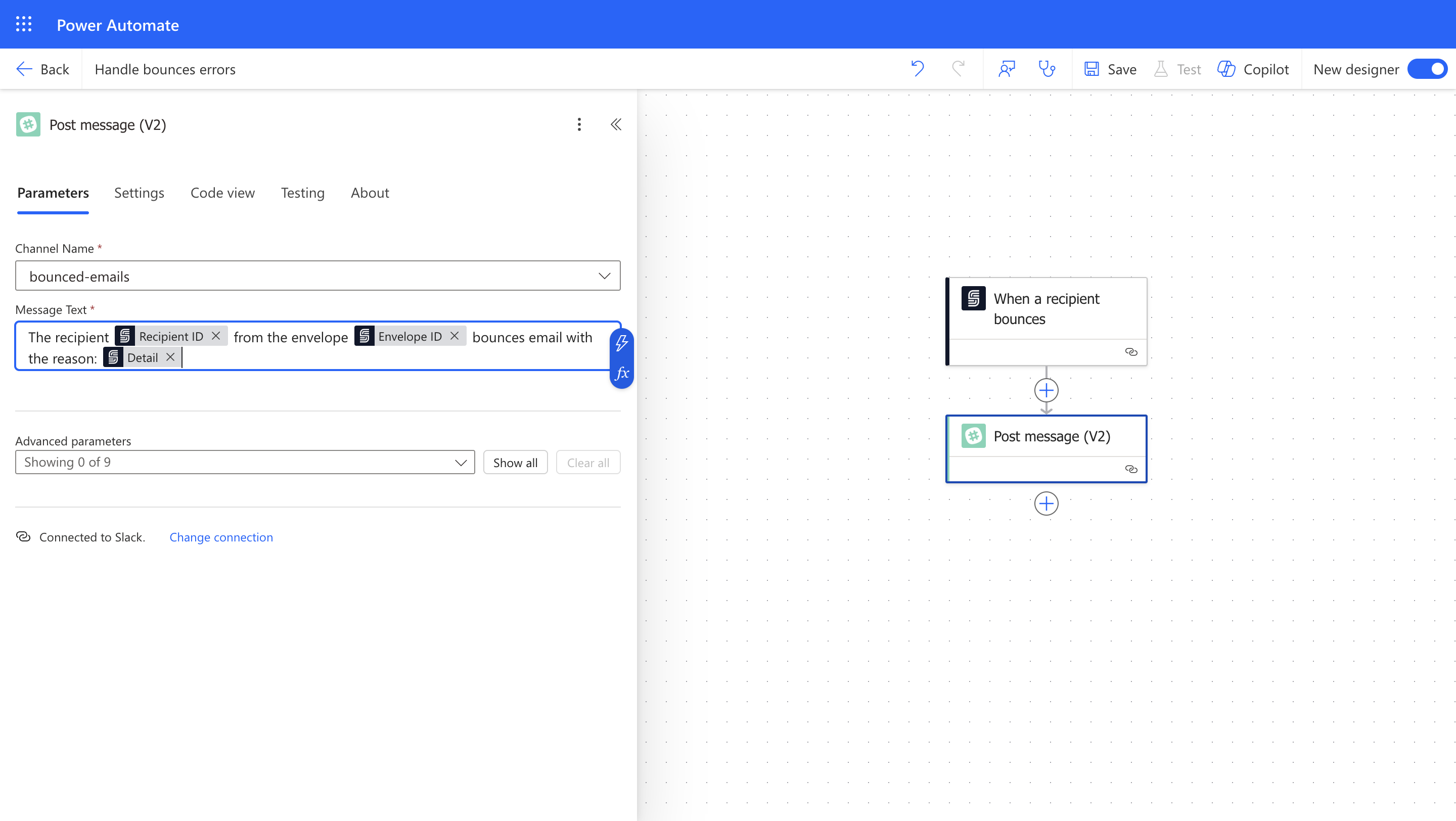
Step 3: Test Your Automation
With the flow built, verify that everything works correctly by simulating a bounce.- Save your Power Automate flow and confirm it is turned on.
- In SignatureAPI, create a new envelope with a recipient email address that will bounce (for example, an invalid or nonexistent address).
- Wait for the bounce event to fire and check your Slack channel for the notification.
- Verify the notification contains the correct envelope and recipient details.
- Power Automate flow is saved and enabled.
- Test envelope is created with an invalid recipient email.
- Slack notification appears in the correct channel.
- Notification message includes the expected envelope and recipient details.
Troubleshooting & FAQ
Common Issues:
- SignatureAPI connection errors: Verify that your API key is entered correctly in the Power Automate connector settings. If the key was recently regenerated, update it in the connection configuration.
- Slack notifications not arriving: Confirm that the correct channel is selected in the Post message action and that the Slack authorization is still valid. You can check the connection status under Data > Connections in Power Automate.
- Flow not triggering: Make sure the flow is turned on and that the envelope you created for testing actually results in a bounce. Check the flow run history in Power Automate for any error details.
Frequently Asked Questions:
- Can I use this pattern for other SignatureAPI events? Yes. The SignatureAPI connector offers several event triggers (such as envelope completion, recipient signing, and others). You can replace the bounce trigger with any other available trigger and follow the same steps to send Slack notifications.
- Can I notify a different channel or multiple channels? You can add multiple Post message actions in the same flow, each targeting a different Slack channel. Alternatively, you can use conditional logic to route notifications to different channels based on envelope properties.
- What if I want to use Microsoft Teams instead of Slack? Replace the Slack Post message action with the Microsoft Teams Post message in a chat or channel action. The rest of the flow remains the same.
Best Practices & Security
- Store your SignatureAPI API key securely and avoid hardcoding it in flow expressions. Use the built-in connector authentication to manage credentials.
- Review your flow run history in Power Automate on a regular basis to catch any failures or unexpected behavior early.
- Document your flow configuration and any changes you make so that other team members can maintain or update the automation in the future.