

Overview
This tutorial demonstrates how to streamline the employment contract process by automatically sending, signing, and storing contracts. By integrating SharePoint List (for storing the onboarding pack with employee details), SignatureAPI connector (for electronic signatures), and Power Automate (for the approval-and-signature workflow), you can eliminate manual errors and delays in onboarding new employees.What You’ll Learn
- How to trigger a flow with a new SharePoint List item.
- Retrieving and pre-filling a DOCX contract template from SharePoint List.
- Creating and sending a signature envelope using SignatureAPI.
- Monitoring the signing process and retrieving the signed document.
- Saving the signed contract and notifying HR automatically.
The Problem
HR departments often struggle with manually handling contracts, causing delays in onboarding. Common issues include:- Slow processing caused by manual tasks and handoffs.
- Errors from manual data entry across multiple systems.
- Tracking difficulty when monitoring signing status across employees.
How Automation Helps
Automation simplifies this process by:- Automatically sending contracts to the employee.
- Using templates pre-filled with employee details.
- Tracking signature status and storing documents automatically.
- Informing HR instantly once contracts are signed.
Requirements
Before starting, make sure you have:- Power Automate to build workflows.
- SignatureAPI account for electronic signatures.
- SharePoint List for storing the onboarding pack with employee details.
- Outlook for sending notifications (other email providers also work).
Flow Overview
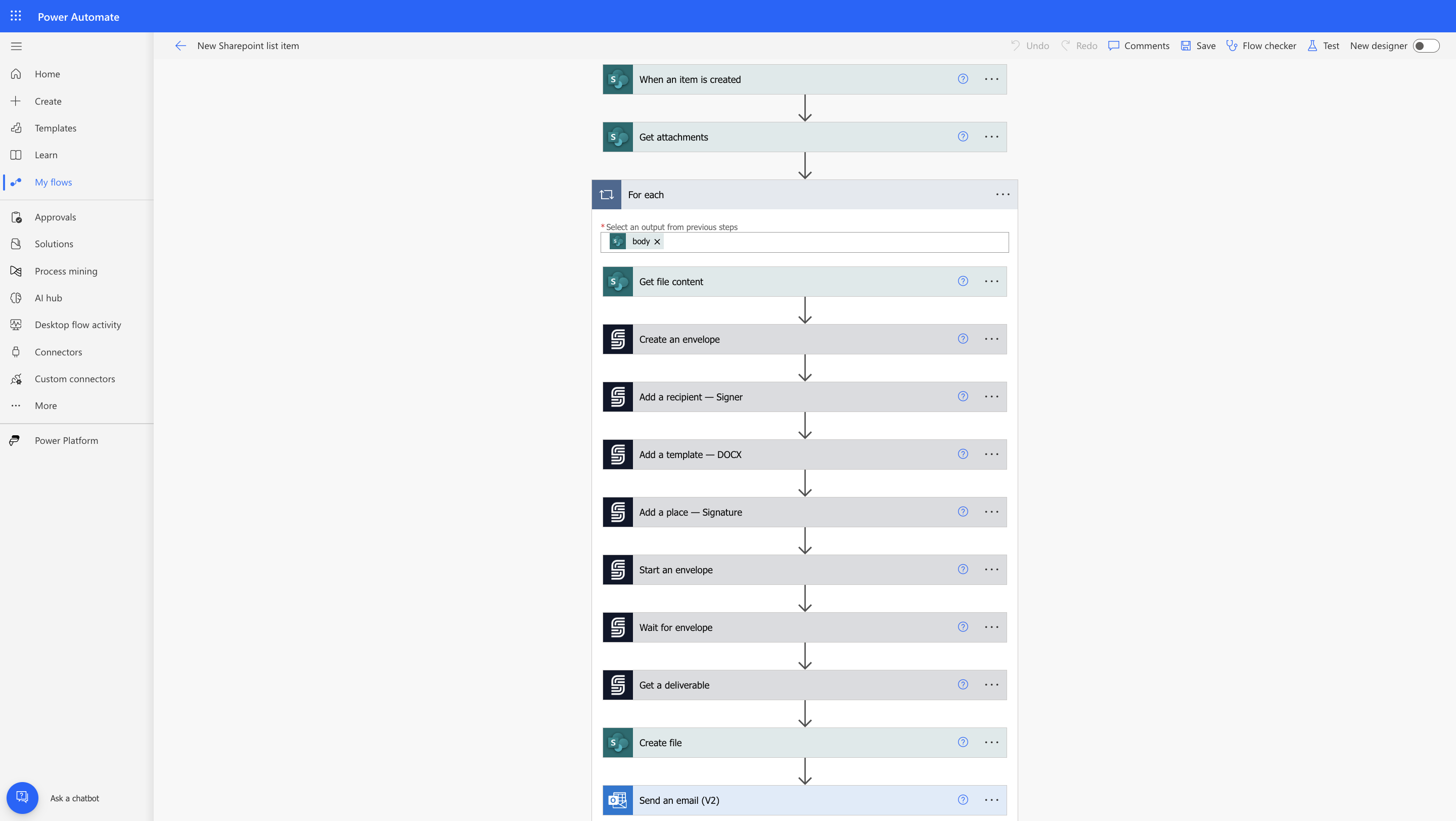
The automation process follows these steps:- Trigger: New SharePoint List item creation starts the flow.
- Data Retrieval: Get the onboarding pack with employee details and fetch the contract template from SharePoint List.
- Signature Process: Create an envelope via SignatureAPI, add recipient details, and attach the DOCX.
- Monitoring: Wait for the contract to be signed.
- Storage & Notification: Save the signed document in SharePoint and notify HR via email.
Step-by-Step Tutorial
Follow these steps to automate your employment contract process using SharePoint List, SignatureAPI, and Microsoft Power Automate:Step 1: Prepare the Contract Template
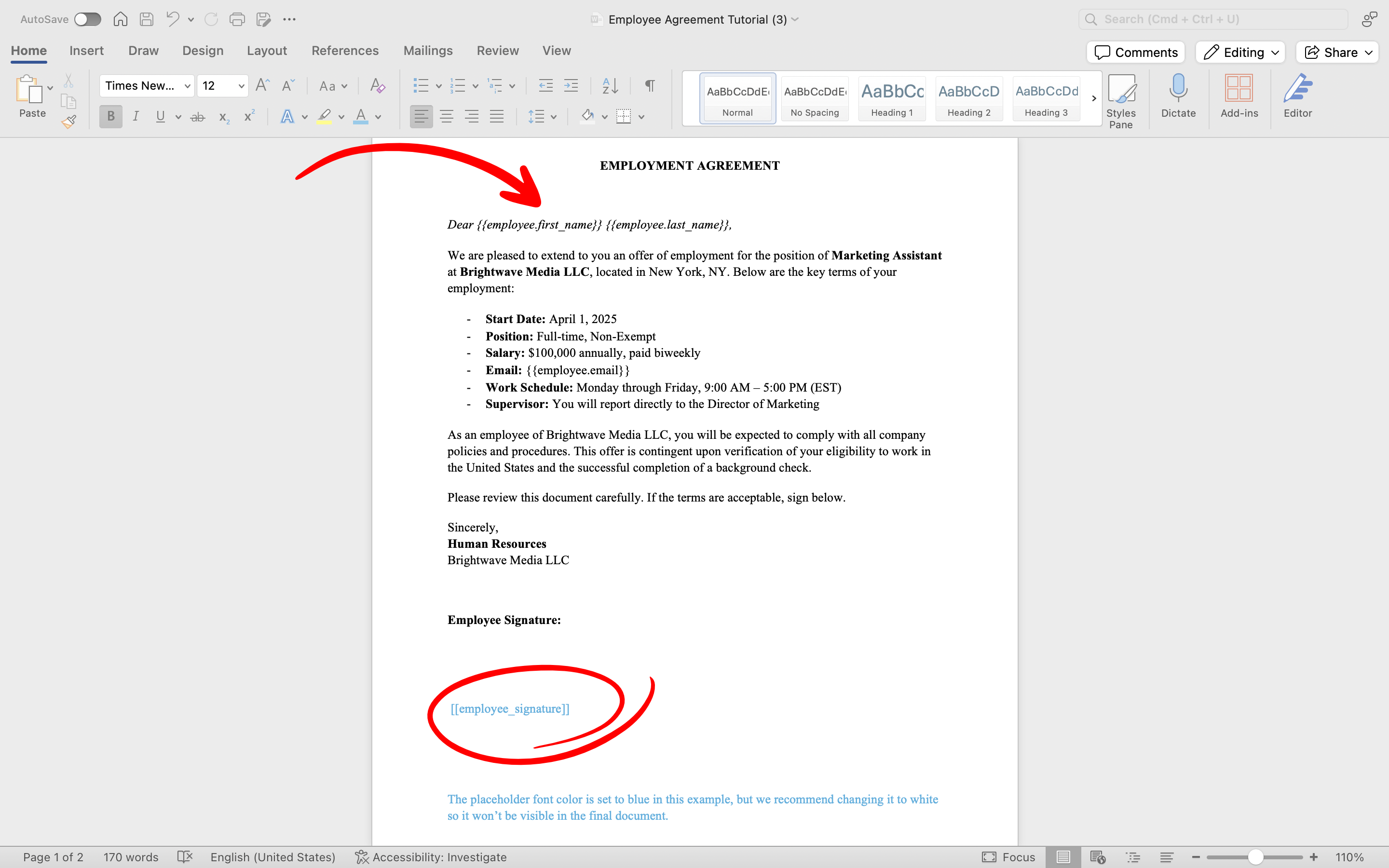
First, create or update your employment contract template by adding placeholders for dynamic fields (employee details) and defining where the employee will sign. To prepare your template:- Open your existing employment contract document (DOCX format) in Microsoft Word.
- Identify each place where employee details should be dynamically inserted (e.g., first name, last name, email).
- Insert placeholders using double curly brackets around descriptive keys. Examples:
- Employee first name:
{{employee.first_name}} - Employee last name:
{{employee.last_name}} - Employee email:
{{employee.email}}
- Define the location for the signature clearly by inserting a signature placeholder using double square brackets, e.g.:
[[employee_signature]]
Dear{{employee.first_name}}{{employee.last_name}}, Please review and sign your employment contract below:[[employee_signature]]
- Save your template.
- Ensure placeholder keys match exactly with what you’ll use later in Power Automate.
- Keep your template simple and clear to avoid confusion during dynamic insertion.
Step 2: Create the SharePoint List
First, create a SharePoint List to store the employee details.- Visit Microsoft Lists and sign in.
-
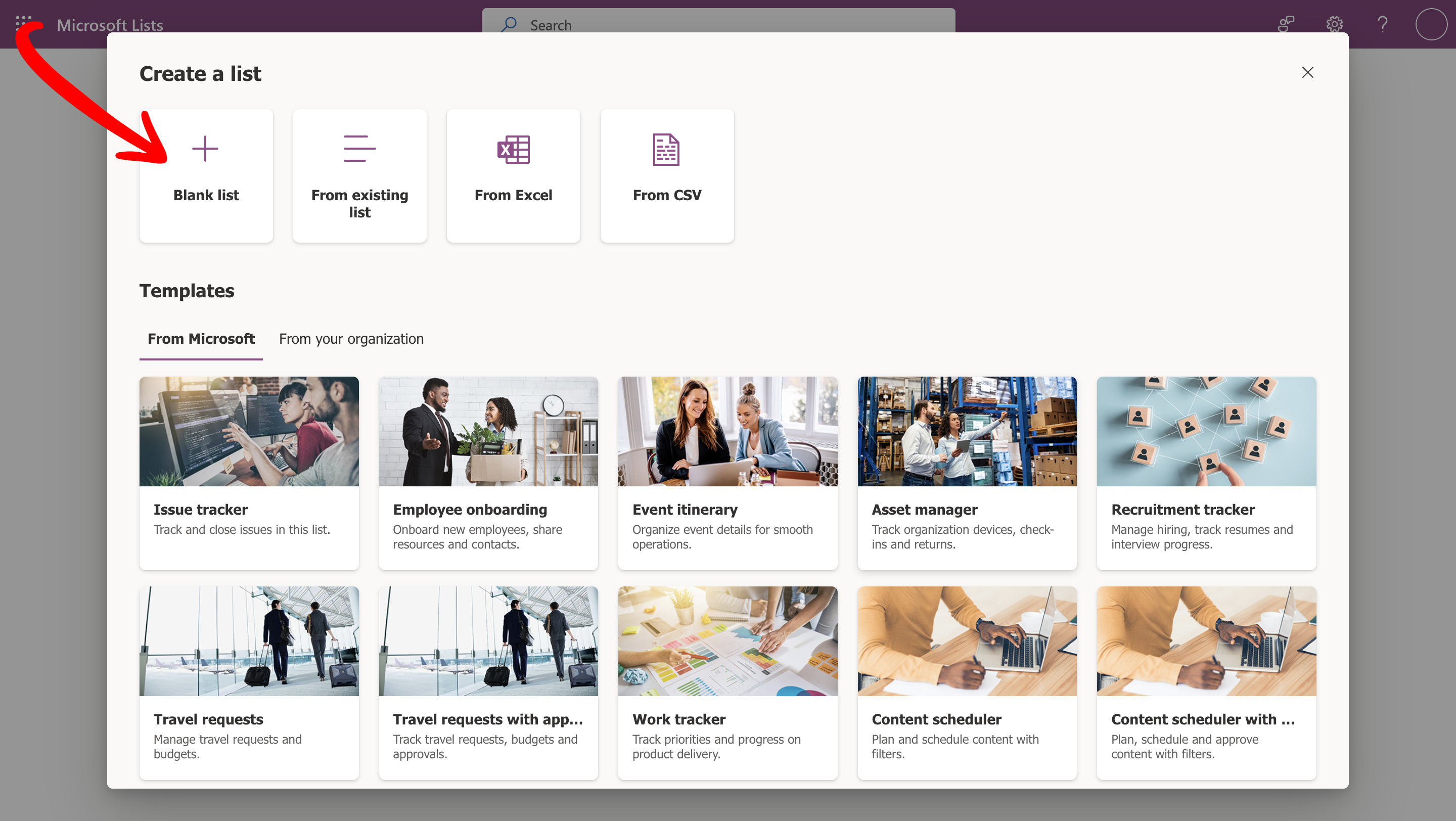
Click on “New List” and then click on “Blank List”.
-
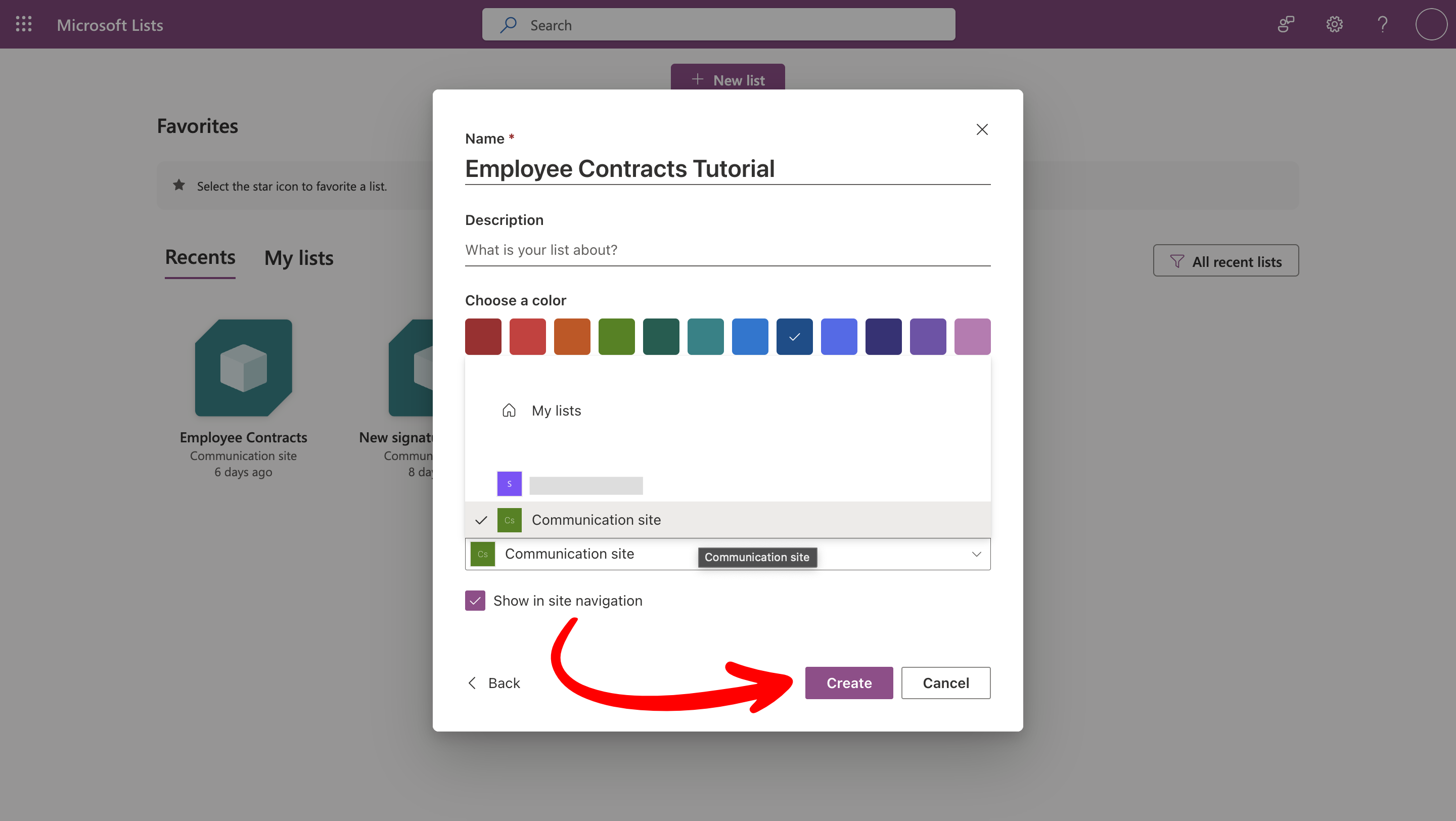
Rename the list, and save it to the SharePoint Site.
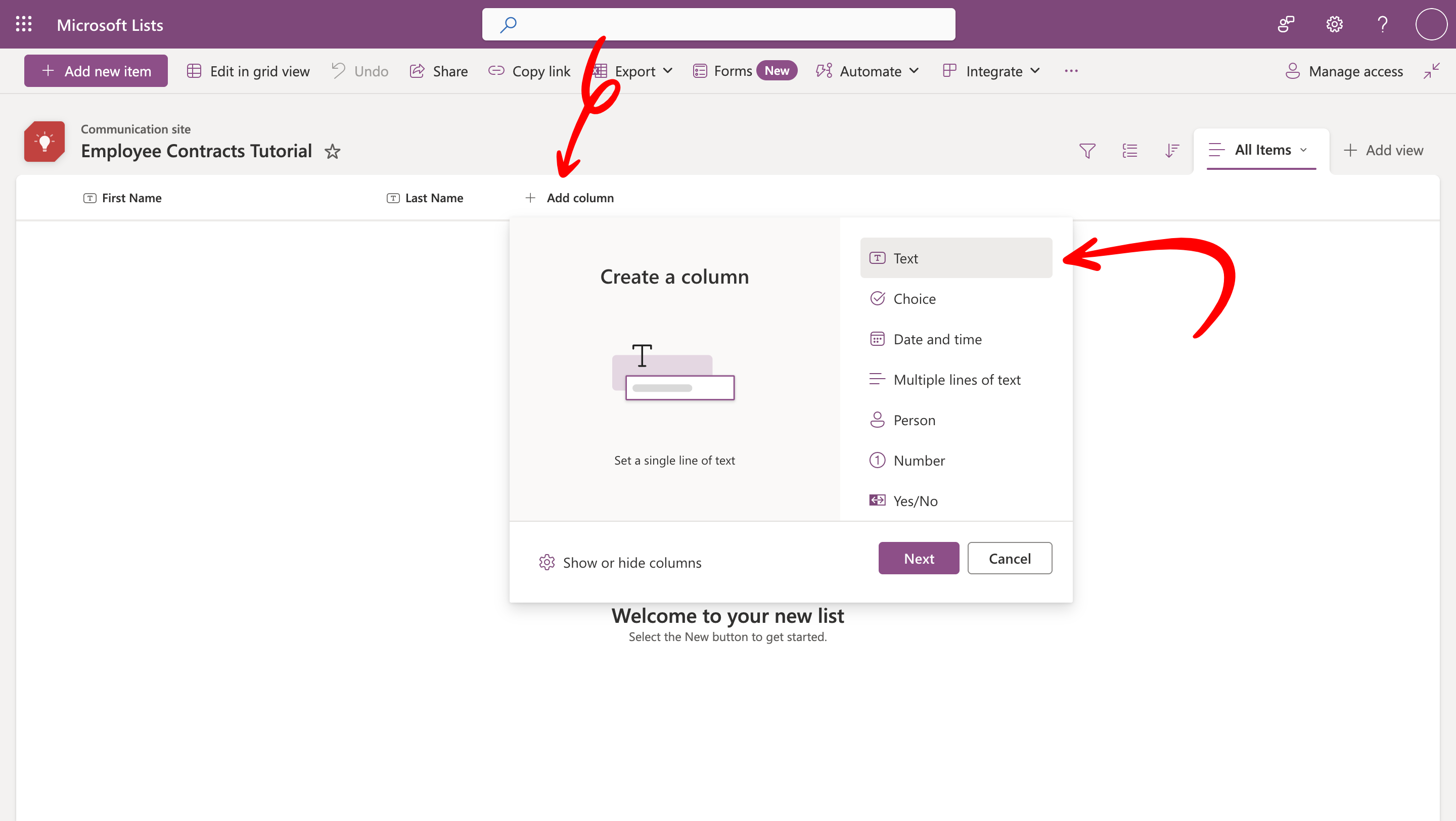
- Add the following columns:
- First Name (Text)
- Last Name (Text)
-
Email Address (Text)
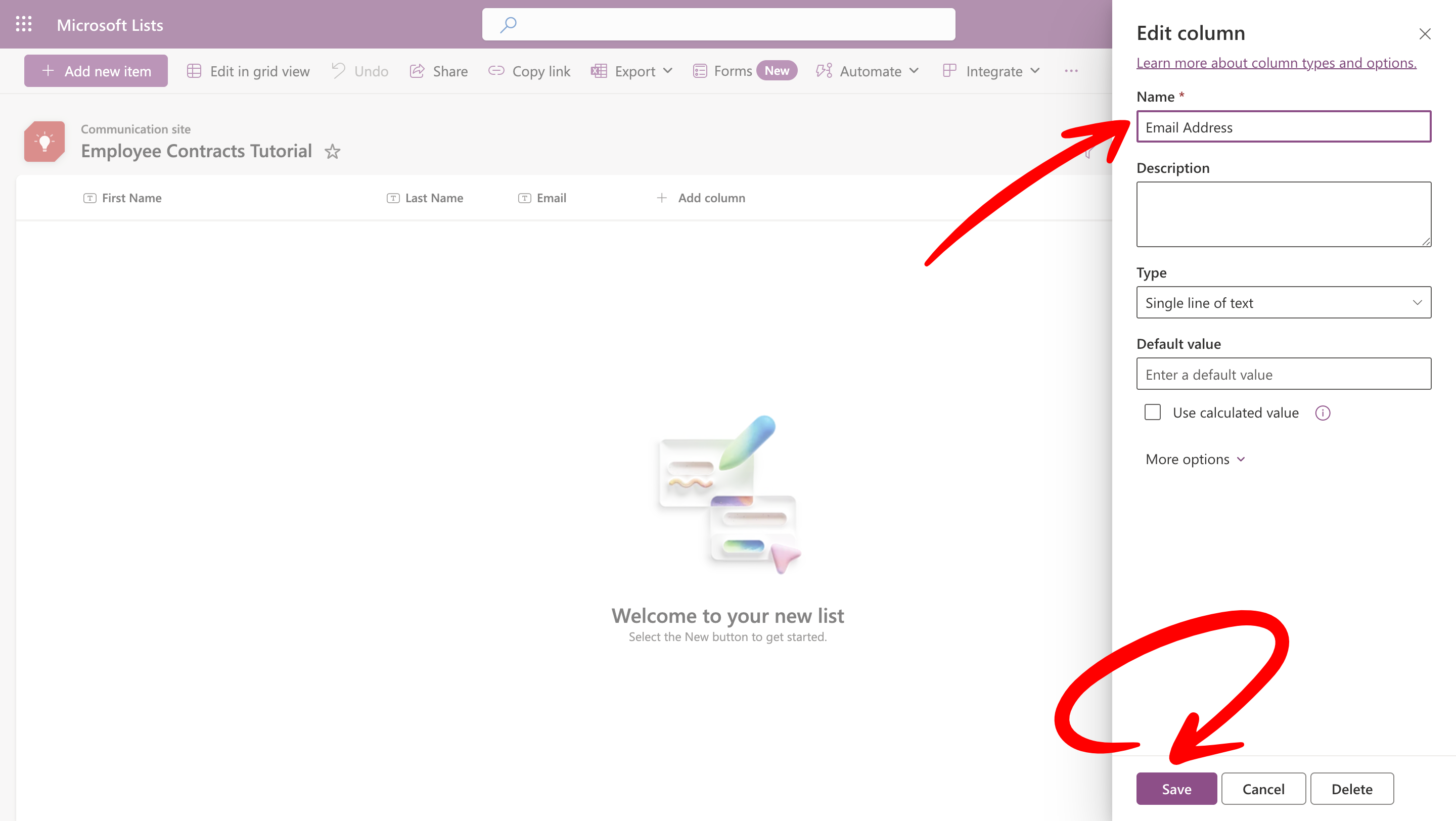
- Save and publish the list.
Step 3: Set Up the Power Automate Flow
Now, create the automated workflow in Power Automate, triggered whenever a new item with an attachment is added to the SharePoint List.3.1 Configure the Trigger
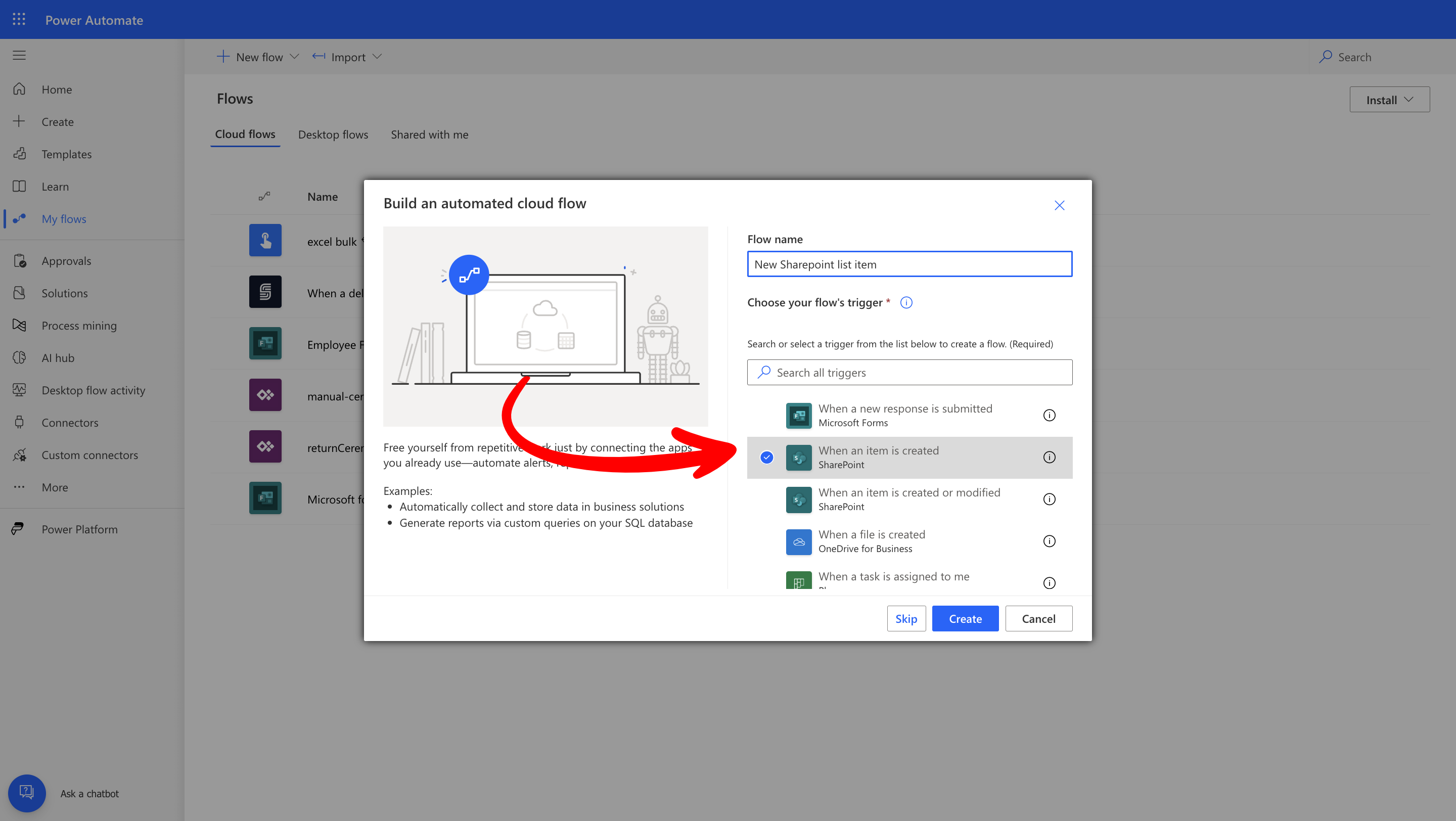
First, set the flow trigger to run whenever a new item is added to the SharePoint List.- Go to Power Automate and select Automated Cloud Flow.
-
Add Trigger. Name your flow, select “When an item is created” from the SharePoint connector, and then click Create.
-
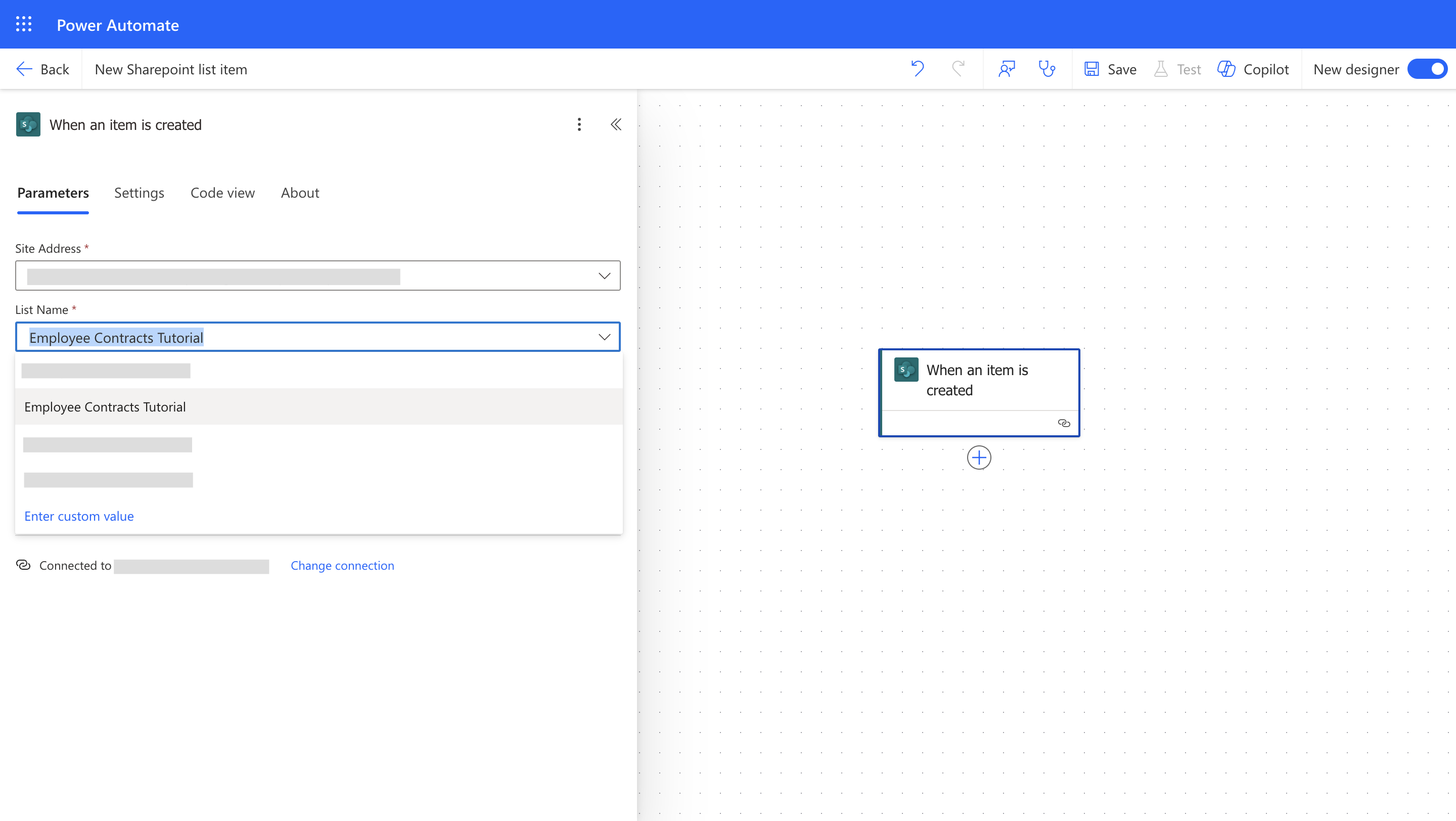
Select the Site Address and the list you created earlier.
3.2 Retrieve Employee Details from SharePoint List
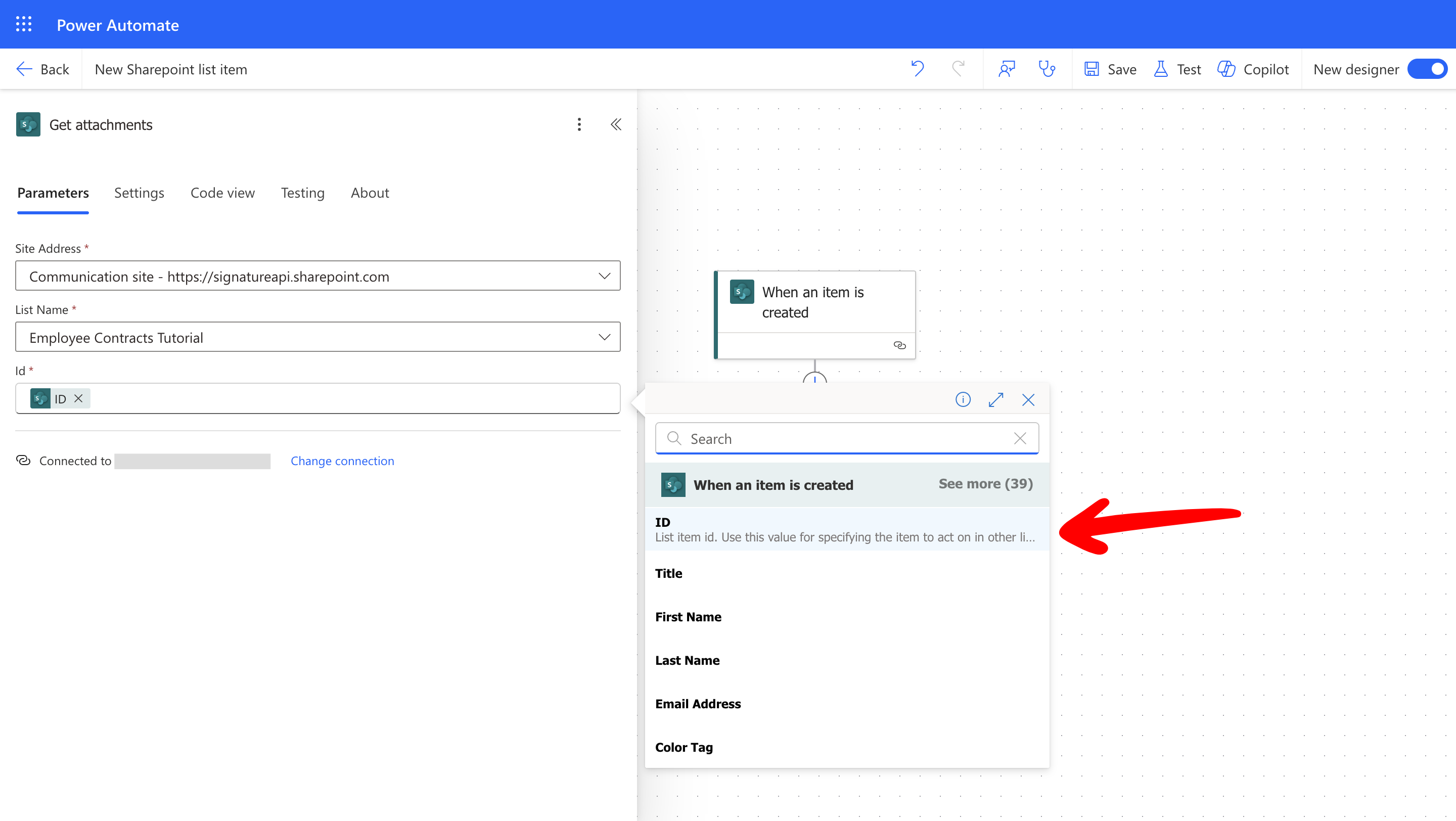
Next, retrieve the employee details from the SharePoint List.- Add the action “Get attachments” from the SharePoint connector.
-
Select the Site Address, List Name and Item ID from the previous step with dynamic content.
3.3 Get file content
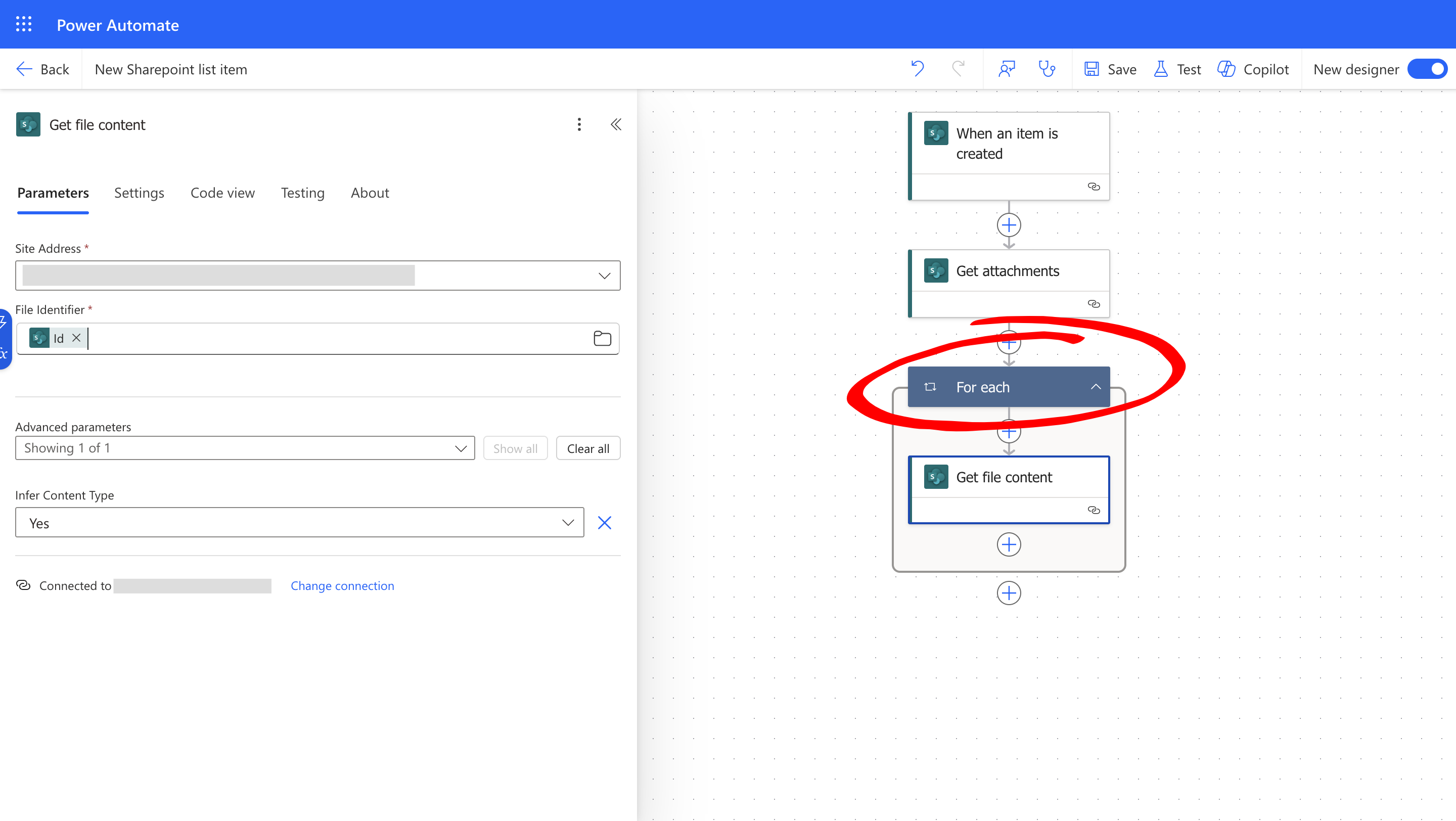
- Add the “Get file content” action from the SharePoint connector.
- Select the Site Address.
-
Add to the File Identifier the ID from the Get attachments step with dynamic content.
Step 4: Set Up the Signature Process
In this step, you’ll configure SignatureAPI to create, send, and track the signature process.4.1 Create a SignatureAPI Envelope
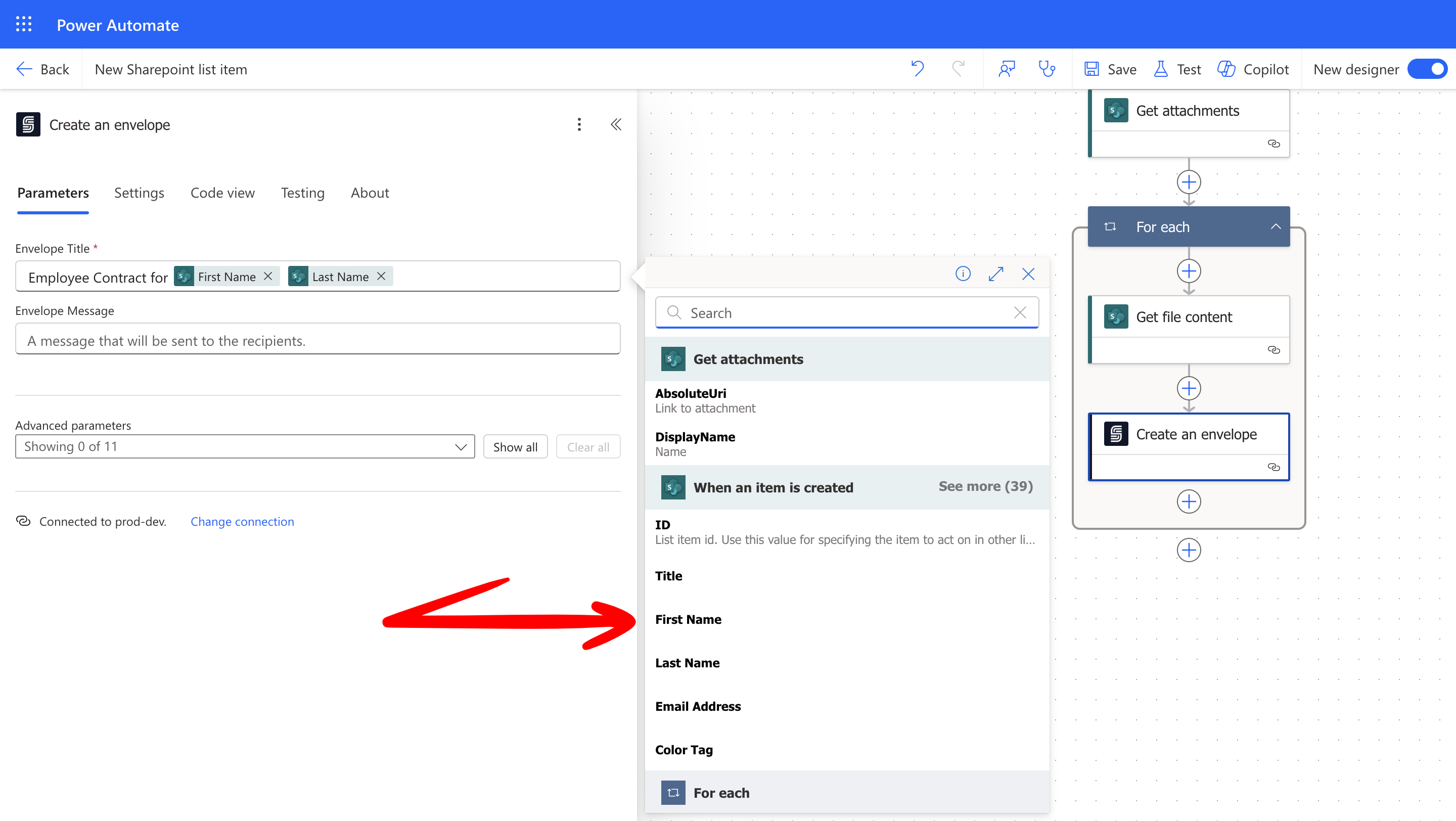
Begin by creating an envelope to hold your contract and signature process.- Add the “Create an Envelope” action (SignatureAPI connector).
- If prompted, authenticate your connection using your SignatureAPI key from the SignatureAPI Dashboard.
-
Set an Envelope Title (e.g., employee first name) and a message using dynamic content.
4.2 Add the Recipient
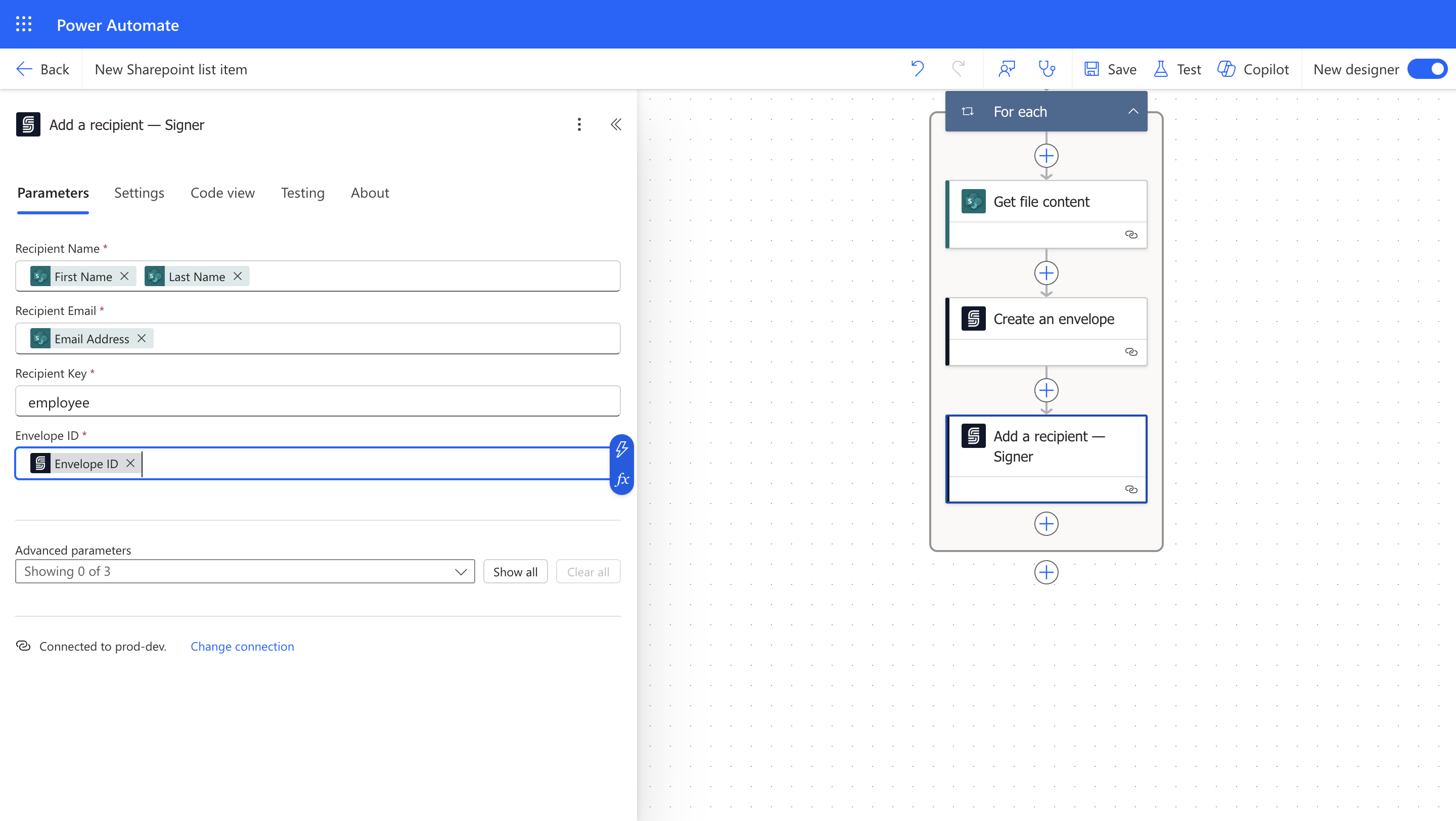
Next, specify who will receive and sign the contract.- Outside the “For each loop”, add “Add Recipient” action from the SignatureAPI connector.
- Map Recipient Name and Recipient Email using form details (Dynamic Content).
-
Set the Recipient Key (e.g., “employee”), matching your DOCX placeholders.
4.3 Attach the DOCX Contract Template
Now, attach your contract template to the envelope and populate it with employee details.- Add “Add a Template – DOCX” action.
- Select File Content from the Get file content action.
- Select the Envelope ID from the Create an Envelope action.
- Set the Document Title (e.g., “Employment Contract”).
-
Ensure your DOCX template uses placeholders (
{{employee.first_name}}, etc.) and map each field to the corresponding dynamic content from your form.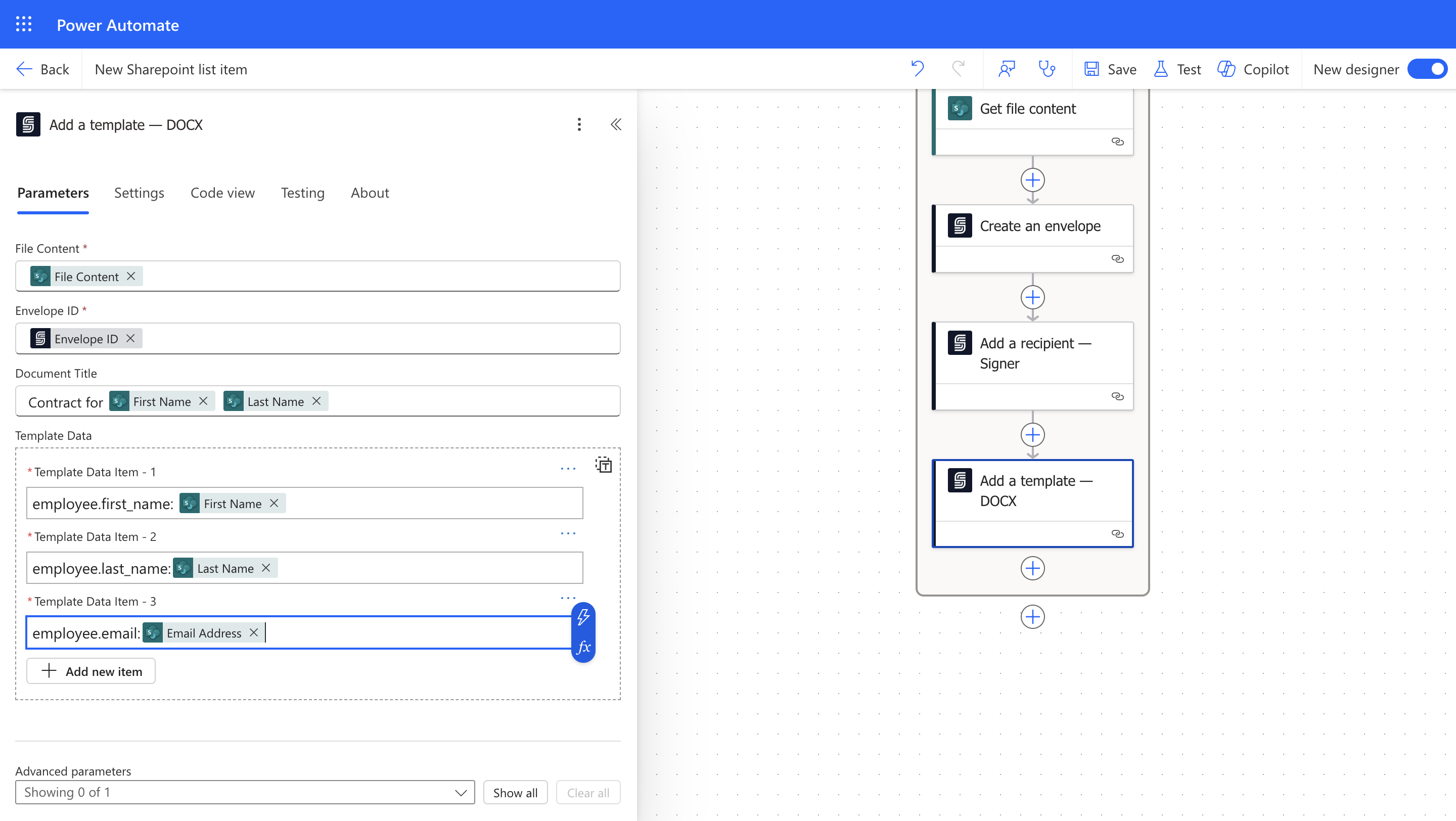
4.4 Define Signature Placement
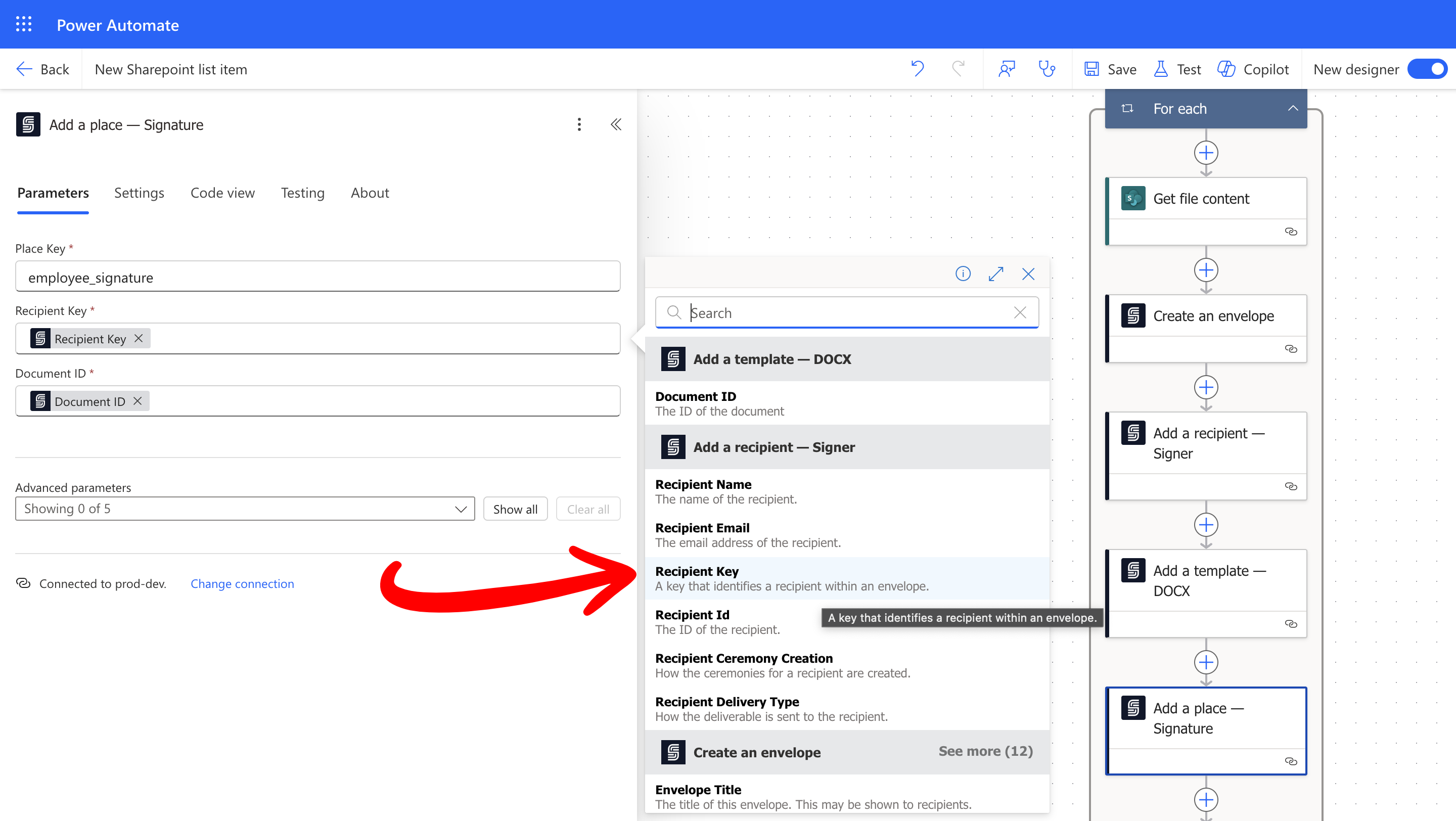
Specify where the employee should sign on the document.- Add “Add a Place – Signature” action.
- Set the Document ID using dynamic content.
-
Use the placeholder (e.g.,
[[employee_signature]]) from your DOCX template. -
Set the Recipient Key using dynamic content.
4.5 Start the Signing Process
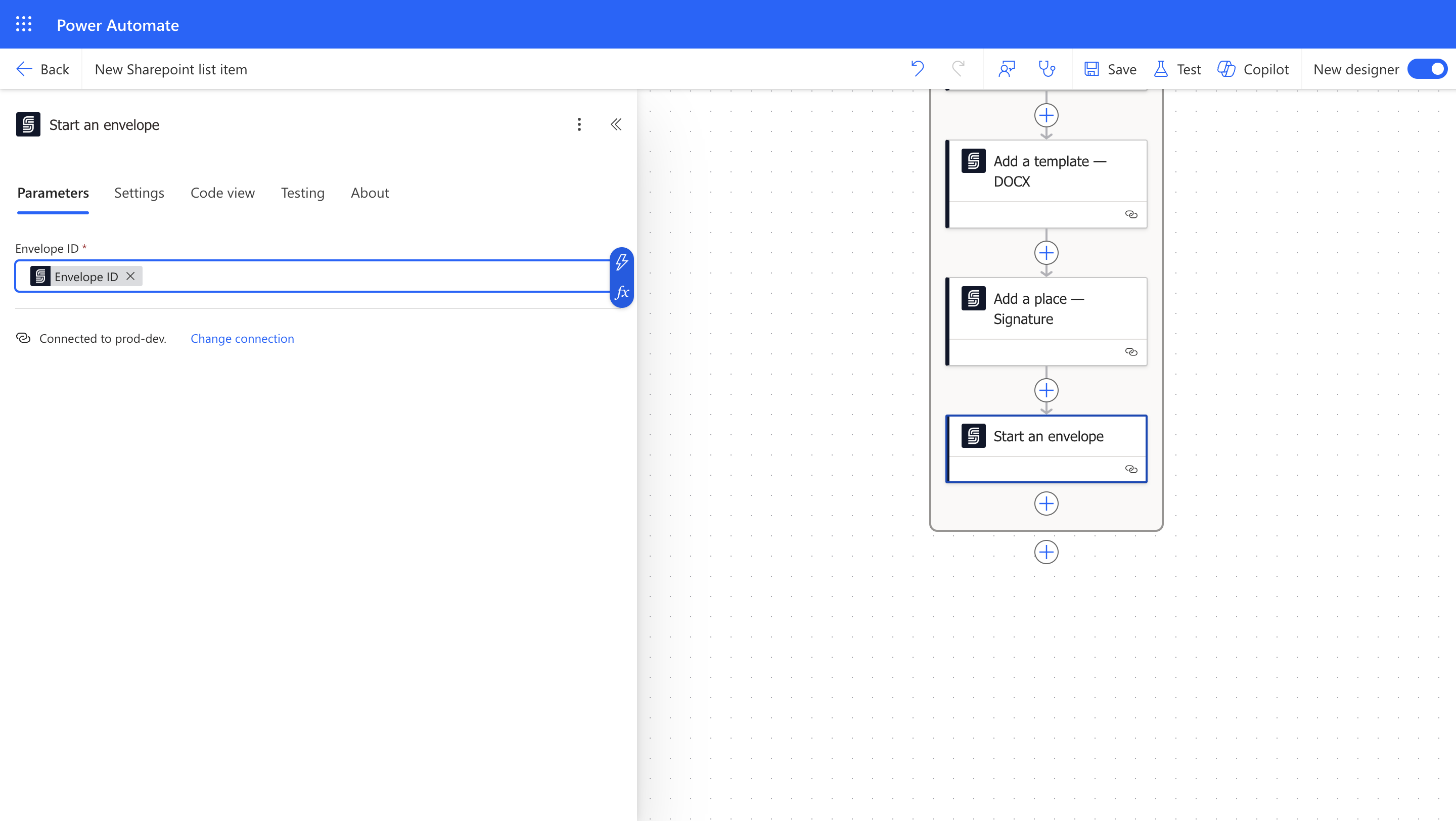
Trigger the sending of your envelope to the employee for signing.- Add “Start Envelope” action from the SignatureAPI connector.
-
Select the appropriate Envelope ID using dynamic content.
Step 5: Monitor and Finalize the Contract
Next, configure your flow to wait for the signing to complete, retrieve the signed contract, and notify HR.5.1 Wait for Signature Completion
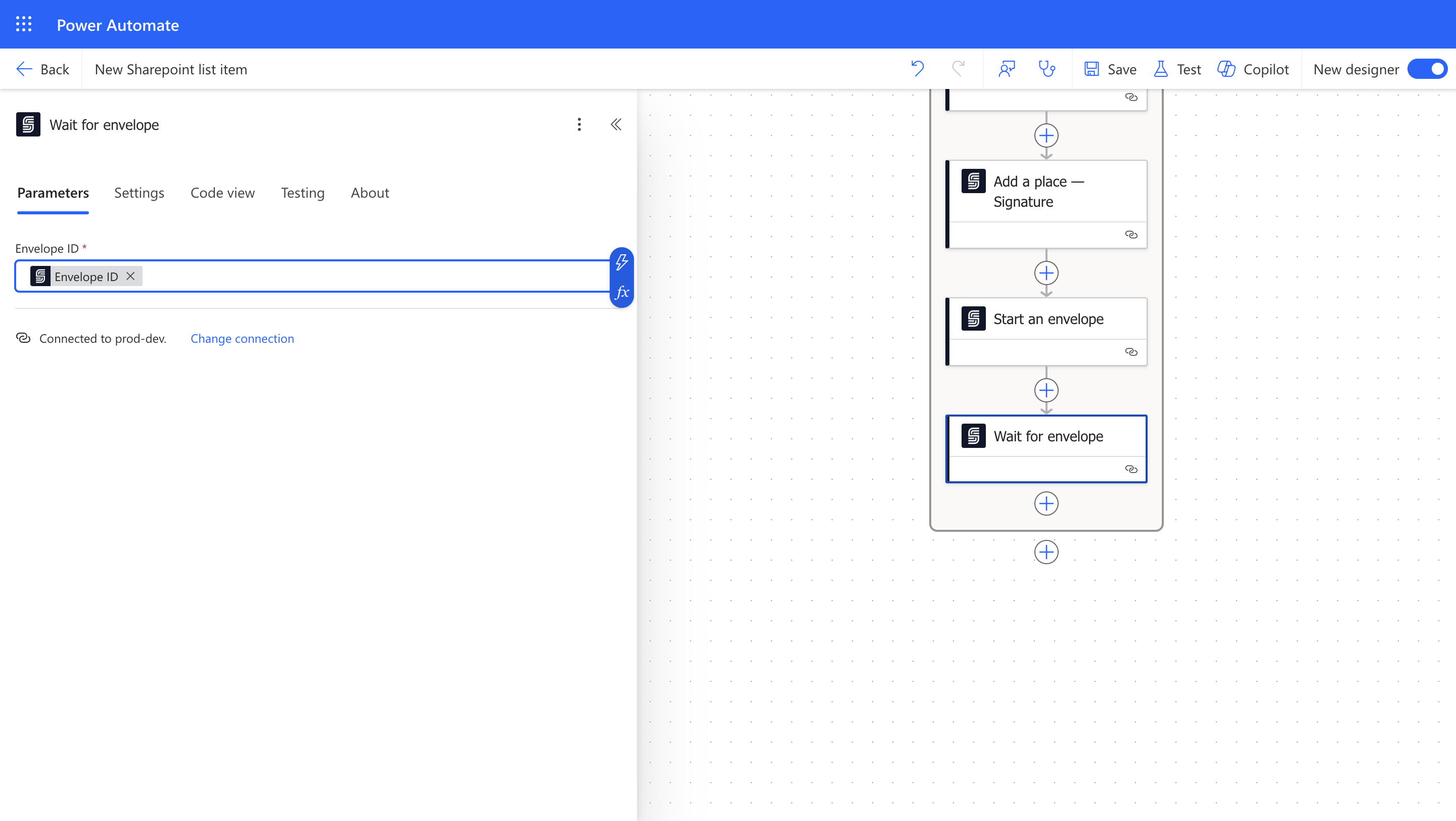
Pause the flow until the employee signs the contract.- Add “Wait for Envelope Completion” action from the SignatureAPI connector.
-
Select the correct Envelope ID.
5.2 Retrieve the Signed Contract
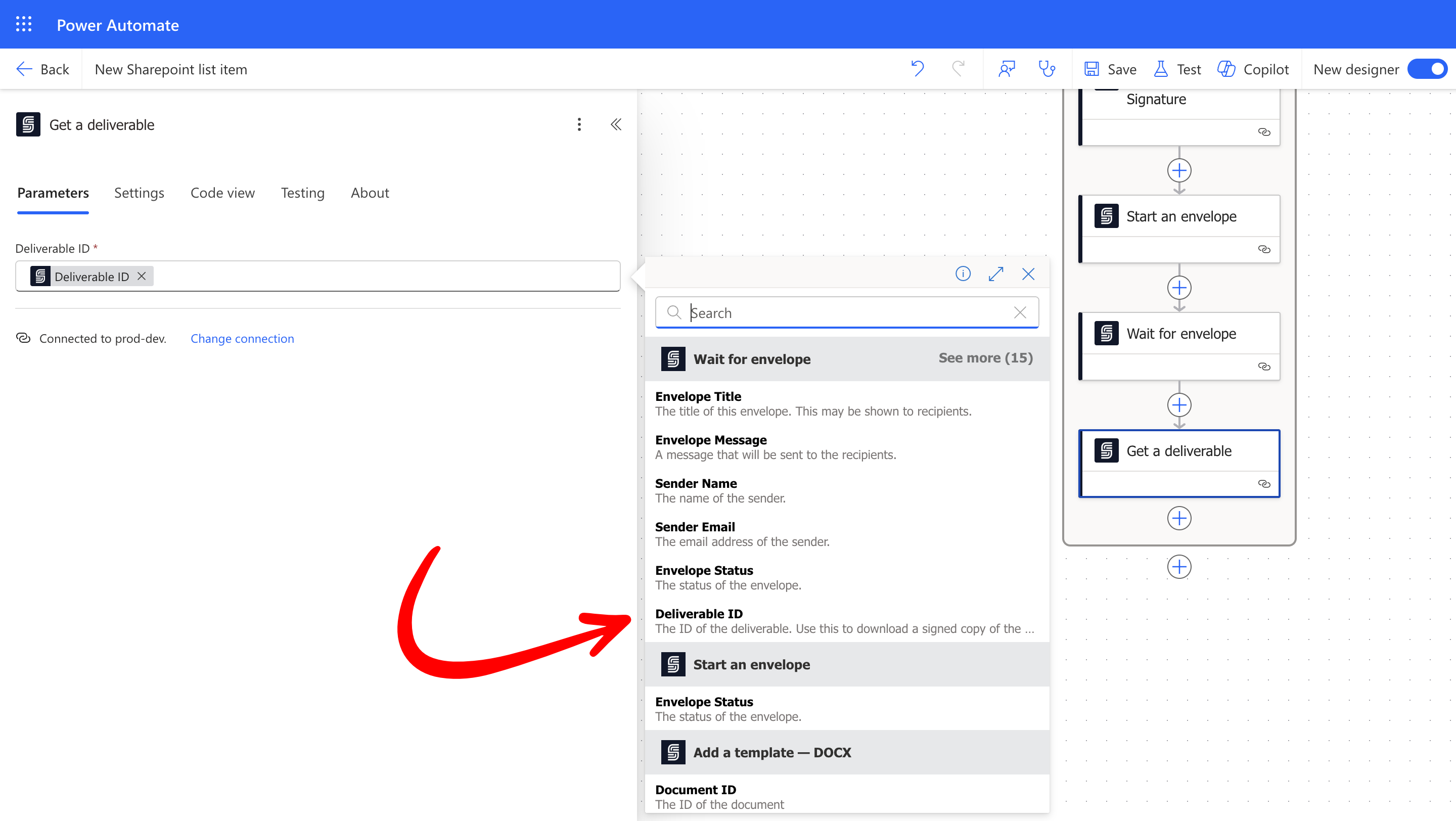
Once signed, automatically retrieve the completed document.- Add “Get a Deliverable” action from the SignatureAPI connector.
-
Select the correct Deliverable ID using dynamic content.
5.3 Save the Signed Contract to SharePoint
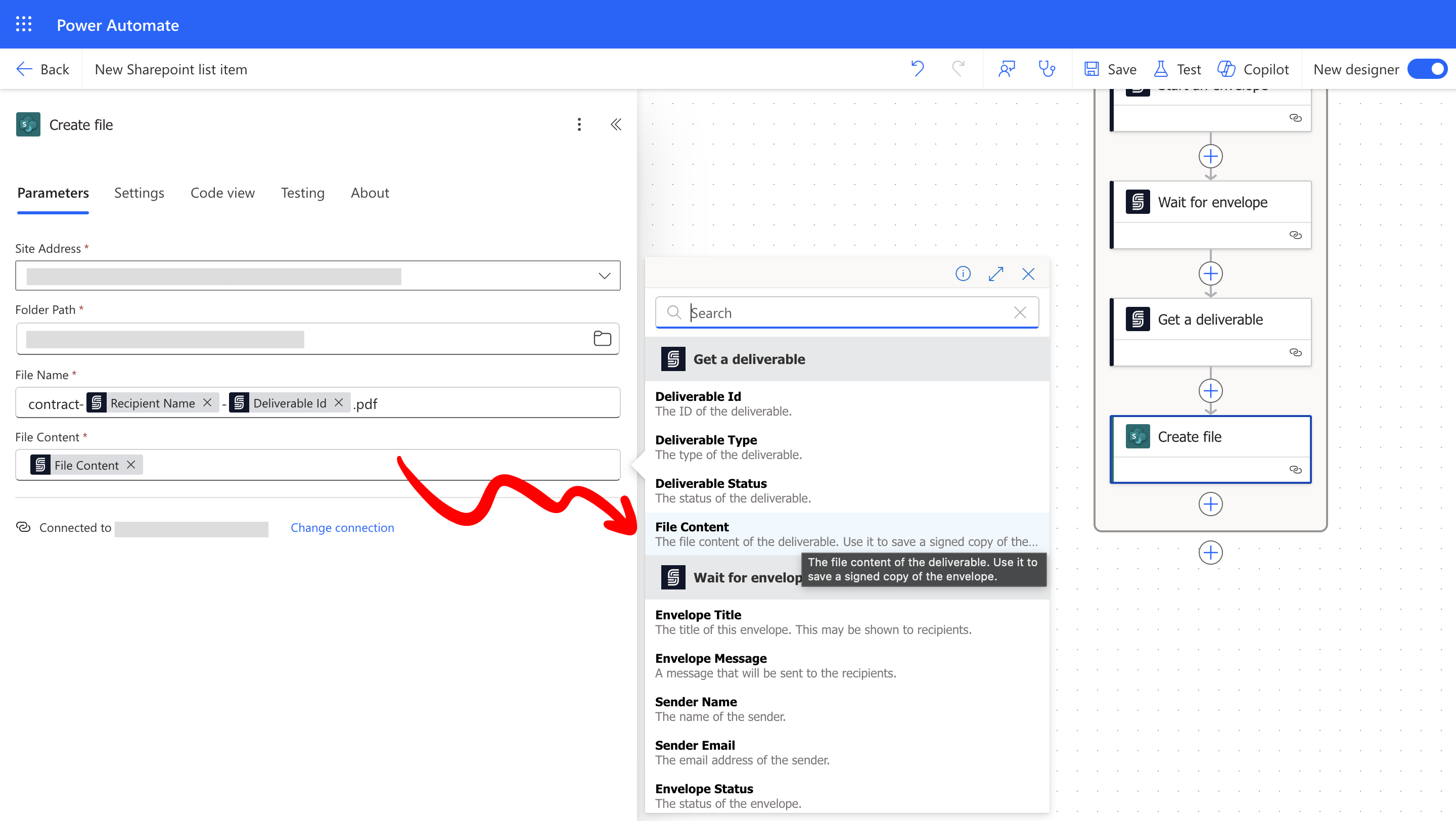
Save the signed document for record-keeping.- Add “Create File” action (SharePoint connector).
- Select the Site Address and Folder Path.
-
Set the File Name (ending in
.pdf). -
Map File Content from the deliverable.
5.4 Notify HR via Email
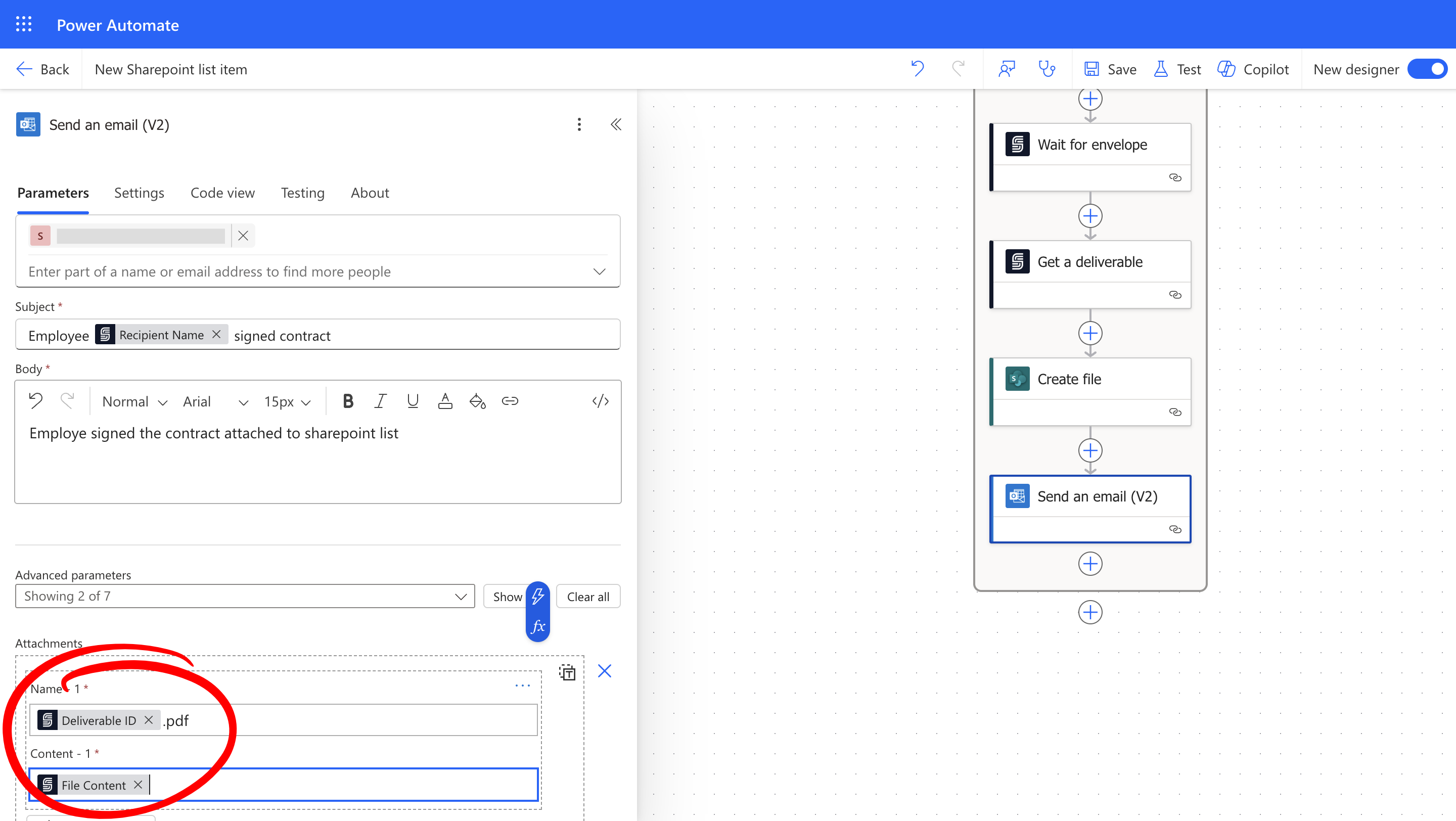
Automatically inform HR that the contract has been signed and saved.- Add “Send an Email” action (Outlook connector).
- Configure the email recipient (HR), subject, and message.
-
Attach the signed contract file from dynamic content.
Step 6: Test Your Automation
Finally, test the entire process end-to-end.- Save your Power Automate flow.
- Create a new item in the SharePoint List. Ensure to attach the DOCX template to the item.
- Verify:
- Contract is sent to the employee.
- Signature process initiates correctly.
- Signed contract saves successfully in SharePoint.
- HR receives an email notification with the signed contract attached.
- Contract sent successfully.
- Employee receives and signs contract.
- Signed document stored correctly in SharePoint.
- HR receives email notification with attachment.
Troubleshooting & FAQ
Common Issues:
- API Key Errors: Ensure your SignatureAPI key is correct and authenticated.
- Dynamic Content Mapping: Double-check placeholder naming in your DOCX file matches exactly with dynamic content mappings.
- File Access Issues: Verify permissions and file paths in SharePoint.
Frequently Asked Questions:
- What if the contract isn’t sent? Check your SignatureAPI dashboard for errors, and verify recipient details.
- Can I adapt this for other document types? Yes, this method is adaptable for any automated document-signing workflow.
-
Can I use columns from the SharePoint List to pre-fill additional template fields?
Yes. Add new columns to your SharePoint List, then reference them as dynamic content when mapping placeholders in the “Add a Template - DOCX” action. Just make sure each column name maps to a corresponding
{{placeholder}}in your DOCX template.
Best Practices & Security
- Always securely manage API keys.
- Regularly check flow runs in Power Automate for any errors.
- Document any flow or template changes for future reference.