> ## Documentation Index
> Fetch the complete documentation index at: https://signatureapi-daf4ee54.mintlify.site/llms.txt
> Use this file to discover all available pages before exploring further.
# Text Input Place
> Collect information from recipients with text input fields in Power Automate flows
**Text input places** allow you to request specific information from recipients during the signing ceremony. These are similar to *fields* in other electronic signature platforms.
Input fields are only available in envelopes with sequential signing.
You can position Text Input Places inside a document using either [fixed positions](/docs/integrations/power-automate/places/positioning/#fixed-positions) or [placeholders](/docs/integrations/power-automate/places/positioning/#placeholders).
Use the [Add a place: Text Input](/docs/integrations/power-automate/actions/add-place-text-input) action to add a text input place to a document within an envelope.
## Hints and Prompts
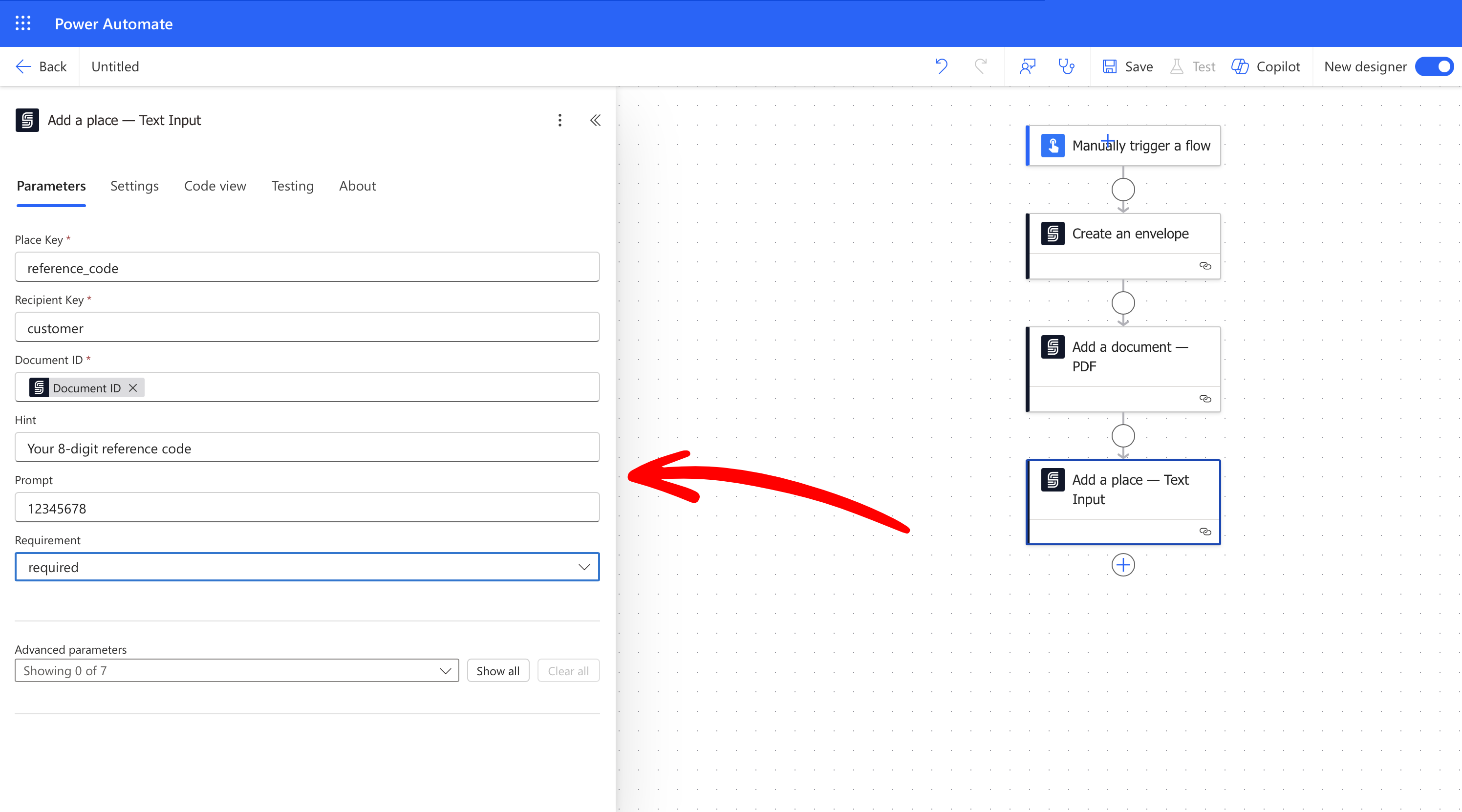
You can use `hint` and `prompt` properties to guide recipients while filling out text fields:
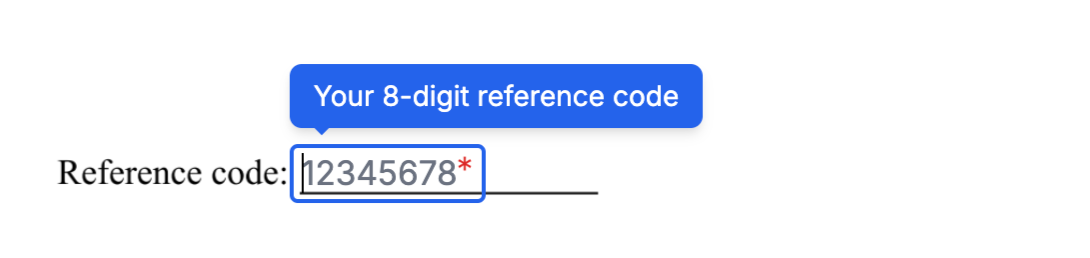
* **Hint**: A message shown as a tooltip when the user hovers over or focus on the text field. Set it using the `hint` property.
* **Prompt**: A placeholder-style message displayed inside the text field. Set it using the `prompt` property.
For example, a text input place configured with the following properties:
 During the signing ceremony, the field will appear like this:
 ## Format Validation
The `format` property allows you to control the type of input users can enter into a field. This property can accept either predefined formats or custom regular expressions.
### Predefined Formats
You can use one of the following predefined values:
| Format | Description |
| ------------ | ------------- |
| `email` | Email address |
| `zipcode-us` | US ZIP code |
More predefined formats are coming soon! Have a specific format in mind? [Let us know](https://signatureapi.com/support).
### Custom Regular Expressions
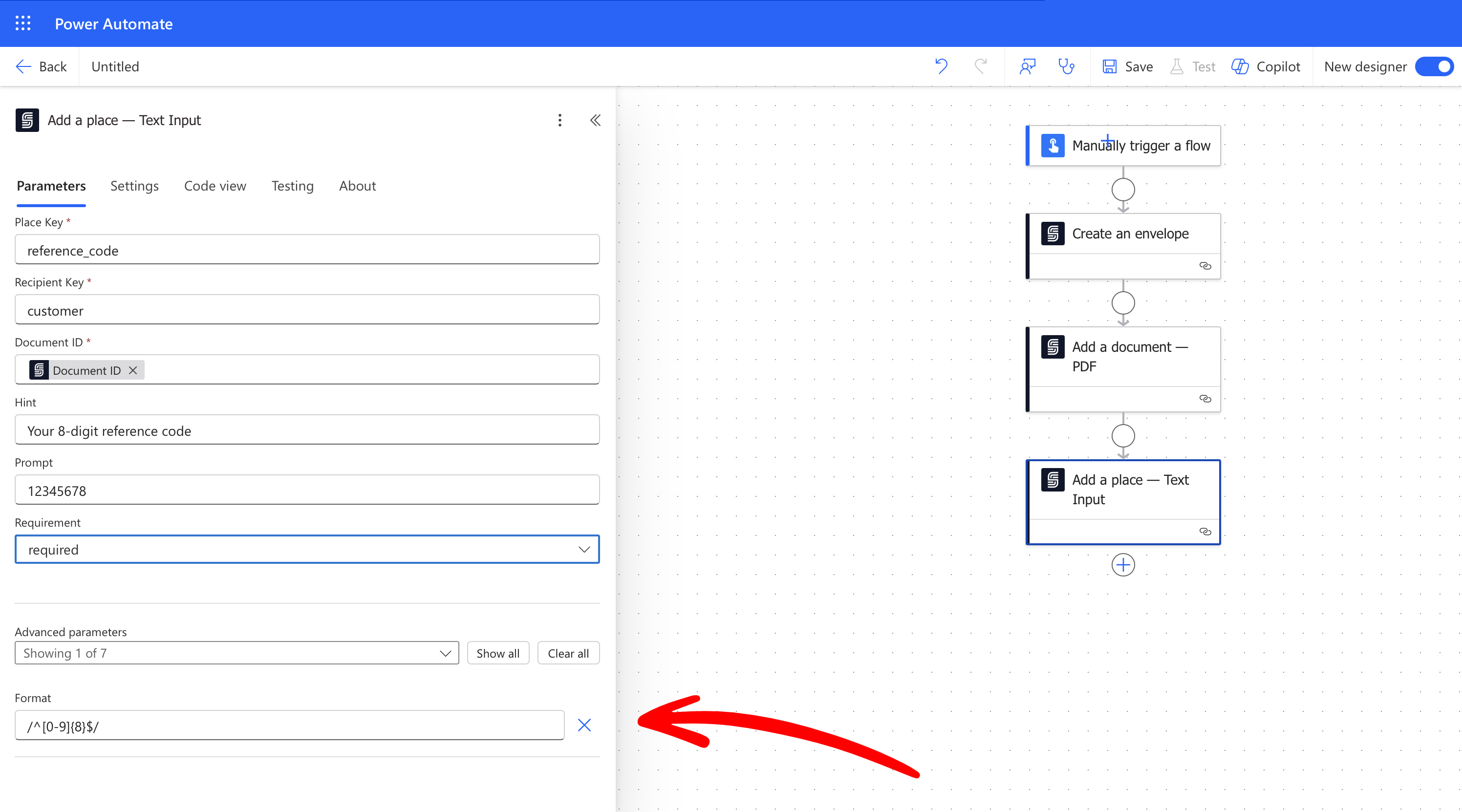
If the predefined formats don’t meet your needs, you can define a custom format using a regular expression. Enclose the regular expression in forward slashes. For example, to require exactly 8 numeric digits:
## Format Validation
The `format` property allows you to control the type of input users can enter into a field. This property can accept either predefined formats or custom regular expressions.
### Predefined Formats
You can use one of the following predefined values:
| Format | Description |
| ------------ | ------------- |
| `email` | Email address |
| `zipcode-us` | US ZIP code |
More predefined formats are coming soon! Have a specific format in mind? [Let us know](https://signatureapi.com/support).
### Custom Regular Expressions
If the predefined formats don’t meet your needs, you can define a custom format using a regular expression. Enclose the regular expression in forward slashes. For example, to require exactly 8 numeric digits:
 ### Adding a Custom Message
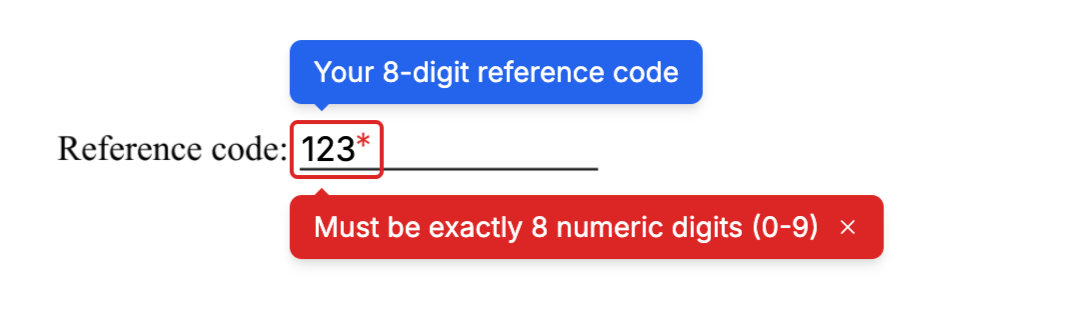
To guide users during input, you can include a `format_message` property. This message is displayed when the input doesn’t match the required format. For example:
### Adding a Custom Message
To guide users during input, you can include a `format_message` property. This message is displayed when the input doesn’t match the required format. For example:
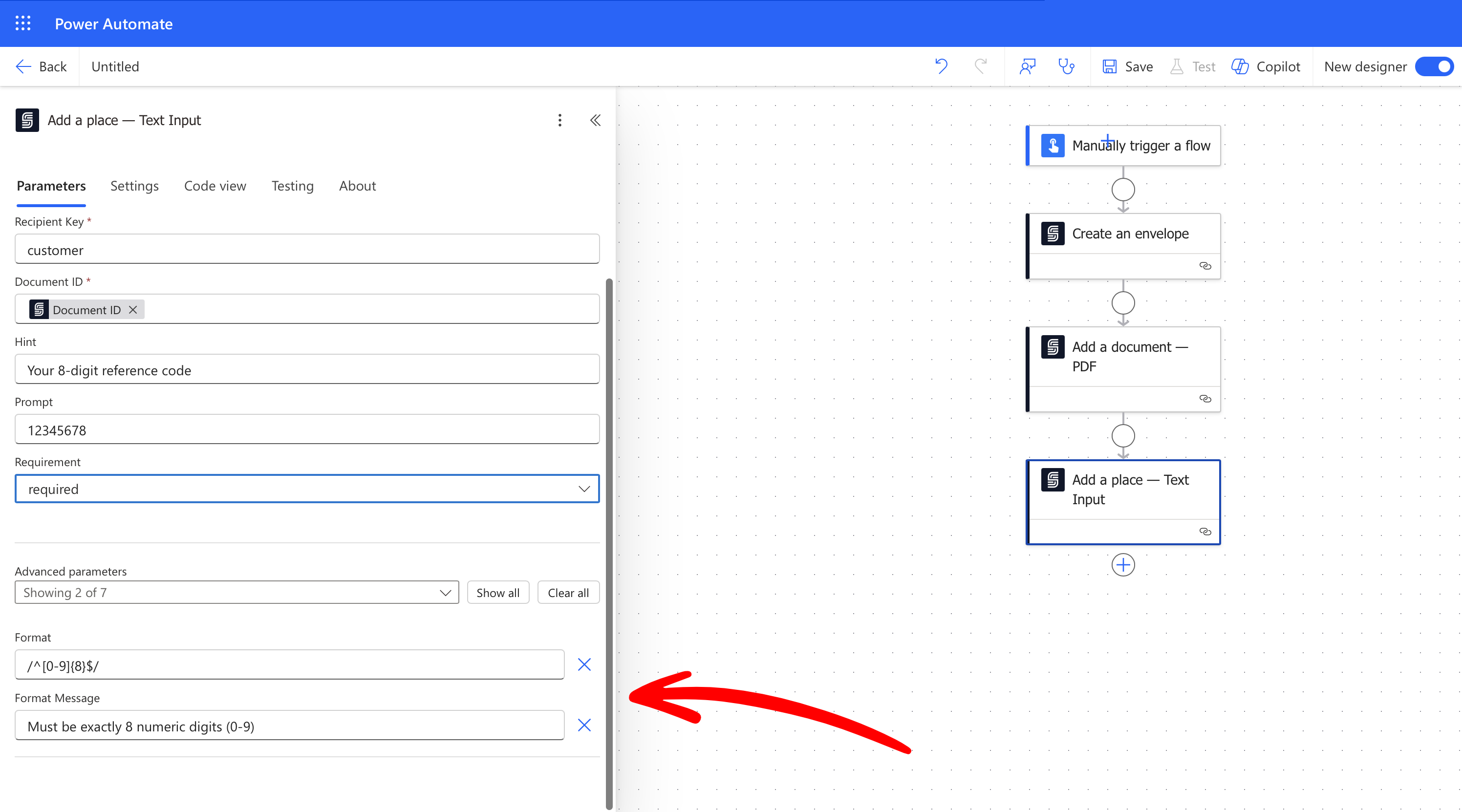 During the signing ceremony, the `format_message` is displayed to help users understand the input requirements:
 ## Example
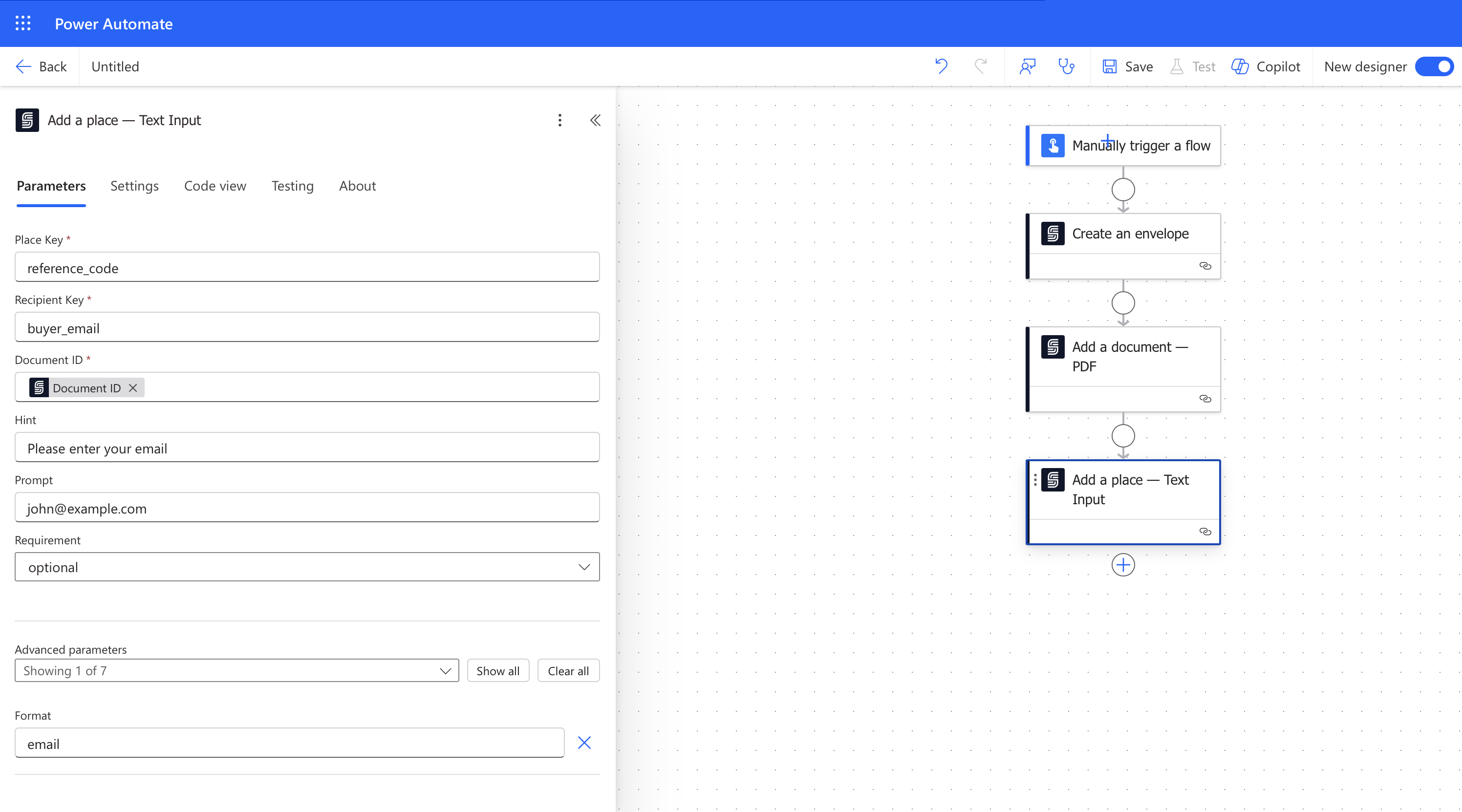
For example, a text input field can be used to place a text box at the placeholder **\[\[buyer\_email]]**. This allows the recipient with the key "buyer" to provide their email address. This field is set to optional.
## Example
For example, a text input field can be used to place a text box at the placeholder **\[\[buyer\_email]]**. This allows the recipient with the key "buyer" to provide their email address. This field is set to optional.
 ## Parameters
Specifies the type of place.
For a text place, the value must be `text_input`.
A user-provided key that identifies a place within a document.
It must be up to 32 characters long, using only lowercase letters, numbers, or underscores, and it must begin with a letter.
A user-provided key that identifies a recipient within an envelope.
It must match to one of the keys in the envelope's recipient list.
A user-defined identifier used to store the value entered by the recipient. This value will be included in the `captures` object of the Envelope.
A tooltip message displayed over the input text field during the signing ceremony.
A placeholder message shown inside the input text field during the signing ceremony.
Specifies whether the recipient must fill this field to complete the signing ceremony.
Possible values are `required` or `optional`. The default is `required`.
Defines the validation format for the user's input.
Accepted values are `email` or `zipcode-us`. Alternatively, a regular expression can be used, enclosed in forward slashes.
Learn more in [Format Validation](#format-validation).
The message displayed when the user's input does not match the required format.
Learn more in [Adding a Custom Message](#adding-a-custom-message).
## Parameters
Specifies the type of place.
For a text place, the value must be `text_input`.
A user-provided key that identifies a place within a document.
It must be up to 32 characters long, using only lowercase letters, numbers, or underscores, and it must begin with a letter.
A user-provided key that identifies a recipient within an envelope.
It must match to one of the keys in the envelope's recipient list.
A user-defined identifier used to store the value entered by the recipient. This value will be included in the `captures` object of the Envelope.
A tooltip message displayed over the input text field during the signing ceremony.
A placeholder message shown inside the input text field during the signing ceremony.
Specifies whether the recipient must fill this field to complete the signing ceremony.
Possible values are `required` or `optional`. The default is `required`.
Defines the validation format for the user's input.
Accepted values are `email` or `zipcode-us`. Alternatively, a regular expression can be used, enclosed in forward slashes.
Learn more in [Format Validation](#format-validation).
The message displayed when the user's input does not match the required format.
Learn more in [Adding a Custom Message](#adding-a-custom-message).