> ## Documentation Index
> Fetch the complete documentation index at: https://signatureapi-daf4ee54.mintlify.site/llms.txt
> Use this file to discover all available pages before exploring further.
# Save Signed Documents
> Automatically save signed document deliverables to SharePoint or OneDrive
## Overview
In SignatureAPI, signed documents are called [Deliverables](/docs/integrations/power-automate/deliverables/deliverable.mdx). A deliverable is generated automatically once all recipients have signed an envelope. You can see [an example here](/docs/integrations/power-automate/deliverables/audit-log).
Deliverables are available for download in PDF format. In many cases, you’ll want to save them to a specific folder (such as SharePoint or OneDrive) for compliance, auditing, or internal record-keeping.
This guide shows how to use Microsoft Power Automate and SignatureAPI to:
* Trigger a flow when a deliverable is generated.
* Save the signed PDF to SharePoint.
* Send a notification email with the file attached.
This example uses SharePoint Online, but the same steps work with OneDrive, Dropbox, Google Drive, or other file storage systems.
If you want to only trigger this flow for some envelopes (not all in your account), learn [how to filter triggers](/docs/integrations/power-automate/guides/how-to/filter-triggers)
## Creating the Envelope
This guide assumes you already have a flow that sends documents for signature using the **"Create an envelope"** action from the SignatureAPI connector.
No changes are needed in the envelope setup. The steps below focus on what happens after the document is signed.
## Trigger the Flow When a Deliverable Is Generated
First, create a flow that starts when a deliverable is ready.
1. Go to **Power Automate** and choose **Automated Cloud Flow**.
2. Name your flow and select the trigger **"When a deliverable is generated"** from the SignatureAPI connector.
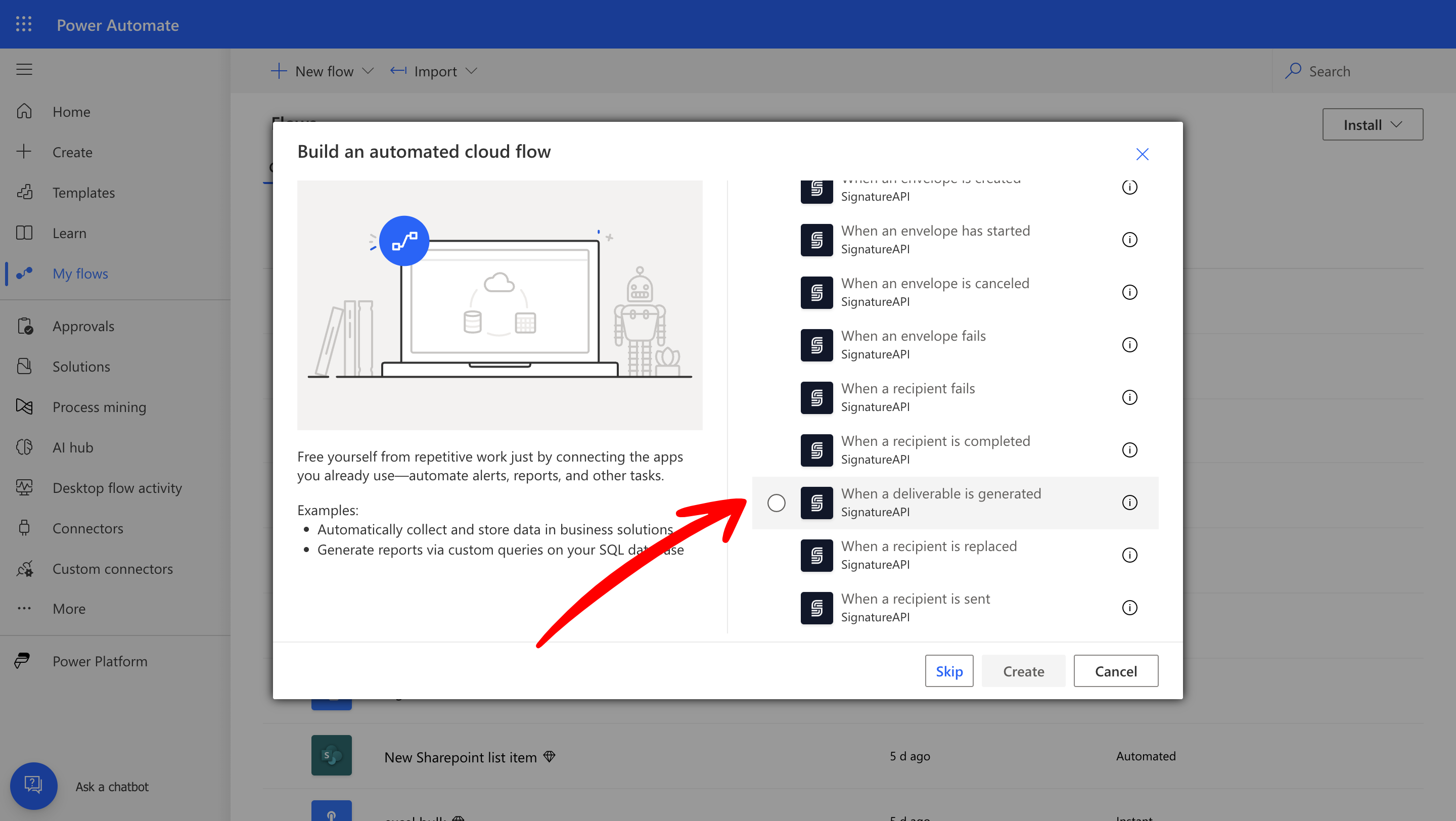 This trigger runs when a signed document is available for download.
## Save the Deliverable to SharePoint
Next, add steps to retrieve the file and store it in SharePoint.
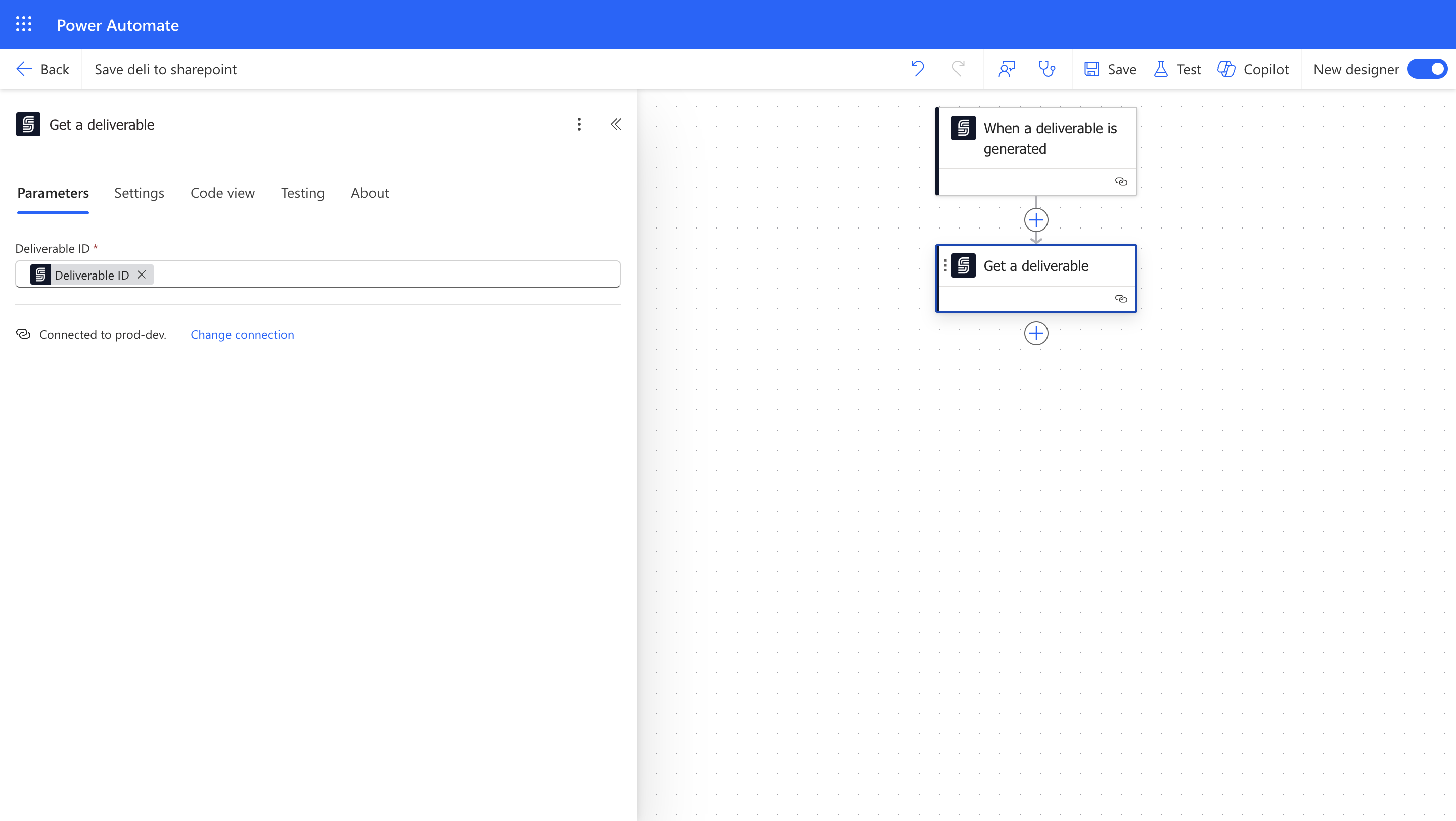
1. Add the **"Get a Deliverable"** action.
2. Use dynamic content to select the **Deliverable ID** from the trigger.
This trigger runs when a signed document is available for download.
## Save the Deliverable to SharePoint
Next, add steps to retrieve the file and store it in SharePoint.
1. Add the **"Get a Deliverable"** action.
2. Use dynamic content to select the **Deliverable ID** from the trigger.
 3. Add the **"Create file"** action from the SharePoint connector.
4. Set the **Site Address** and **Folder Path**.
5. Set the **File Name** (use a `.pdf` extension).
6. Use **File Content** from the deliverable.
3. Add the **"Create file"** action from the SharePoint connector.
4. Set the **Site Address** and **Folder Path**.
5. Set the **File Name** (use a `.pdf` extension).
6. Use **File Content** from the deliverable.
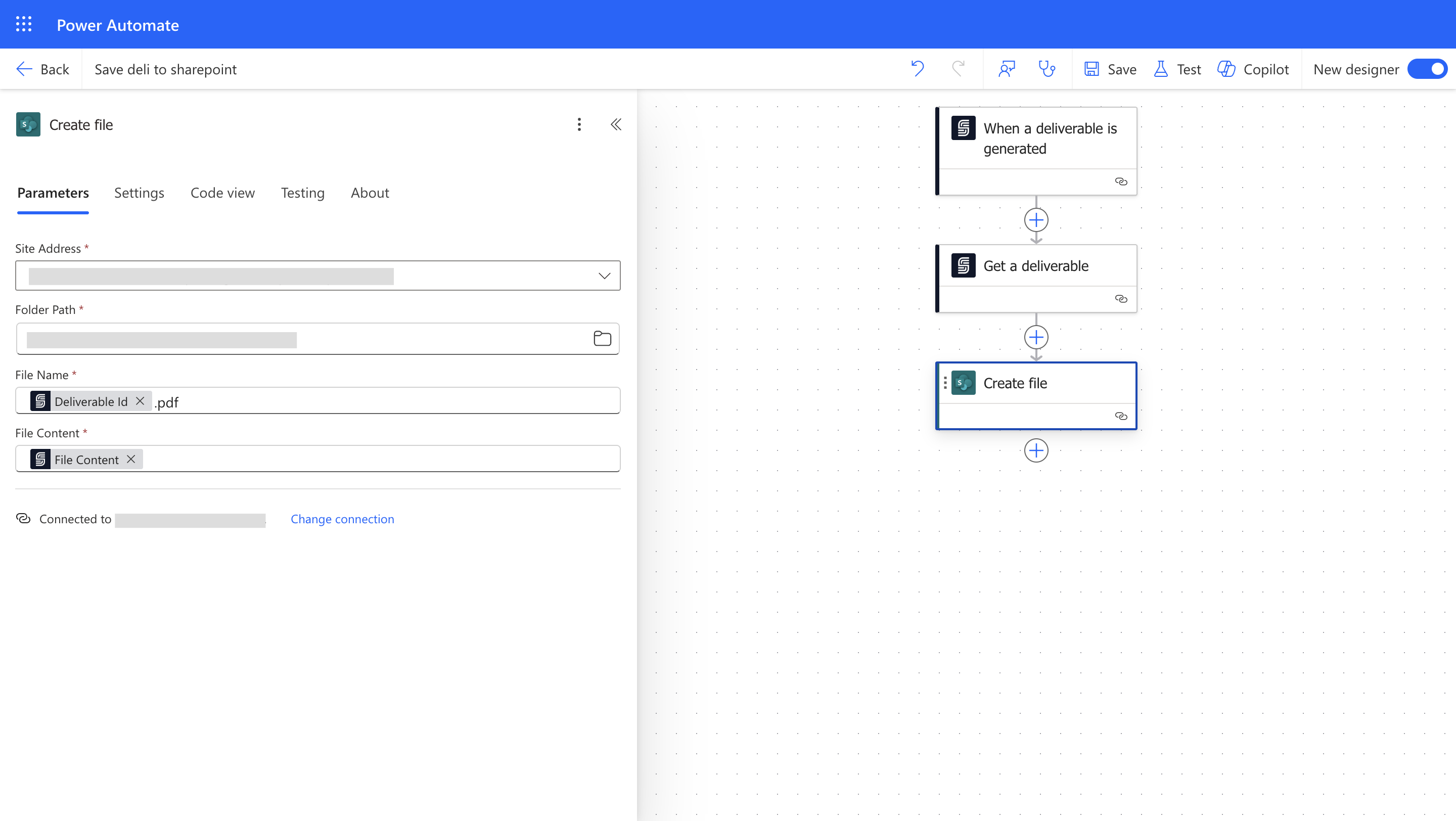 This step saves the signed document in your SharePoint folder.
## Send a Notification Email
Now send an email with the signed PDF attached.
1. Add the **"Send an email"** action from the Outlook connector.
2. In the **"To"** field, enter the department’s email address.
3. Attach the deliverable using **File Content** from the **Get a Deliverable** action.
4. Set the filename (make sure to include `.pdf`).
This step saves the signed document in your SharePoint folder.
## Send a Notification Email
Now send an email with the signed PDF attached.
1. Add the **"Send an email"** action from the Outlook connector.
2. In the **"To"** field, enter the department’s email address.
3. Attach the deliverable using **File Content** from the **Get a Deliverable** action.
4. Set the filename (make sure to include `.pdf`).
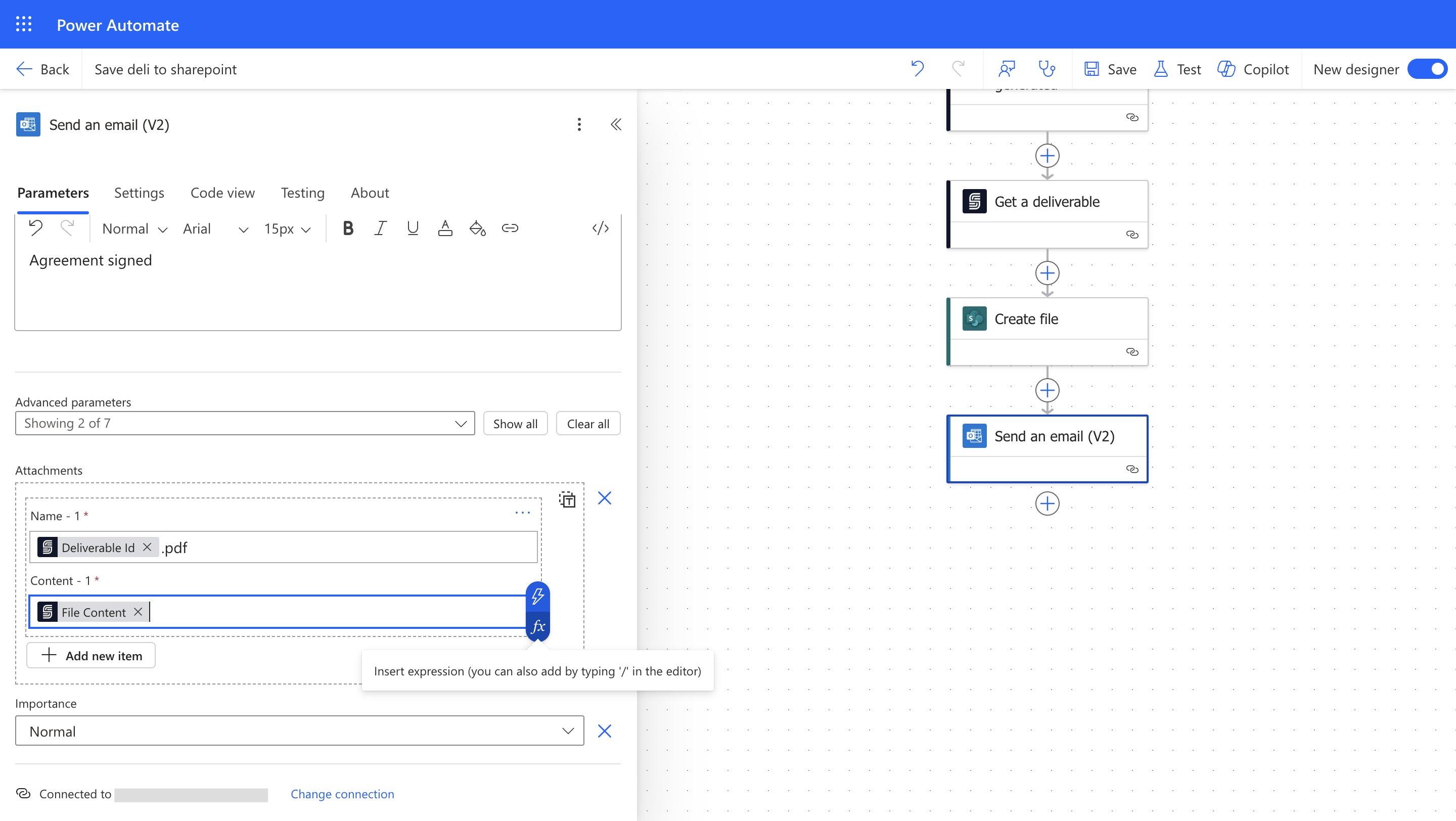 This lets the team know the signed document has been saved and is available for review.
## Result
This flow will:
* Trigger when a deliverable is generated.
* Save the signed PDF to SharePoint.
* Send a notification email with the file attached.
This automation reduces manual work and helps ensure signed documents are stored and shared consistently.
## Test Your Automation
Test the full workflow:
1. Save your Power Automate flow.
2. Create and sign a new envelope.
3. Check that the email arrives and the file is saved to SharePoint.
## Keep Learning
* Learn more about the [When a deliverable is generated](/docs/integrations/power-automate/triggers/deliverable-generated) trigger
* Read the guide on [deliverables](/docs/integrations/power-automate/deliverables/deliverable)
* See an example of a [deliverable](/docs/integrations/power-automate/deliverables/audit-log)
This lets the team know the signed document has been saved and is available for review.
## Result
This flow will:
* Trigger when a deliverable is generated.
* Save the signed PDF to SharePoint.
* Send a notification email with the file attached.
This automation reduces manual work and helps ensure signed documents are stored and shared consistently.
## Test Your Automation
Test the full workflow:
1. Save your Power Automate flow.
2. Create and sign a new envelope.
3. Check that the email arrives and the file is saved to SharePoint.
## Keep Learning
* Learn more about the [When a deliverable is generated](/docs/integrations/power-automate/triggers/deliverable-generated) trigger
* Read the guide on [deliverables](/docs/integrations/power-automate/deliverables/deliverable)
* See an example of a [deliverable](/docs/integrations/power-automate/deliverables/audit-log)