> ## Documentation Index
> Fetch the complete documentation index at: https://signatureapi-daf4ee54.mintlify.site/llms.txt
> Use this file to discover all available pages before exploring further.
# Filter Triggers by Envelope Topic
> Limit Power Automate flow triggers to specific envelopes using topic filters
## Overview
Sometimes you only want to trigger a flow for specific envelopes, not all envelopes in your SignatureAPI account.
In this example, we’ll trigger a flow only for envelopes created by the Sales Department. These envelopes use the topic `sales_department`.
This guide shows how to filter envelopes that trigger a flow in Power Automate. You’ll learn how to set up a trigger that fires only for envelopes with a specific topic.
## Creating the Envelope
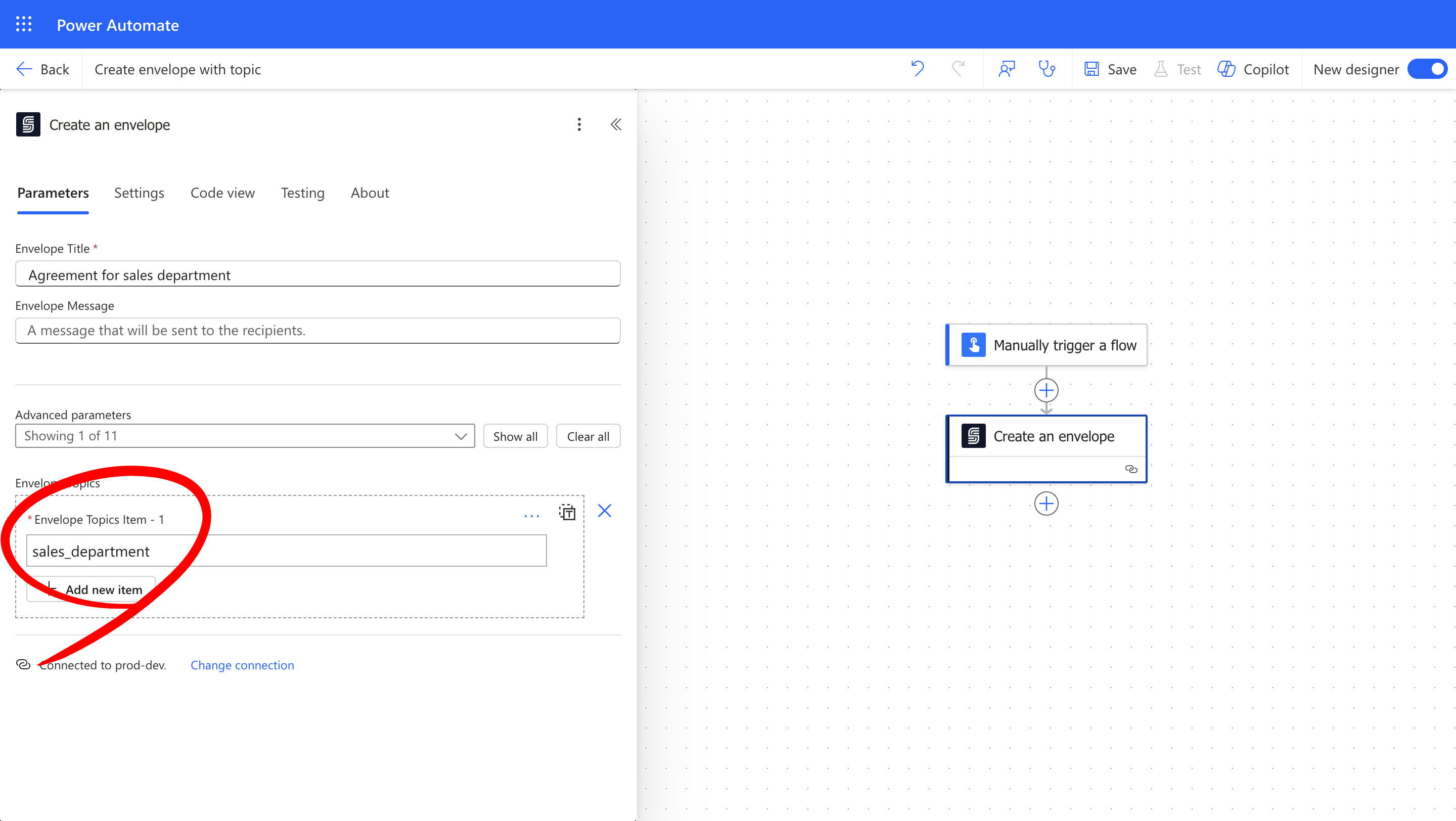
This guide assumes you already have a Power Automate flow that creates and starts envelopes using the **"Create an envelope"** action from the SignatureAPI connector.
Make sure that flow includes a topic in the **"Envelope Topics"** field under Advanced parameters. In this case, use the topic `sales_department`.
 ## Trigger a Flow for Selected Envelopes
Let’s create an automated flow in Power Automate that starts when a deliverable is generated.
1. Go to **Power Automate** and select **Automated Cloud Flow**.
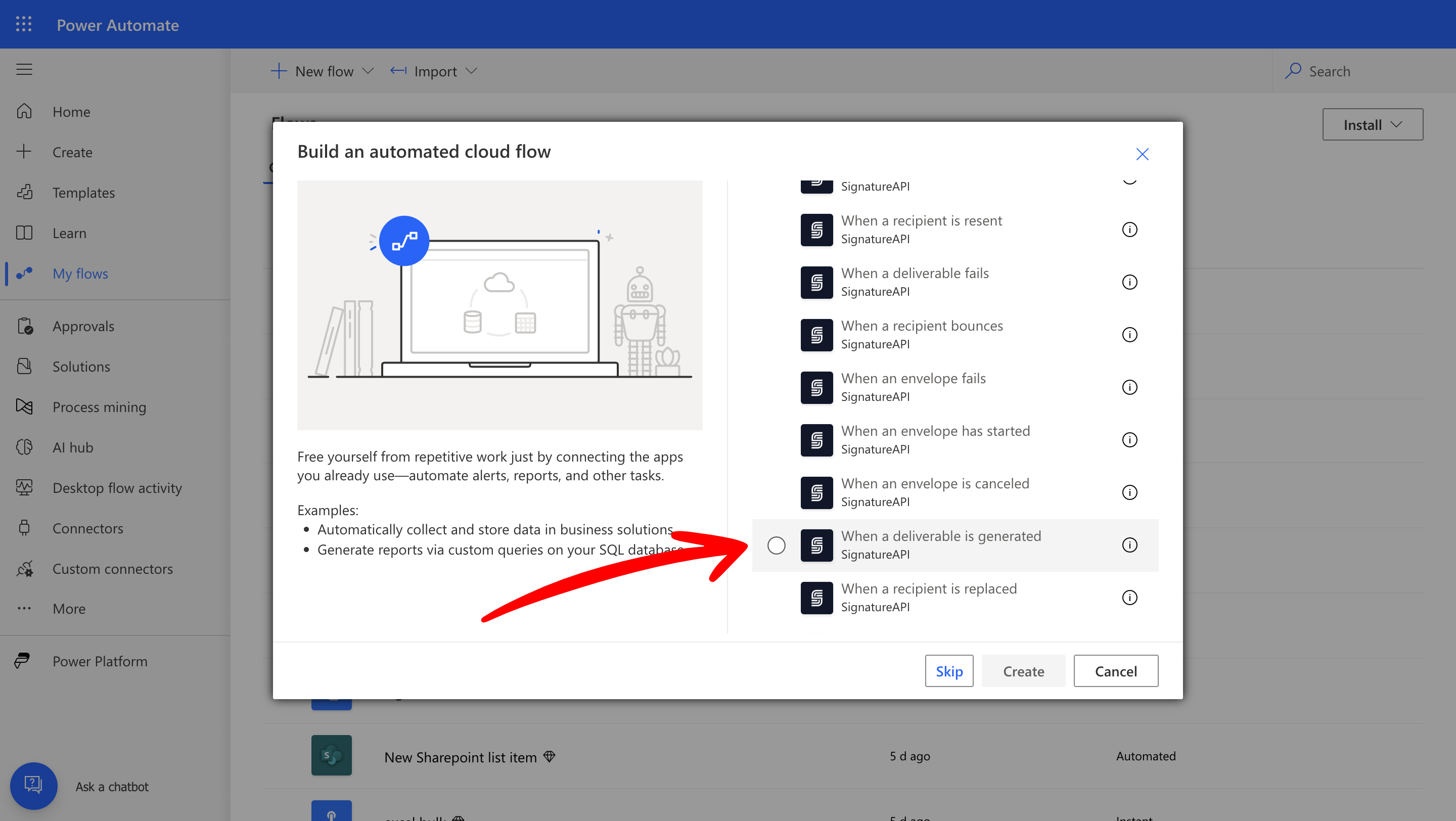
2. Name your flow and choose the trigger **"When a deliverable is generated"** from the SignatureAPI connector.
## Trigger a Flow for Selected Envelopes
Let’s create an automated flow in Power Automate that starts when a deliverable is generated.
1. Go to **Power Automate** and select **Automated Cloud Flow**.
2. Name your flow and choose the trigger **"When a deliverable is generated"** from the SignatureAPI connector.
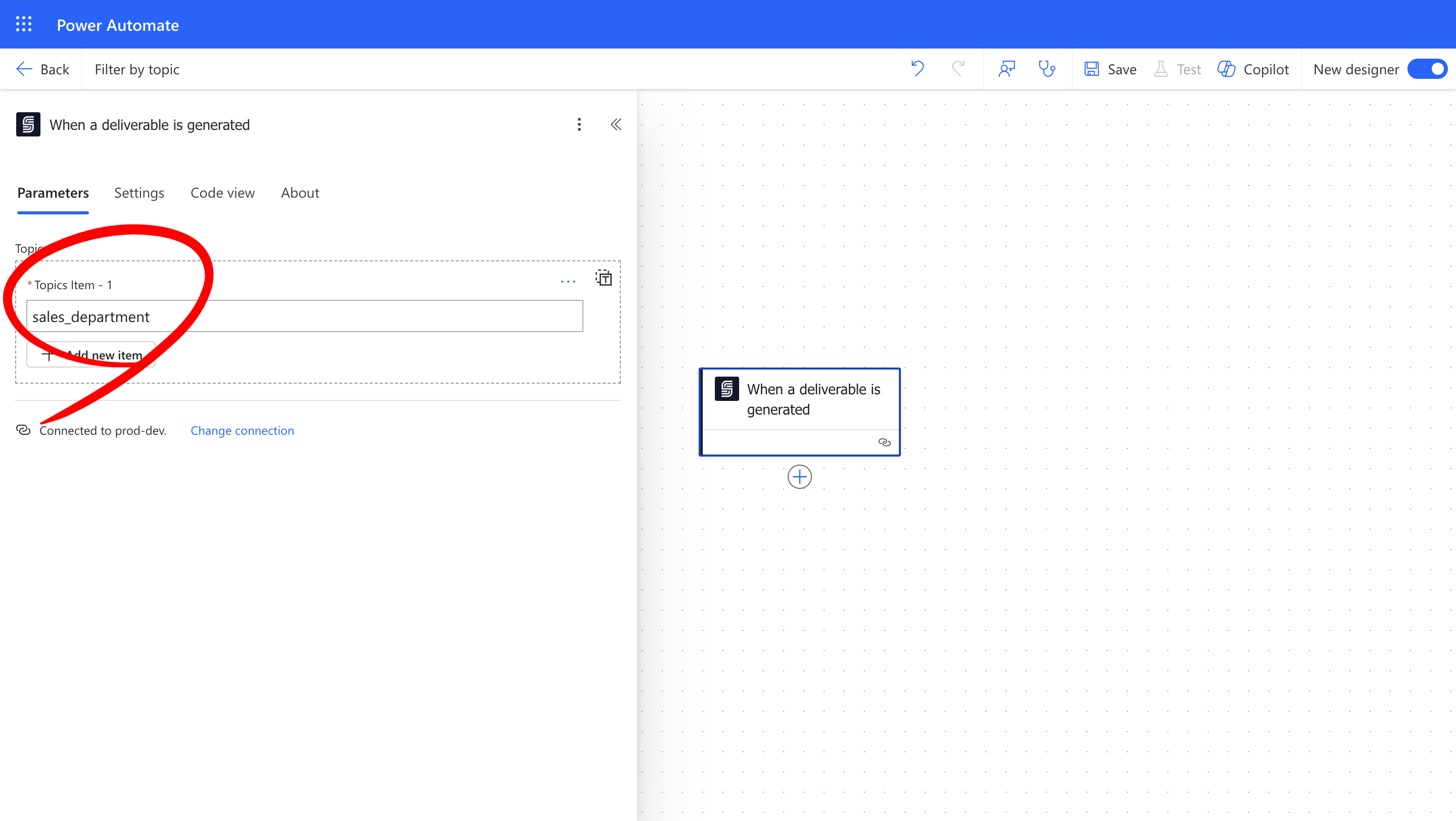
 3. In the **"Topics"** field of the trigger, enter `sales_department`. This filters the trigger to only fire for envelopes with this topic.
This works like a labeling system. Only envelopes tagged with a matching topic will trigger the flow. This let you route envelopes to different flows based on their topics.
3. In the **"Topics"** field of the trigger, enter `sales_department`. This filters the trigger to only fire for envelopes with this topic.
This works like a labeling system. Only envelopes tagged with a matching topic will trigger the flow. This let you route envelopes to different flows based on their topics.
 ## Continue the Flow
Now add the actions that follow the trigger.
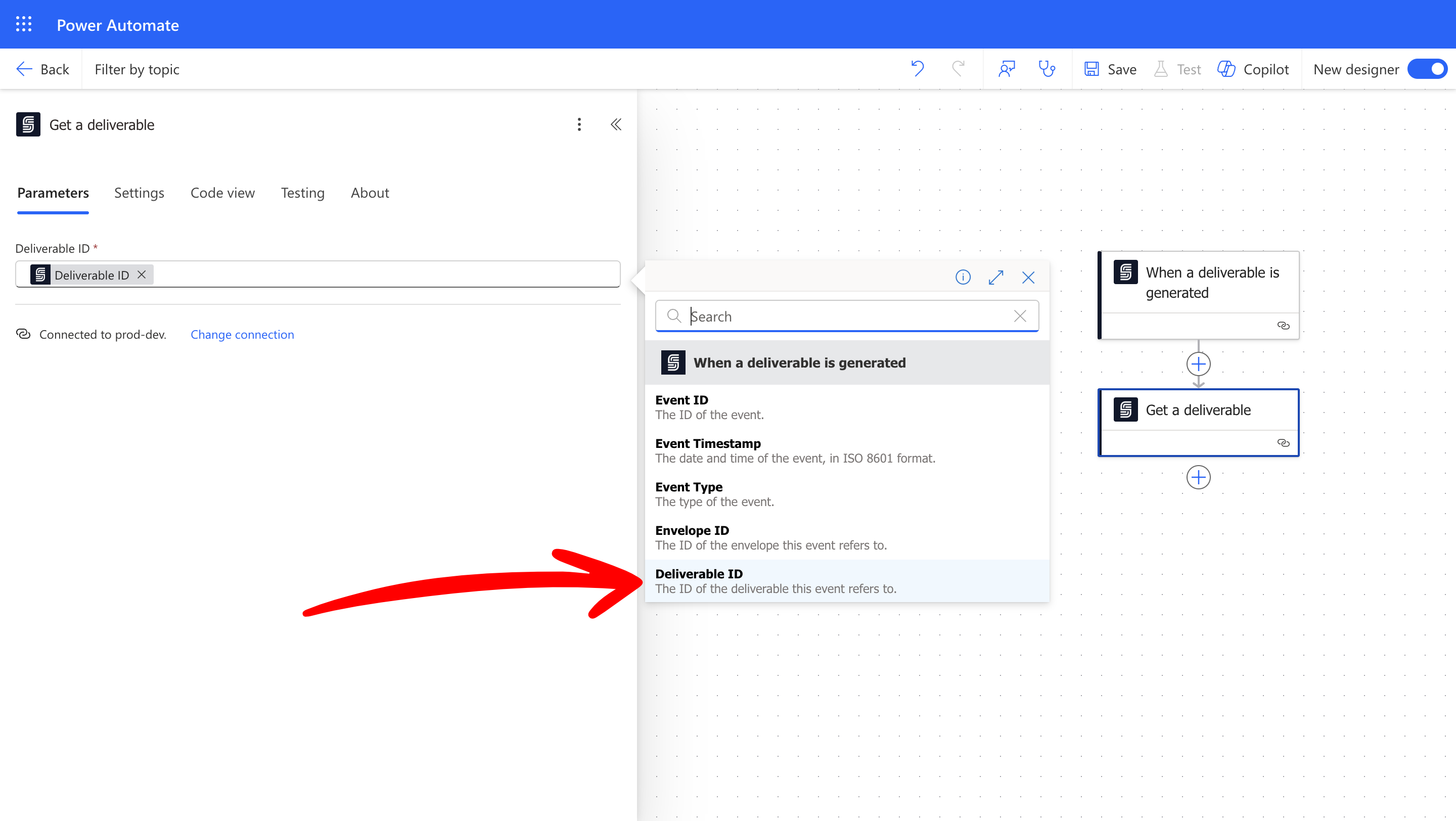
1. Add the **"Get a Deliverable"** action.
2. Use dynamic content to select the correct **Deliverable ID** from the trigger.
## Continue the Flow
Now add the actions that follow the trigger.
1. Add the **"Get a Deliverable"** action.
2. Use dynamic content to select the correct **Deliverable ID** from the trigger.
 Next, send an email to the correct department.
1. Add the **"Send an email"** action from the Microsoft Outlook connector.
2. In the **"To"** field, enter the department’s email address.
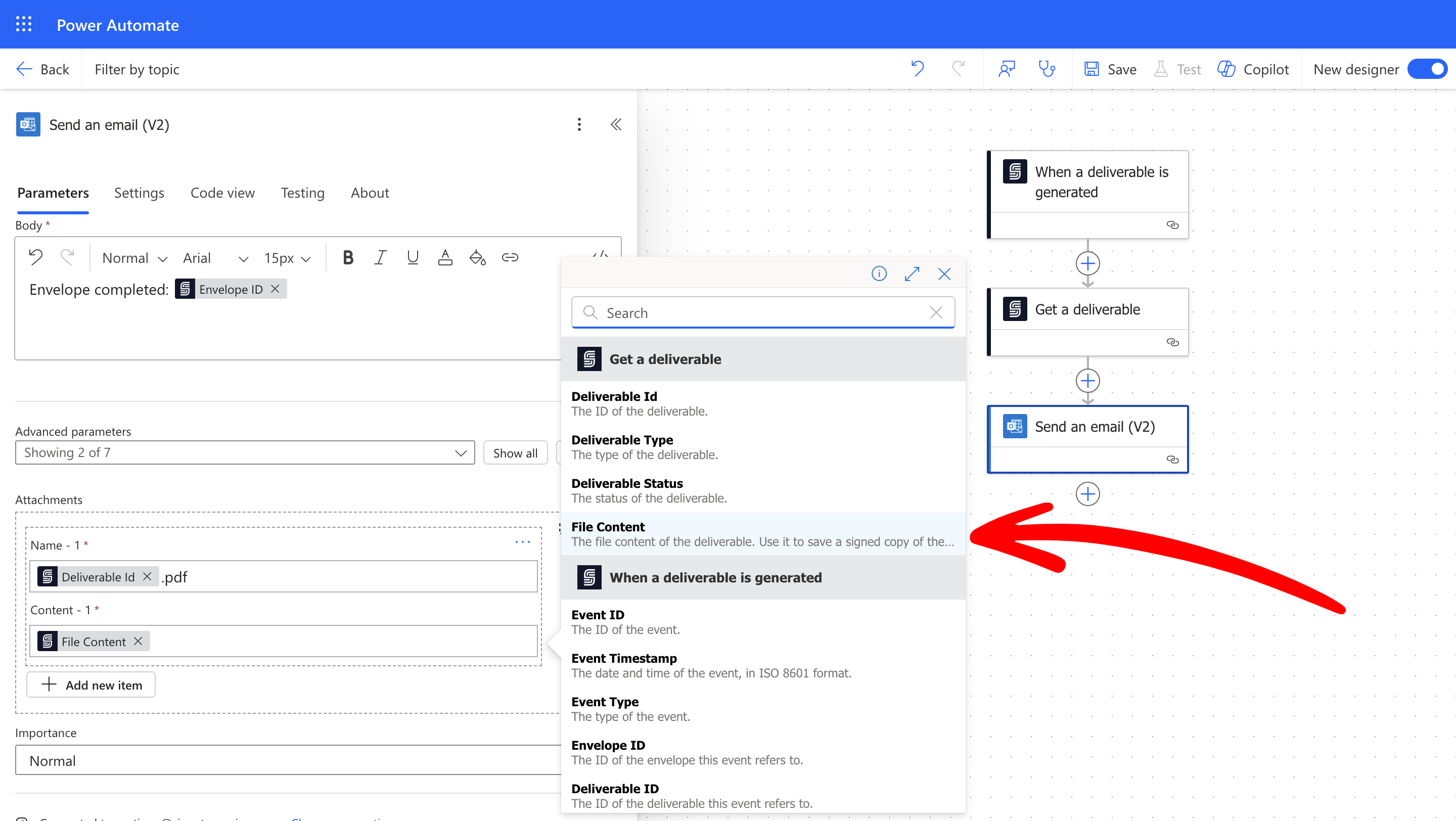
3. Attach the signed contract file using the **"File Content"** from the **"Get a Deliverable"** action. In this example we used the envelope ID as the file name, but you can use anything you want, just include the `.pdf` extension.
Next, send an email to the correct department.
1. Add the **"Send an email"** action from the Microsoft Outlook connector.
2. In the **"To"** field, enter the department’s email address.
3. Attach the signed contract file using the **"File Content"** from the **"Get a Deliverable"** action. In this example we used the envelope ID as the file name, but you can use anything you want, just include the `.pdf` extension.
 ## Result
This flow will run only when a deliverable is generated for envelopes with the topic `sales_department`. It will get the signed document as a PDF file and send it by email to the correct department.
## Test Your Automation
Test the full workflow:
1. Save your Power Automate flow.
2. Create a new envelope with the topic `sales_department`.
3. Sign the document.
4. Check that the correct email is received with the signed PDF attached.
## Keep Learning
* Learn more about [Topics and Filters](/docs/integrations/power-automate/envelopes/topics)
* Read about the [When the deliverable is generated](/docs/integrations/power-automate/triggers/deliverable-generated) trigger
## Result
This flow will run only when a deliverable is generated for envelopes with the topic `sales_department`. It will get the signed document as a PDF file and send it by email to the correct department.
## Test Your Automation
Test the full workflow:
1. Save your Power Automate flow.
2. Create a new envelope with the topic `sales_department`.
3. Sign the document.
4. Check that the correct email is received with the signed PDF attached.
## Keep Learning
* Learn more about [Topics and Filters](/docs/integrations/power-automate/envelopes/topics)
* Read about the [When the deliverable is generated](/docs/integrations/power-automate/triggers/deliverable-generated) trigger