> ## Documentation Index
> Fetch the complete documentation index at: https://signatureapi-daf4ee54.mintlify.site/llms.txt
> Use this file to discover all available pages before exploring further.
# Templates
> Generate documents programmatically using templates and dynamic data.
When defining a document resource within an envelope, you have two options: using documents or templates.
If you want to add signature places or dynamic data, such as the time a recipient signed, see [Places](/docs/integrations/power-automate/places/place).
## Documents vs Templates
### Documents
If you have a PDF document ready you can simply provide the file in the **File Content** field of the [Add a document : PDF](/docs/integrations/power-automate/actions/add-document#param-file-content) action. This is a static document, meaning it will not change based on the data you provide.
### Templates
SignatureAPI can generate documents programmatically from a static template combined with dynamic data.
We accept templates in the DOCX format, which is widely supported by software such as Microsoft Word, Google Docs, and open-source productivity suites like [LibreOffice](https://www.libreoffice.org/).
DOCX files created with software other than Microsoft Word (like Google Docs or LibreOffice) may not be processed correctly. If you get a [cannot-parse-document](/docs/v1/errors/cannot-parse-document) error, try opening the file in Microsoft Word and saving it again. If you don’t have Microsoft Word, contact support for help.
Within the template, you can add [fields](#fields) and [conditionals](#conditionals). To add a document template to an envelope, use the [Add a template](/docs/integrations/power-automate/actions/add-template) action. This action allows you to upload a DOCX file and specify the data to be inserted into the template.
#### Example
Consider a template like this:
This Dummy Agreement is entered into by \{\{person.name}}, currently residing at \{\{person.address}}. The terms and conditions outlined in this agreement shall be governed by the laws of \{\{jurisdiction}}.
\{\{if mediation}}
Any dispute shall be resolved by mediation, with each party bearing its own costs.
\{\{else}}
Any dispute shall be settled by arbitration, and the arbitrator's decision is final.
\{\{endif}}
When data is inserted:
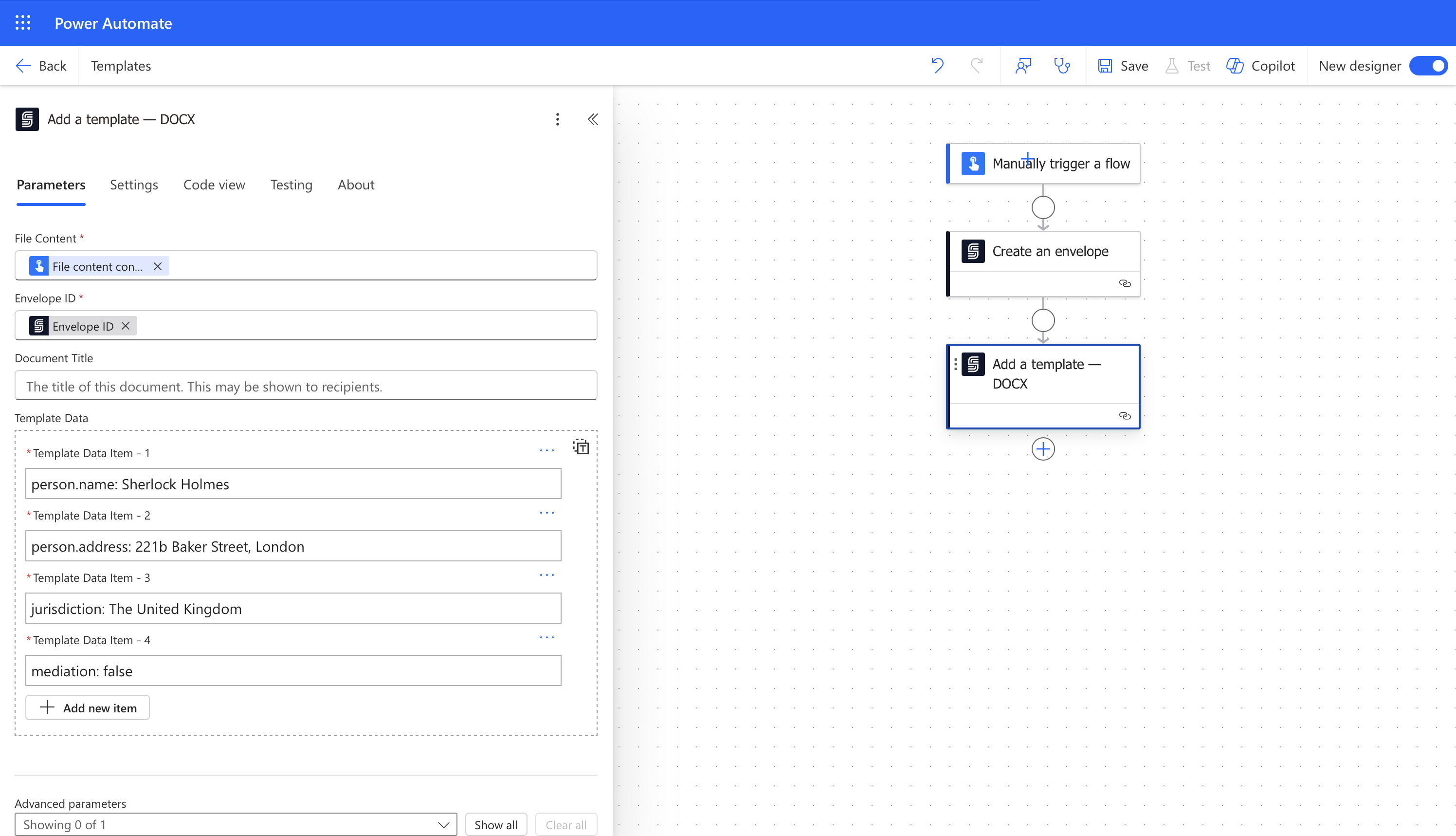 You get this document:
This Dummy Agreement is entered into by Sherlock Holmes, currently residing at 221b Baker Street, London. The terms and conditions outlined in this agreement shall be governed by the laws of The United Kingdom.
Any dispute shall be settled by arbitration, and the arbitrator's decision is final.
## Fields
Fields are markers within a template that indicate where specific information should be inserted. They are defined within your template with **double curly braces**, for example: `{{name}}`.
For example, a template:
This Dummy Agreement is entered into by \{\{name}}.
With data:
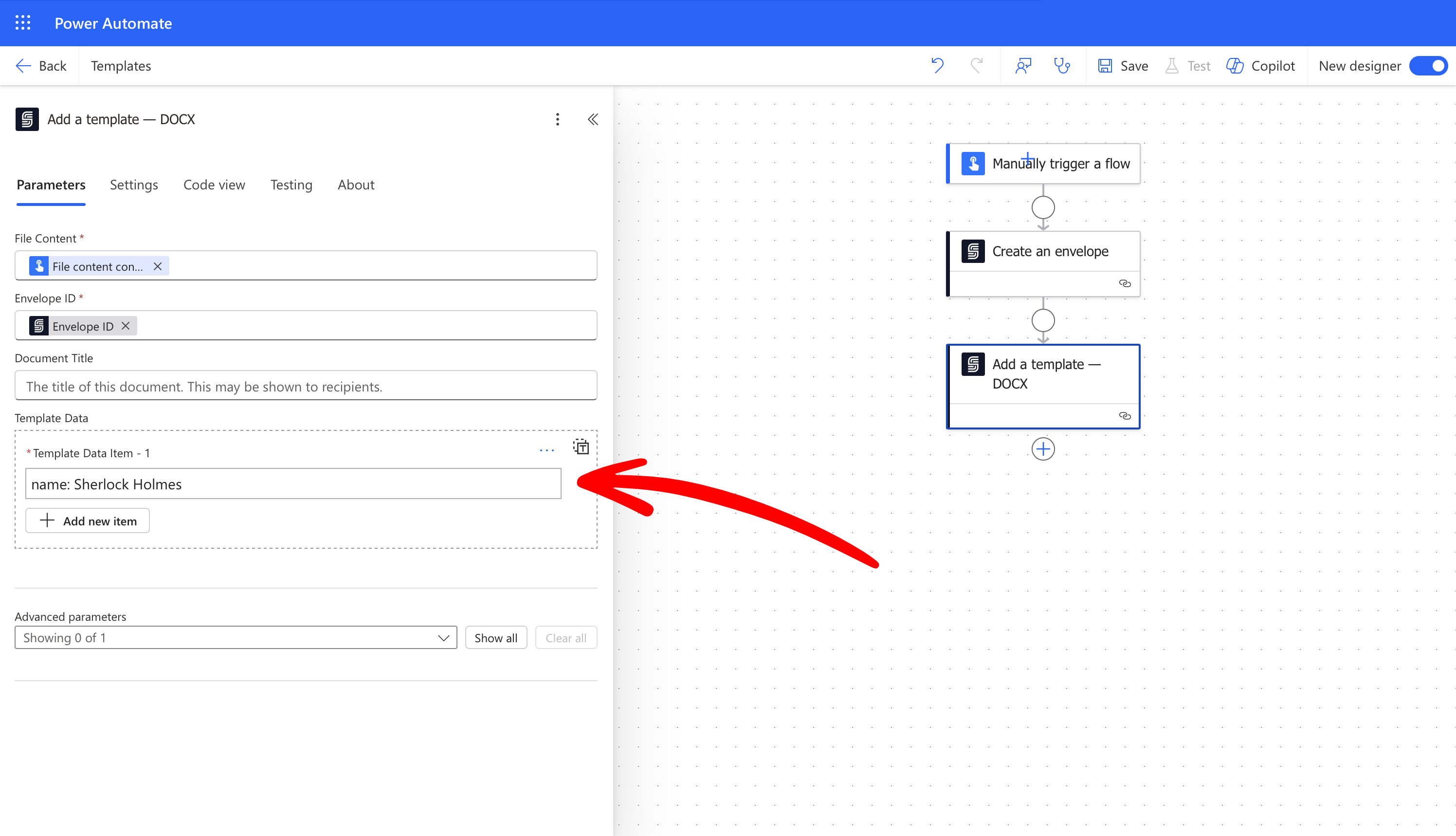 Will return the document:
This Dummy Agreement is entered into by Sherlock Holmes.
### Nested objects
You can use nested objects in the data value. For example, a template:
This Dummy Agreement is entered into by \{\{person.name}}, currently residing at \{\{person.address.houseNumber}} \{\{person.address.streetName}}, \{\{person.address.city}}.
With a data value:
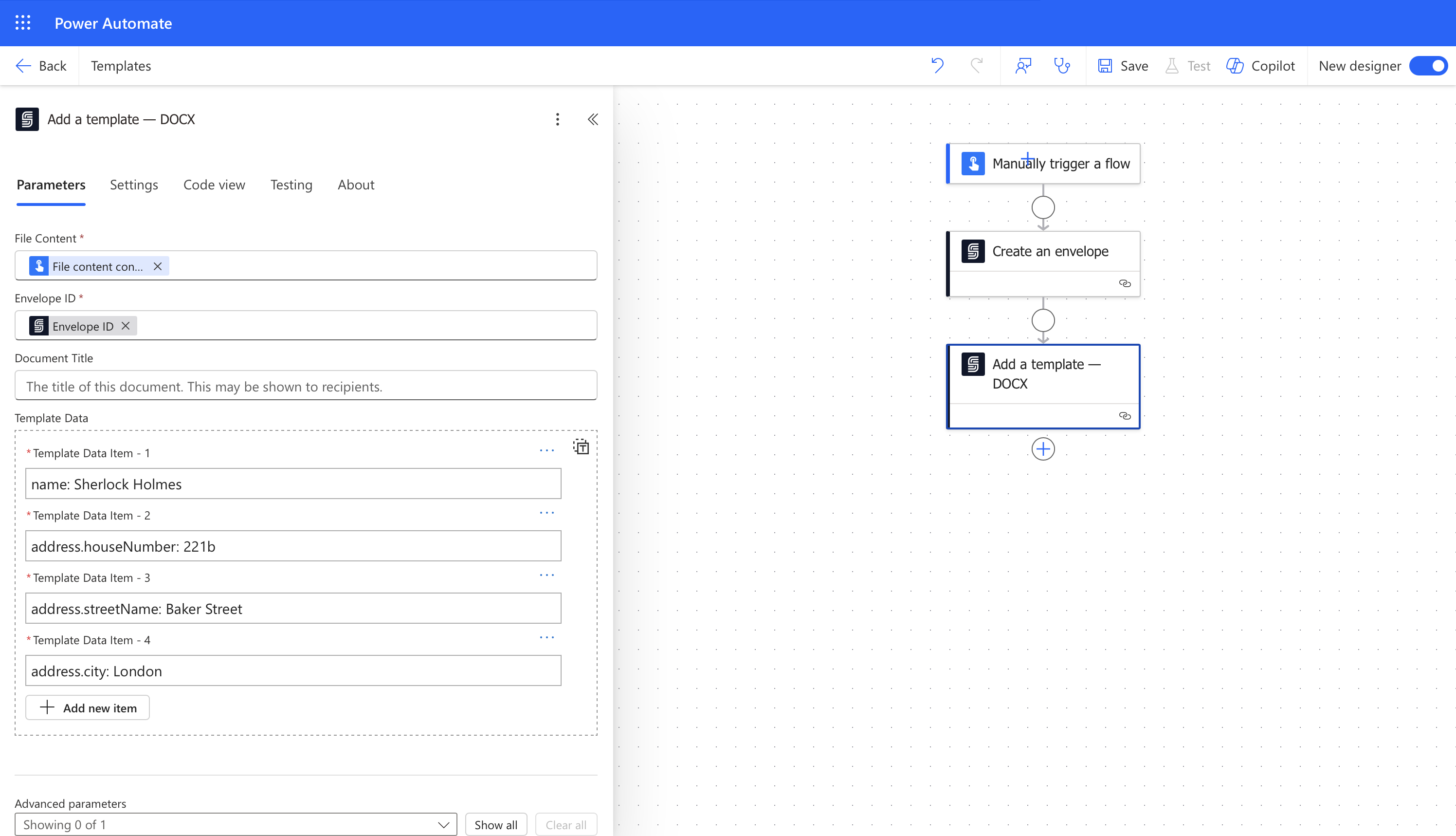 Will return the document:
This Dummy Agreement is entered into by Sherlock Holmes, currently residing at 221b Baker Street, London.
## Conditionals
Conditionals in templates allow for the inclusion or exclusion of content based on certain conditions.
### If
You can use `{{if Condition}}` and `{{endif}}` to show or hide the content in between, depending on whether `Condition` is true or not.
For example, a template:
Please read before proceeding.
\{\{if showDisclaimer}}
Information provided is for educational purposes only and should not be considered as professional advice.
\{\{endif}}
Use at your own discretion.
With the data value:
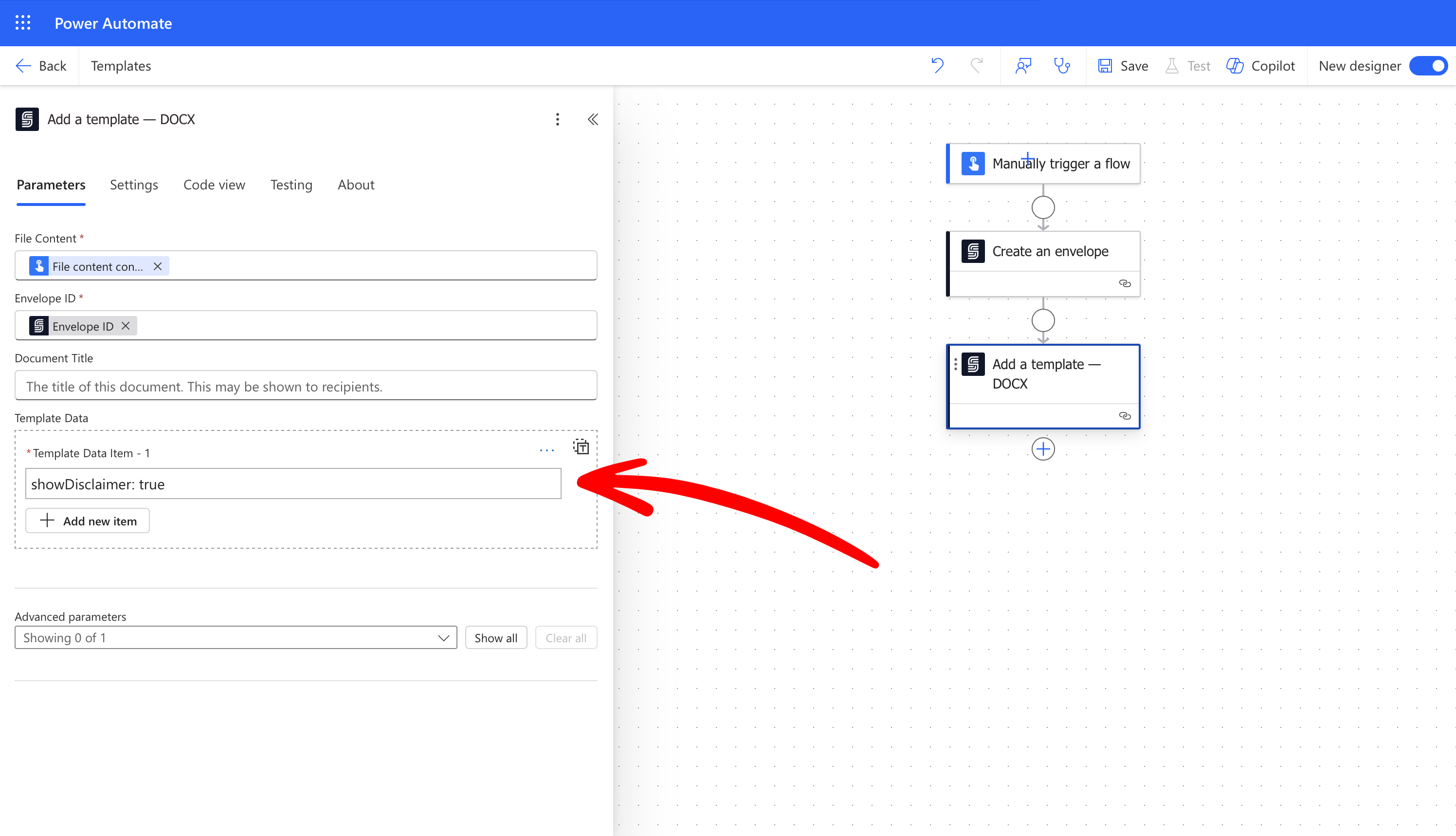 Will return the document:
Please read before proceeding.
Information provided is for educational purposes only and should not be considered as professional advice.
Use at your own discretion.
But with the data value:
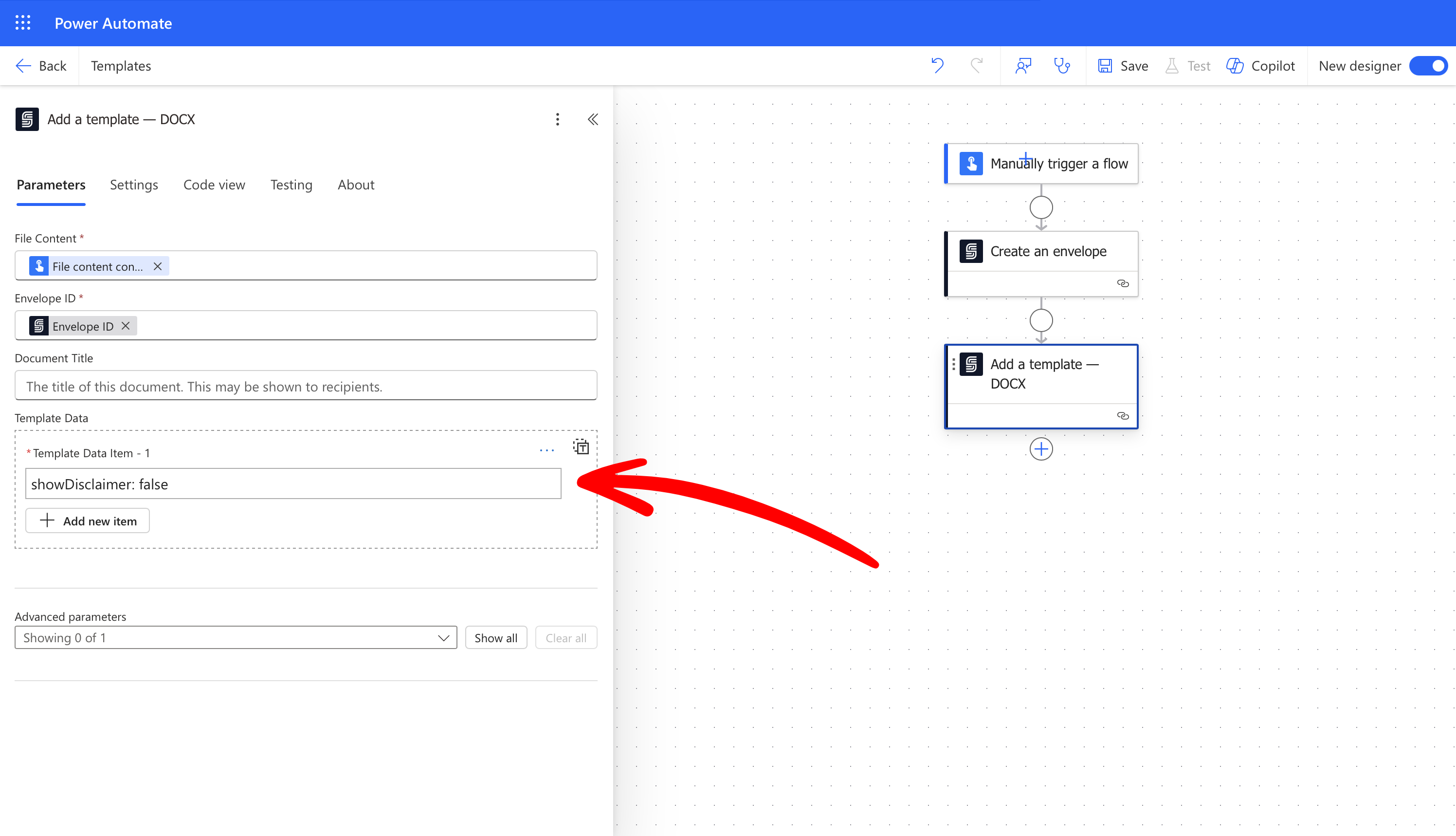 Will return the document:
Please read before proceeding.
Use at your own discretion.
### If-Else
You can use `{{if Condition}}`, `{{else}}`, and `{{endif}}` to conditionally display content based on whether `Condition` is true or false."
For example, a template:
\{\{if mediation}}
Any dispute shall be resolved by mediation, with each party bearing its own costs.
\{\{else}}
Any dispute shall be settled by arbitration, and the arbitrator’s decision is final.
\{\{endif}}
With data:
Will return the document:
Any dispute shall be resolved by mediation, with each party bearing its own costs.
But with data:
Will return the document:
Any dispute shall be settled by arbitration, and the arbitrator’s decision is final.