> ## Documentation Index
> Fetch the complete documentation index at: https://signatureapi-daf4ee54.mintlify.site/llms.txt
> Use this file to discover all available pages before exploring further.
# Manage Senders
> Manage verified email addresses that appear in signing request emails.
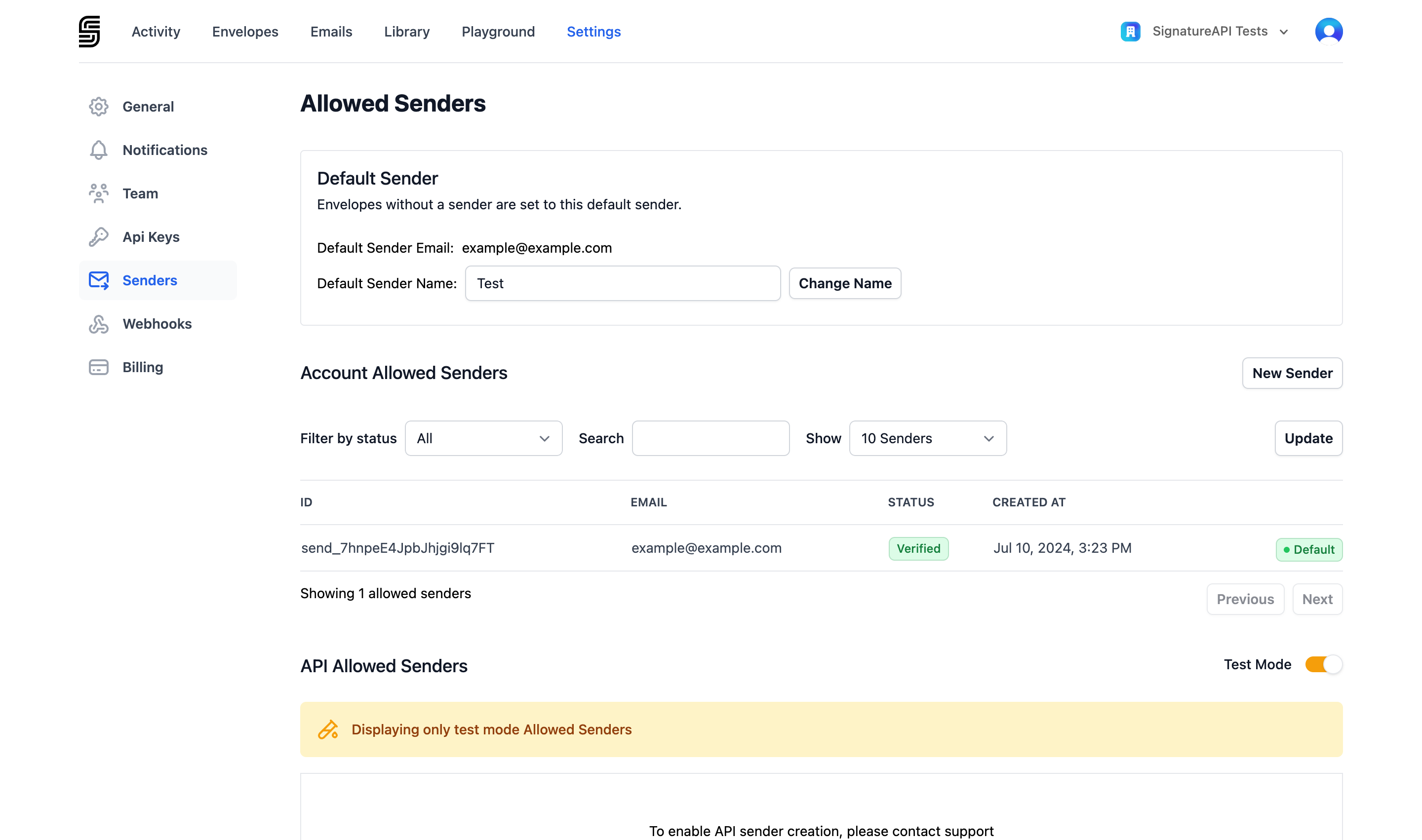
A sender is a verified email address that SignatureAPI uses when sending signing requests to recipients. The sender's name, email address, and organization appear in every email, and the sender's address is used as the Reply-To address so recipient replies go directly to you.
To manage your senders, go to [Settings > Senders](https://dashboard.signatureapi.com/settings/senders) in the Dashboard.
 For technical details on the sender resource, see the [Sender API reference](/docs/api/resources/senders/object).
## Default sender
Every account has a default sender. When you create an envelope without specifying a sender, SignatureAPI uses the default sender's name and email address.
To change the default, click **Set default** next to the sender you want to use.
To specify a different sender for a specific envelope, include the [`sender`](/docs/api/resources/senders/object) property when creating the envelope through the API.
## Adding a sender
Go to [Settings > Senders](https://dashboard.signatureapi.com/settings/senders) and click **New Sender**.
Enter the name, email address, and organization for the new sender.
For technical details on the sender resource, see the [Sender API reference](/docs/api/resources/senders/object).
## Default sender
Every account has a default sender. When you create an envelope without specifying a sender, SignatureAPI uses the default sender's name and email address.
To change the default, click **Set default** next to the sender you want to use.
To specify a different sender for a specific envelope, include the [`sender`](/docs/api/resources/senders/object) property when creating the envelope through the API.
## Adding a sender
Go to [Settings > Senders](https://dashboard.signatureapi.com/settings/senders) and click **New Sender**.
Enter the name, email address, and organization for the new sender.
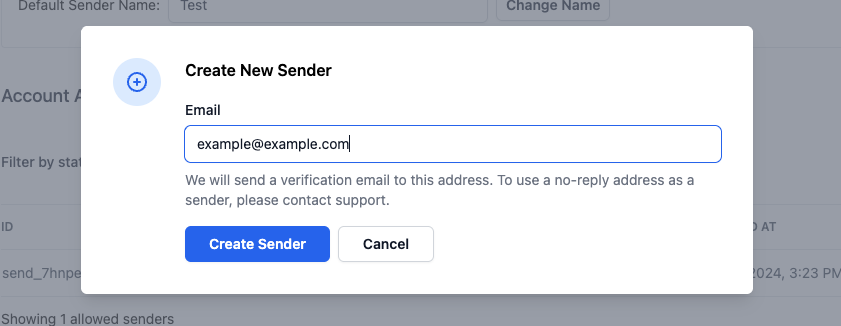 SignatureAPI sends a verification email to the address. The address owner must click the confirmation link to complete verification.
When you created your SignatureAPI account, a sender was automatically added using your account email address. That sender is already verified.
## Sender statuses
| Status | Description |
| :------------------- | :--------------------------------------------------------------------------- |
| Pending Verification | A verification email was sent. The address owner has not yet confirmed. |
| Verified | The address owner confirmed the email. This sender can be used on envelopes. |
| Failed | Verification failed due to a bounce or error. This sender cannot be used. |
Only senders with **Verified** status can be assigned to envelopes.
## Removing a sender
To remove a sender, go to [Settings > Senders](https://dashboard.signatureapi.com/settings/senders), select the sender, and delete it. You cannot delete the default sender — set a different sender as the default first.
SignatureAPI sends a verification email to the address. The address owner must click the confirmation link to complete verification.
When you created your SignatureAPI account, a sender was automatically added using your account email address. That sender is already verified.
## Sender statuses
| Status | Description |
| :------------------- | :--------------------------------------------------------------------------- |
| Pending Verification | A verification email was sent. The address owner has not yet confirmed. |
| Verified | The address owner confirmed the email. This sender can be used on envelopes. |
| Failed | Verification failed due to a bounce or error. This sender cannot be used. |
Only senders with **Verified** status can be assigned to envelopes.
## Removing a sender
To remove a sender, go to [Settings > Senders](https://dashboard.signatureapi.com/settings/senders), select the sender, and delete it. You cannot delete the default sender — set a different sender as the default first.
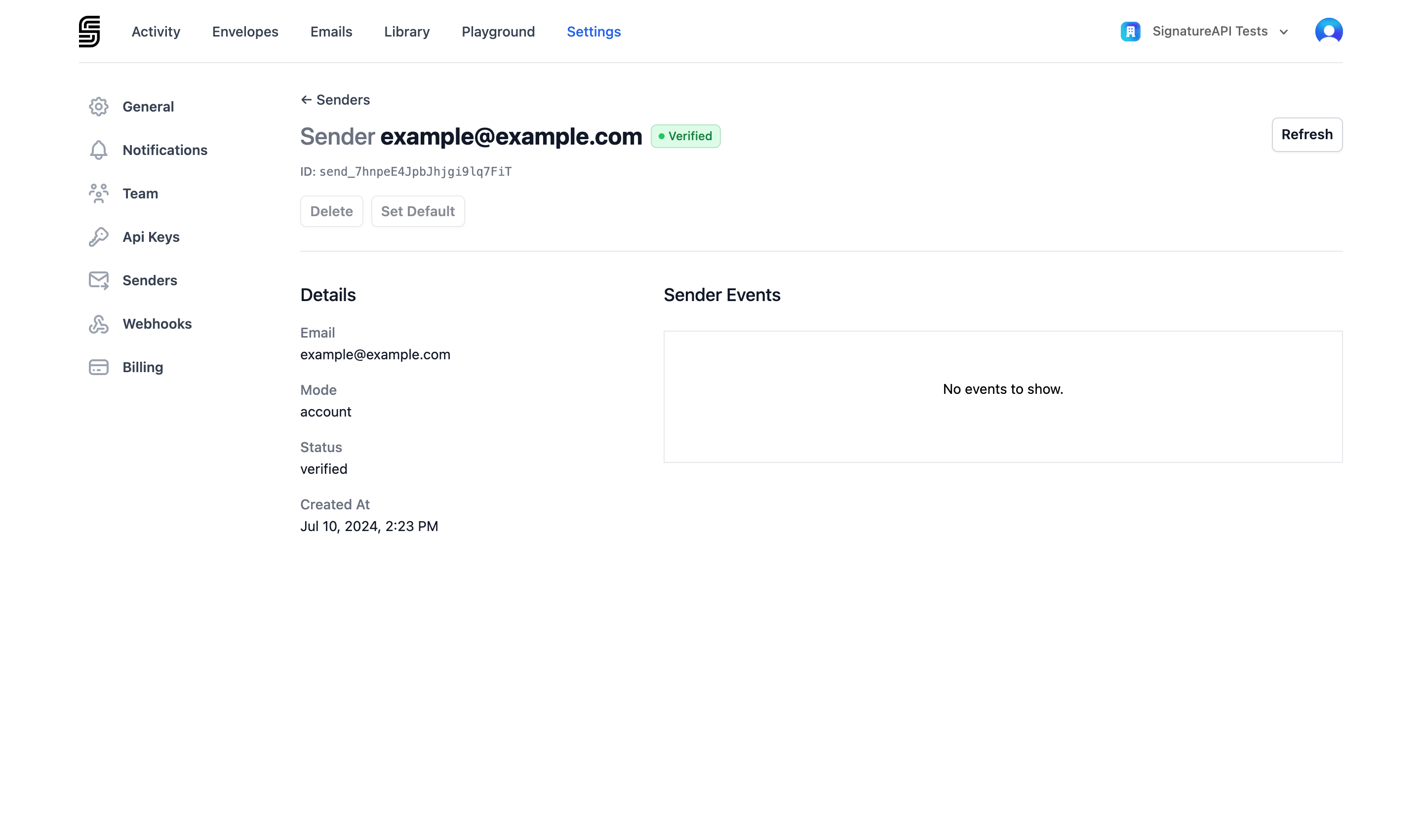 Removing a sender does not affect envelopes that were already sent using that address.
## How signing request emails work
All signing request emails are sent from `noreply@signatureapi.com`. This cannot be changed — SignatureAPI enforces a strict DMARC policy to protect email deliverability.
Your verified sender address appears as the **Reply-To** address, so recipient replies go directly to you. The sender's name and organization appear in the email body.
You need the **Manage account senders** permission to add or remove senders. See [Dashboard Users](/docs/dashboard/users) for details on roles and permissions.
Removing a sender does not affect envelopes that were already sent using that address.
## How signing request emails work
All signing request emails are sent from `noreply@signatureapi.com`. This cannot be changed — SignatureAPI enforces a strict DMARC policy to protect email deliverability.
Your verified sender address appears as the **Reply-To** address, so recipient replies go directly to you. The sender's name and organization appear in the email body.
You need the **Manage account senders** permission to add or remove senders. See [Dashboard Users](/docs/dashboard/users) for details on roles and permissions.