> ## Documentation Index
> Fetch the complete documentation index at: https://signatureapi-daf4ee54.mintlify.site/llms.txt
> Use this file to discover all available pages before exploring further.
# Manage API Keys
> Create and manage API keys for your SignatureAPI account.
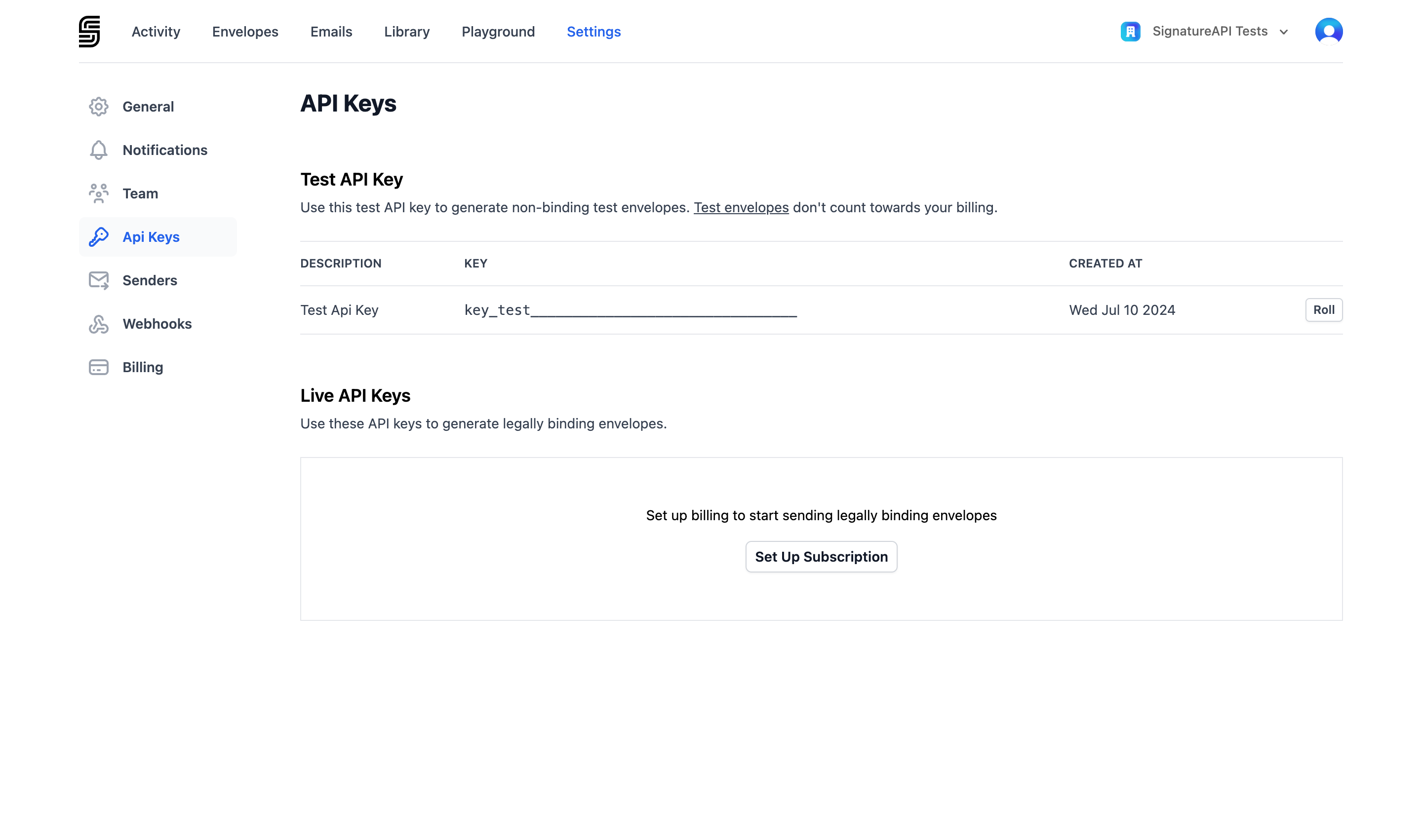
API keys connect your application to your SignatureAPI account. Every request to the API requires a key, and the key determines whether the request runs in test mode or live mode.
To manage your API keys, go to [Settings > API Keys](https://dashboard.signatureapi.com/settings/api-keys) in the Dashboard.
 For technical details on how authentication works, see [Authentication](/docs/api/authentication).
## Test and live keys
SignatureAPI provides two types of API keys:
| Type | Prefix | Purpose |
| :--- | :------------- | :------------------------------------------------------------- |
| Test | `key_test_...` | Build and test your integration without sending real documents |
| Live | `key_live_...` | Send legally binding documents in production |
**Test keys** are free to use. Envelopes created with a test key don't send emails to recipients and are not legally binding. Use test keys while setting up your integration.
**Live keys** create real envelopes that send emails and produce legally binding documents. Use live keys only when you're ready to go to production.
## Creating an API key
You can only create live api keys after upgrading your account and adding a payment method.
Go to [Settings > API Keys](https://dashboard.signatureapi.com/settings/api-keys) and click **Create API Key**.
Enter a name or description to help you remember what this key is for. This is especially helpful if you have multiple keys.
For technical details on how authentication works, see [Authentication](/docs/api/authentication).
## Test and live keys
SignatureAPI provides two types of API keys:
| Type | Prefix | Purpose |
| :--- | :------------- | :------------------------------------------------------------- |
| Test | `key_test_...` | Build and test your integration without sending real documents |
| Live | `key_live_...` | Send legally binding documents in production |
**Test keys** are free to use. Envelopes created with a test key don't send emails to recipients and are not legally binding. Use test keys while setting up your integration.
**Live keys** create real envelopes that send emails and produce legally binding documents. Use live keys only when you're ready to go to production.
## Creating an API key
You can only create live api keys after upgrading your account and adding a payment method.
Go to [Settings > API Keys](https://dashboard.signatureapi.com/settings/api-keys) and click **Create API Key**.
Enter a name or description to help you remember what this key is for. This is especially helpful if you have multiple keys.
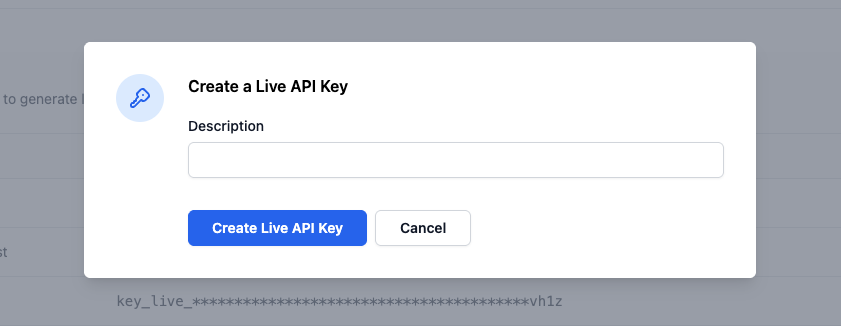 The new key is displayed once. Copy it and store it in a safe place. You won't be able to see the full key again.
## Revoking an API key
To revoke a key, go to [Settings > API Keys](https://dashboard.signatureapi.com/settings/api-keys), find the key you want to revoke, and click **Revoke**.
The new key is displayed once. Copy it and store it in a safe place. You won't be able to see the full key again.
## Revoking an API key
To revoke a key, go to [Settings > API Keys](https://dashboard.signatureapi.com/settings/api-keys), find the key you want to revoke, and click **Revoke**.
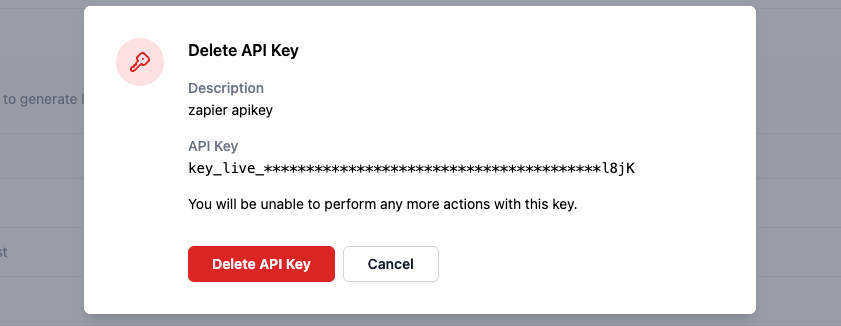 Revoking a key is permanent and takes effect immediately. Any application using that key will stop working. Existing envelopes are not affected.
## Keeping your keys safe
* Never share API keys in public repositories, emails, or client-side code.
* Store keys in environment variables or a secrets manager.
* Use test keys during development and keep live keys restricted to production systems.
* Revoke any key you suspect has been exposed and create a new one.
You need the **Manage API keys** permission to create or revoke keys. See [Dashboard Users](/docs/dashboard/users) for details on roles and permissions.
Revoking a key is permanent and takes effect immediately. Any application using that key will stop working. Existing envelopes are not affected.
## Keeping your keys safe
* Never share API keys in public repositories, emails, or client-side code.
* Store keys in environment variables or a secrets manager.
* Use test keys during development and keep live keys restricted to production systems.
* Revoke any key you suspect has been exposed and create a new one.
You need the **Manage API keys** permission to create or revoke keys. See [Dashboard Users](/docs/dashboard/users) for details on roles and permissions.