> ## Documentation Index
> Fetch the complete documentation index at: https://signatureapi-daf4ee54.mintlify.site/llms.txt
> Use this file to discover all available pages before exploring further.
# Email Code Authentication
> Authenticate recipients with a verification code sent to their email address.
With email code authentication, SignatureAPI sends the [recipient](/docs/api/resources/recipients/object) an email containing a 9-digit verification code. The recipient enters this code to authenticate and access their signing ceremony.
## When to use
Email code authentication is useful when:
* You want to share the ceremony URL through your own channels (SMS, app notifications, direct links).
* Recipients are in environments where email links may be blocked by security policies.
* You want to embed the ceremony in your application while still using email-based authentication.
Unlike [email link authentication](/docs/api/resources/ceremonies/authentication/email-link), the ceremony URL is returned in the API response. You deliver the URL yourself.
## How it works
Create an envelope or call the Create Ceremony endpoint with `email_code` authentication. The API returns the ceremony URL.
Share the ceremony URL with the recipient through your chosen channel (email, SMS, in-app link, etc.).
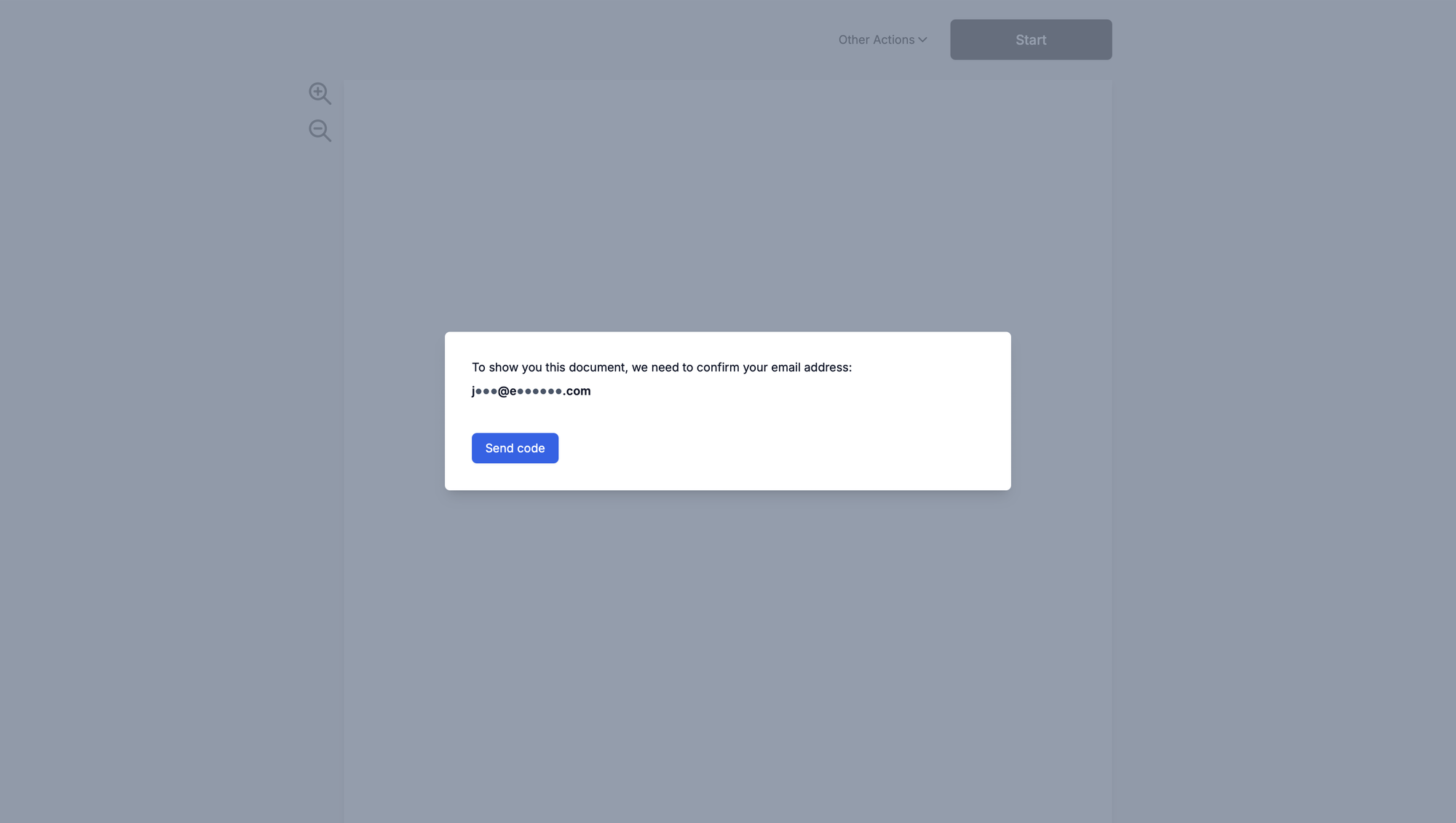
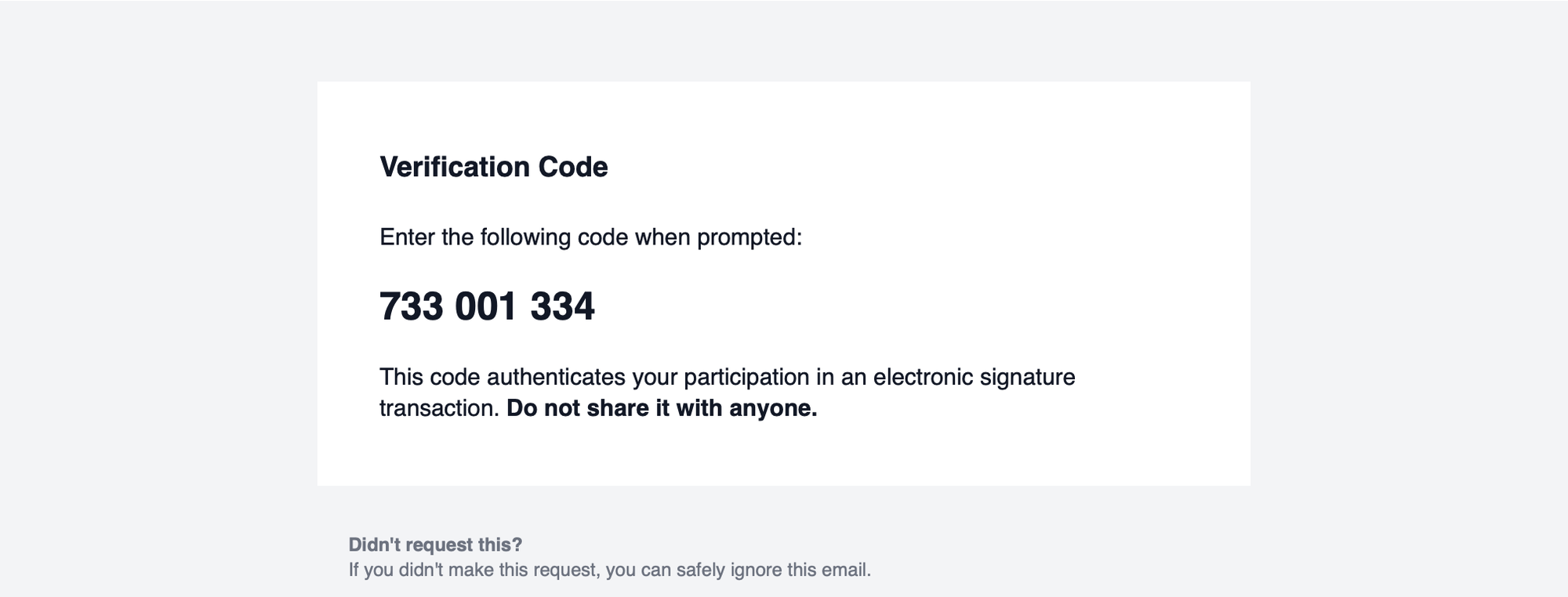
When the recipient opens the URL, SignatureAPI prompts them to verify their email. After they click the verification button, SignatureAPI sends them a 9-digit code by email.
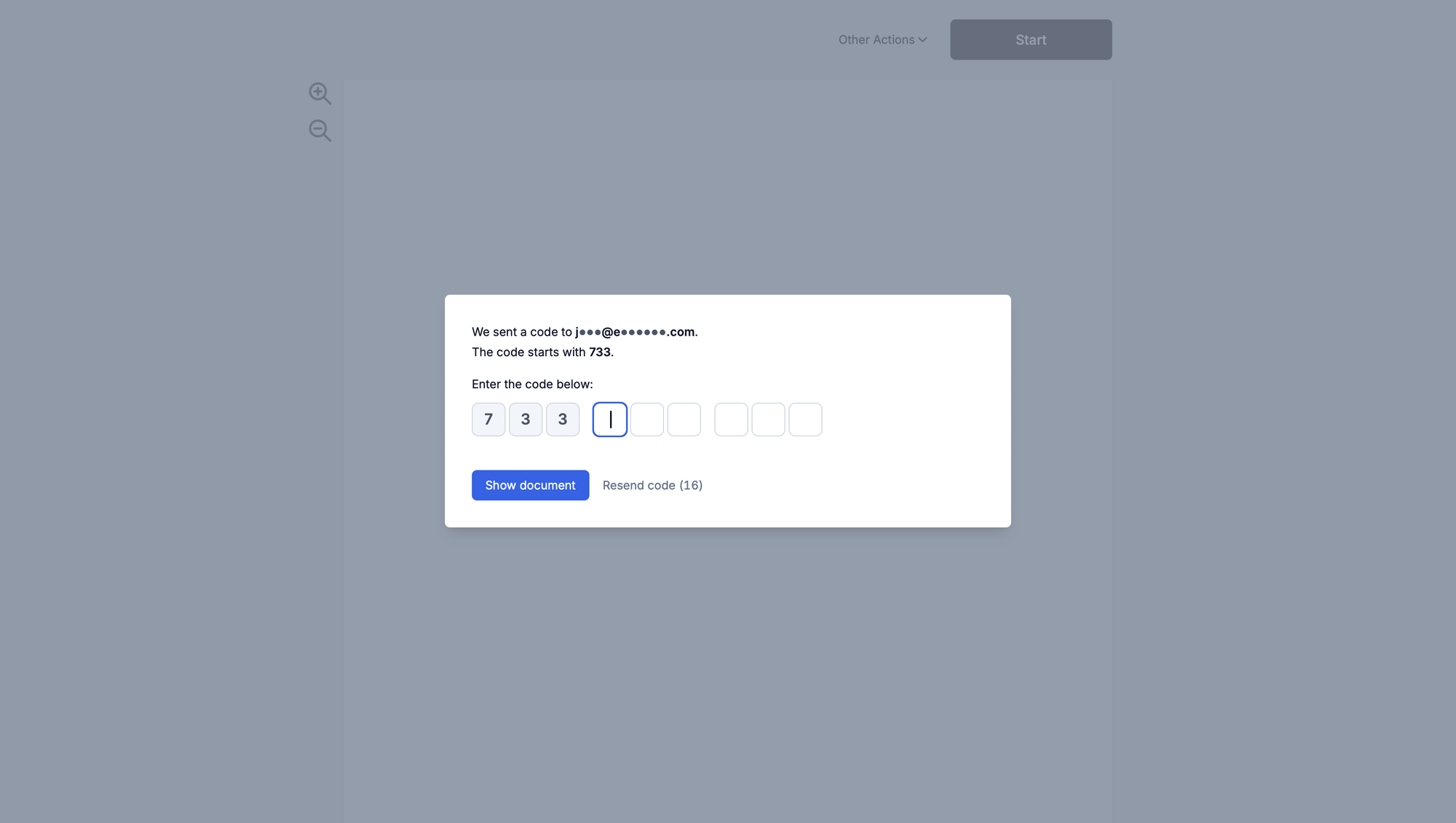
The recipient enters the code. Once verified, they can proceed with signing.
## Creating an email code ceremony
### On envelope creation (automatic)
Set the recipient's ceremony authentication to `email_code` when creating the envelope. The ceremony URL is returned in the response.
```json Email code ceremony on envelope creation theme={null}
// POST https://api.signatureapi.com/v1/envelopes
// X-API-Key: key_test_...
// Content-Type: application/json
{
"title": "Service Agreement",
"recipients": [
{
"type": "signer",
"key": "client",
"name": "John Doe",
"email": "john.doe@example.com",
"ceremony": {
"authentication": [
{
"type": "email_code"
}
]
}
}
],
"documents": [ /* ... */ ]
}
```
The response includes `ceremony.url` for each recipient:
```json Response (excerpt) theme={null}
{
"id": "abcdef12-3456-7890-1234-abcdef123456",
"title": "Service Agreement",
"recipients": [
{
"type": "signer",
"key": "client",
"name": "John Doe",
"email": "john.doe@example.com",
"ceremony": {
"authentication": [
{
"type": "email_code"
}
],
"url": "https://sign.signatureapi.com/en/start?token=eyJhbGcNiIsInR..."
}
}
]
}
```
### Create Ceremony endpoint (manual)
Use the [Create Ceremony](/docs/api/resources/ceremonies/create) endpoint to create an email code ceremony after the envelope is created.
Creating a new ceremony automatically revokes any previous ceremony for that recipient. Only the most recent ceremony remains active.
```json Create email code ceremony theme={null}
// POST https://api.signatureapi.com/v1/recipients/{recipient_id}/ceremonies
// X-API-Key: key_test_...
// Content-Type: application/json
{
"authentication": [
{
"type": "email_code"
}
]
}
```
The `url` property in the response is the ceremony URL to deliver to the recipient.
```json Response theme={null}
// HTTP Status Code 201
{
"authentication": [
{
"type": "email_code"
}
],
"embeddable_in": [],
"redirect_url": null,
"redirect_delay": 3,
"url_variant": "standard",
"url": "https://sign.signatureapi.com/en/start?token=eyJhbGcNiIsInR..."
}
```
## Recipient experience
The recipient opens the ceremony URL and is asked to verify their email address.
After the recipient clicks to verify, SignatureAPI sends them an email with the 9-digit code.
In test mode, no emails are sent. You can view the verification codes that would have been sent in the SignatureAPI dashboard under ceremony details.
The recipient enters the code in the ceremony interface.
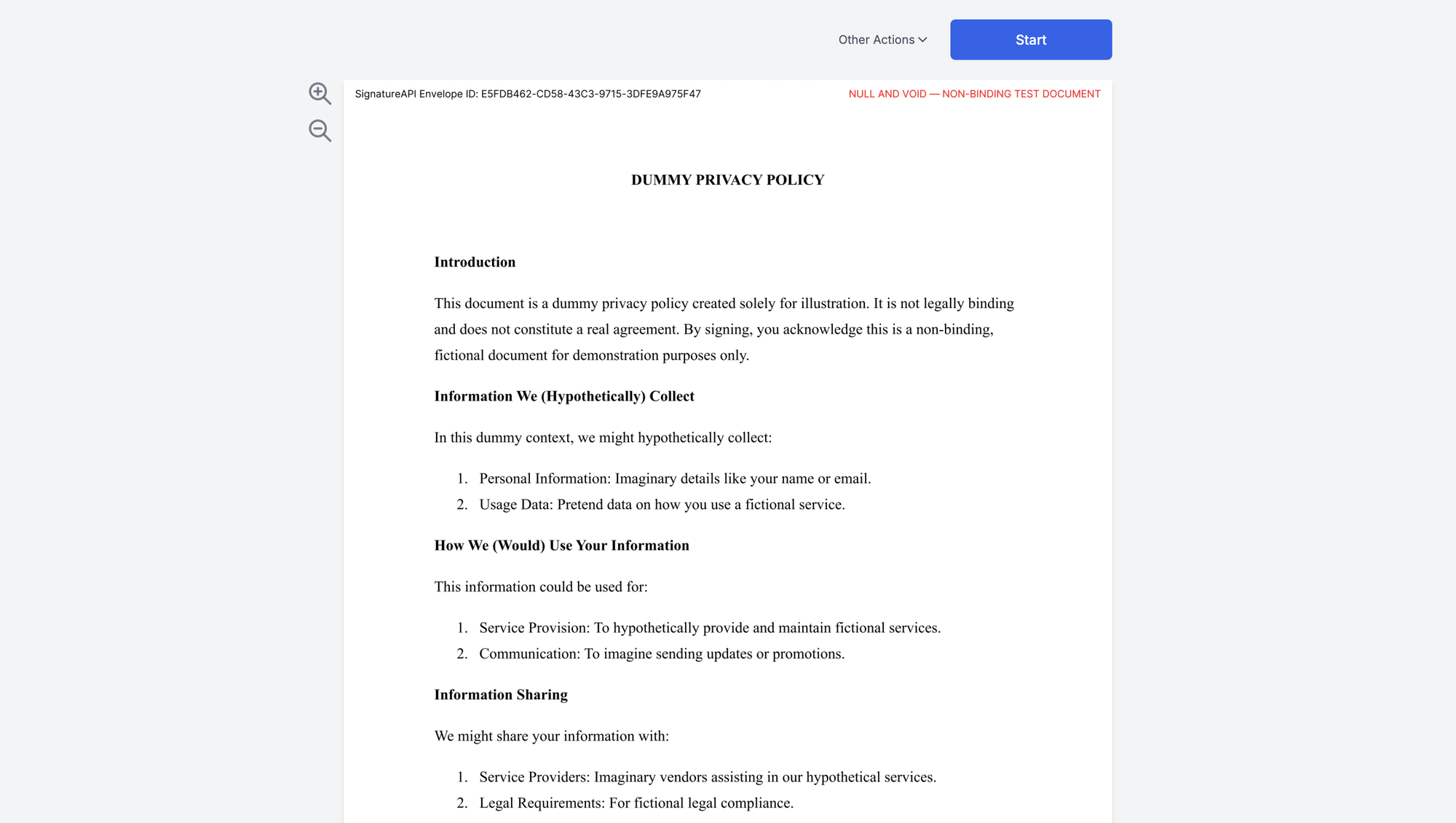
After the correct code is entered, the recipient can proceed with signing.
## Audit log
When the recipient enters the verification code, SignatureAPI records the timestamp. The audit log entry looks like this:
12/31/2025 11:59:59 PM
John Doe (#7161cf07) has authenticated using a verification code sent to john@example.com.