> ## Documentation Index
> Fetch the complete documentation index at: https://signatureapi-daf4ee54.mintlify.site/llms.txt
> Use this file to discover all available pages before exploring further.
# Quickstart
> Send your first document for signature using the SignatureAPI in this step-by-step tutorial
## Introduction
In this quickstart, we'll walk you through sending a simple privacy policy document to Jane Doe (at jane@example.com) for her signature.
## Get your API key
To get started, [sign up](https://accounts.signatureapi.com/sign-up) for a free test [API key](/docs/api/authentication). This test API key allows you to create [test envelopes](/docs/api/test-mode) without any legal effect and at no cost.
## Create your first envelope
An [envelope](/docs/api/resources/envelopes/object) is a container that holds the documents you need to send for signing. Each envelope can include one or more documents and can be sent to one or multiple signers.
In this quickstart, we will create an envelope with one document, one recipient, and a single signing place. We’ll use `curl` and the command line for this example.
Replace `key_test_xxxxxxxx` in the code snippet below with your test API key (which starts with `key_test_`) and paste it into your command line.
```bash theme={null}
curl -X POST \
-H 'Content-Type: application/json' \
-H 'X-API-Key: key_test_xxxxxxxx' \
-d '{
"title": "Dummy Consent",
"message": "Please review and sign the attached Dummy Privacy Policy for internal testing purposes. This document is not legally binding and is used solely for demonstration\n\nThank you for your cooperation.",
"documents": [
{
"url": "https://pub-9cb75390636c4a8a83a6f76da33d7f45.r2.dev/privacy-placeholder.pdf",
"places": [
{
"key": "signer_signs_here",
"type": "signature",
"recipient_key": "visitor"
}
]
}
],
"recipients": [
{
"key": "visitor",
"type": "signer",
"name": "Jane Doe",
"email": "jane@example.com"
}
]
}' \
https://api.signatureapi.com/v1/envelopes
```
This request creates an envelope titled `Dummy Consent` with a message `"Please review..."` that will be included in the emails sent to the recipient.
The envelope has one recipient, identified by the key `visitor`. This recipient is a signer named `Jane Doe`, with the email `jane@example.com`.
The envelope contains one document, a PDF hosted at `https://pub-9cb75390636c4a8a83a6f76da33d7f45.r2.dev/privacy-placeholder.pdf`.
The document includes a place for the recipient `visitor` to sign. The placeholder is of type `signature` and links to the placeholder `[[signer_signs_here]]`
inside the PDF document.
Once you've sent the request, you should see a response like this (formatted for readability):
```JSON theme={null}
{
"id": "69b50512-a771-4bdf-5555-12c555590aa2",
"title": "Dummy Consent",
"label": null,
"message": "Please review and sign the attached Dummy Privacy Policy for internal testing purposes. This document is not legally binding and is used solely for demonstration\n\nThank you for your cooperation.",
"status": "processing",
"language": "en",
"timezone": "UTC",
"timestamp_format": "MM/DD/YYYY hh:mm:ss",
"mode": "test",
"routing": "sequential",
"deliverable": null,
"topics": [],
"metadata": {},
"sender": {
"name": "Richard Roe",
"email": "richard@example.com",
"organization": null
},
"documents": [
{
"id": "doc_7C4In8kXXYYf4kfkiUce94",
"envelope_id": "69b50512-a771-4bdf-5555-12c555590aa2",
"title": null,
"page_count": 2,
"url": "https: //pub-9cb75390636c4a8a83a6f76da33d7f45.r2.dev/privacy-placeholder.pdf",
"format": "pdf",
"data": null,
"fixed_positions": [],
"places": [
{
"key": "signer_signs_here",
"type": "signature",
"recipient_key": "visitor"
}
]
}
],
"recipients": [
{
"id": "re_0RKFGQ8EgXXYYKq854c045",
"envelope_id": "69b50512-a771-4bdf-5555-12c555590aa2",
"type": "signer",
"key": "visitor",
"name": "Jane Doe",
"email": "jane@example.com",
"ceremony": {
"authentication": [
{
"type": "email_link",
"subject_override": null,
"message_override": null
}
],
"redirect_url": null,
"redirect_delay": 3,
"embeddable_in": [],
"url_variant": "standard",
"url": null
},
"delivery_type": "email",
"ceremony_creation": "automatic",
"signature_options": ["typed", "drawn"],
"status": "pending",
"completed_at": null,
"status_updated_at": "2025-12-31T23:59:59.000Z"
}
],
"created_at": "2025-12-31T23:59:59.000Z",
"completed_at": null
}
```
## Check the sent email
Although test API keys don't send real emails, you can view the email that would be sent in the Dashboard.
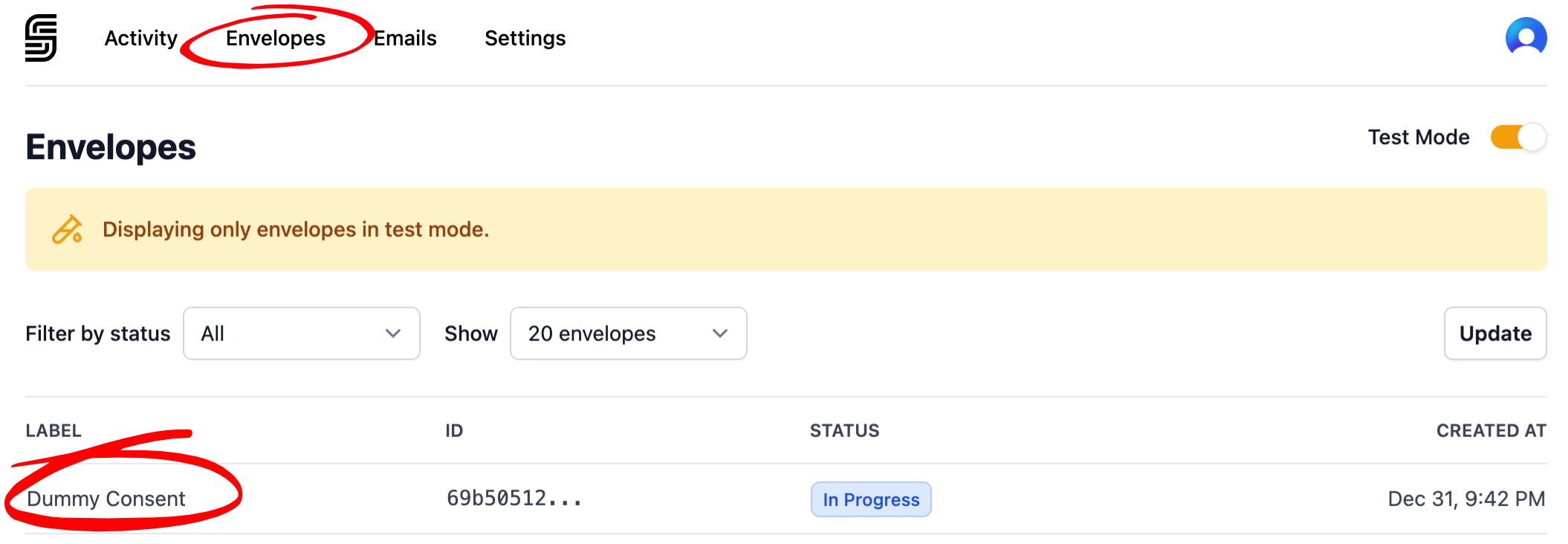
1. Log in to your Dashboard
2. Navigate to the **Envelopes** list and select your newly created envelope.
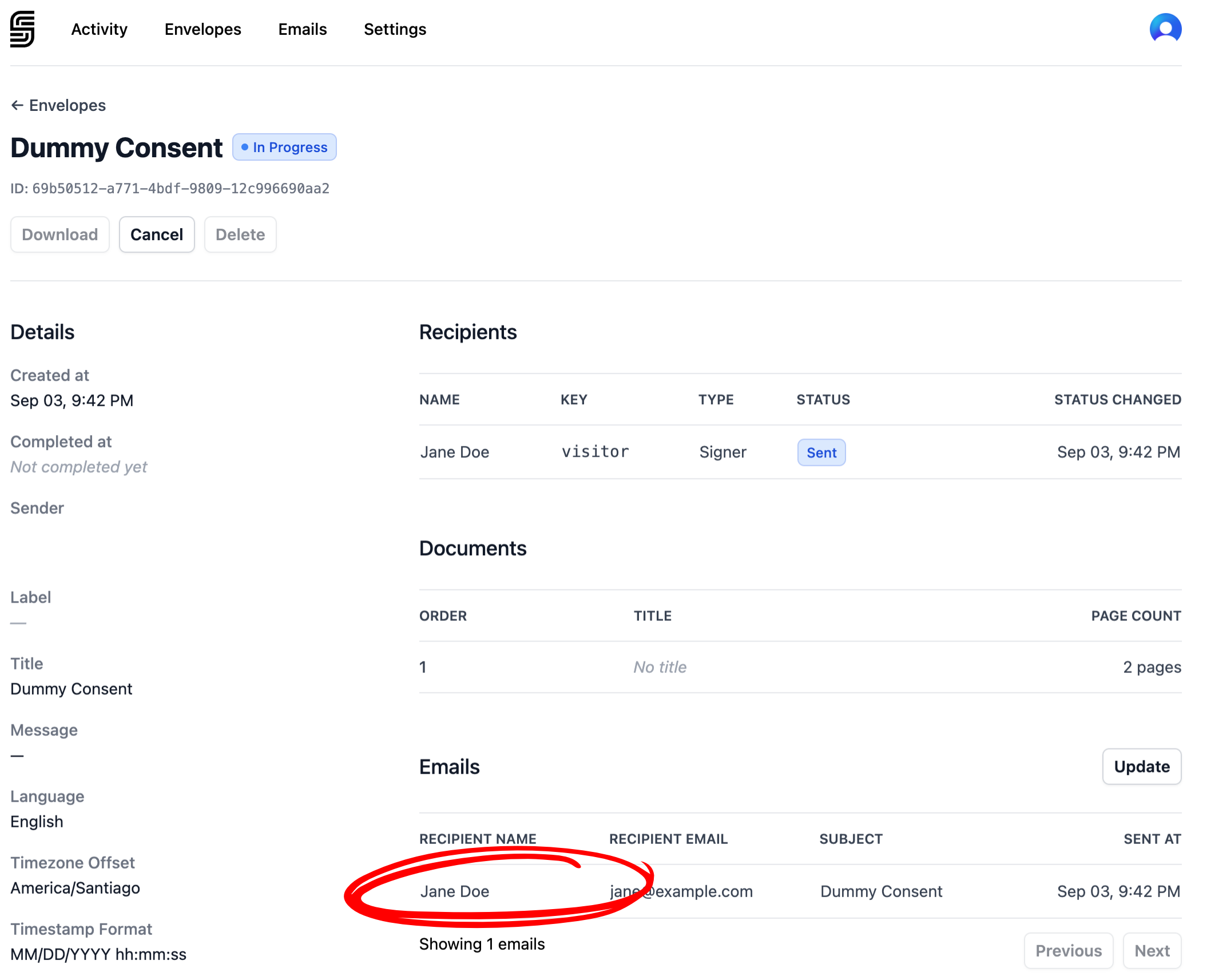
 In the envelope details, scroll down to the **Emails** section and click on the email sent to Jane Doe.
 You'll be able to preview the email and see how it would appear if it were sent to the recipient. In test mode, however, emails are not actually sent to recipients.
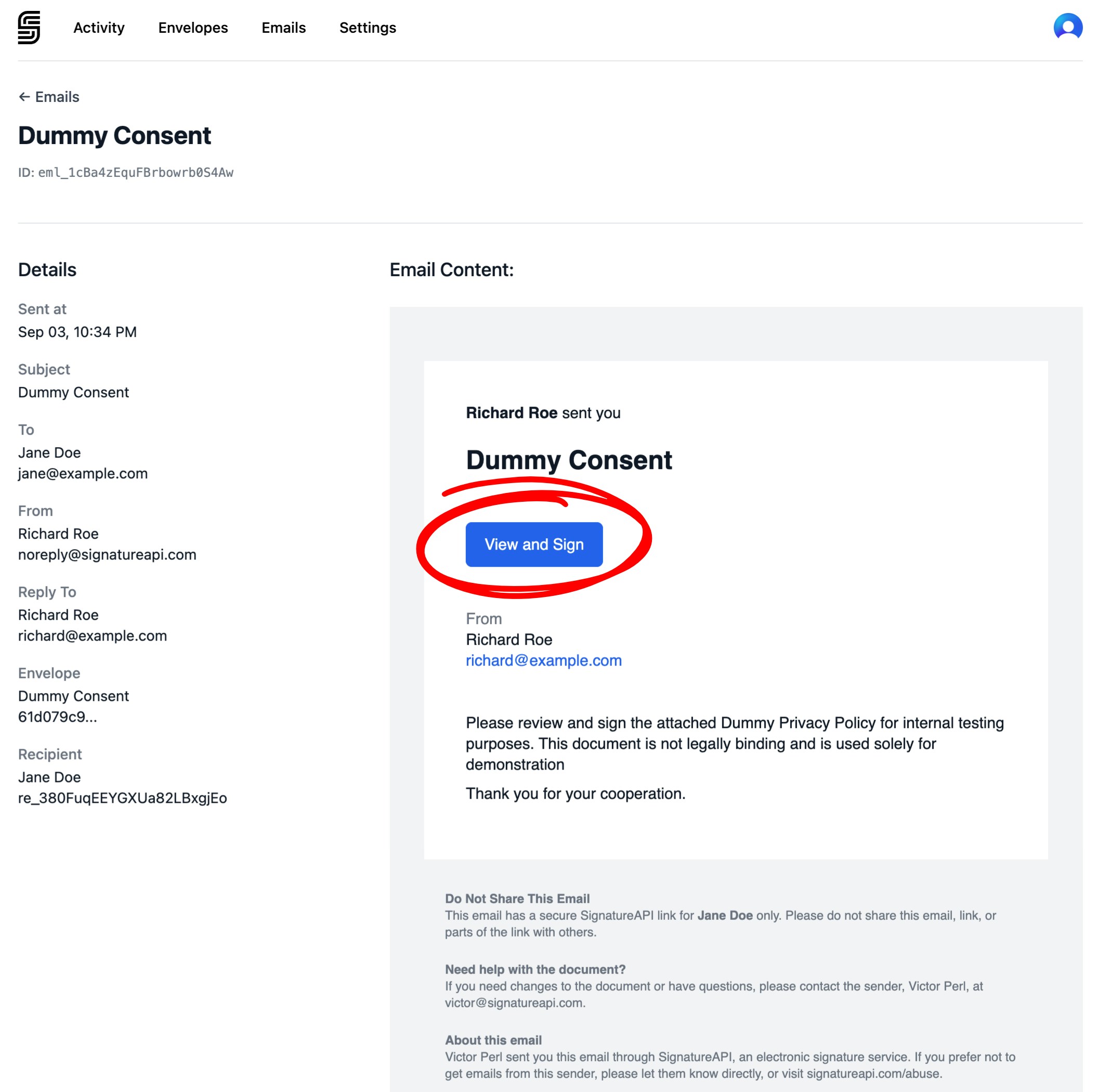 Click on the blue button in the email preview to go to the signing ceremony as Jane.
## Sign the envelope as Jane
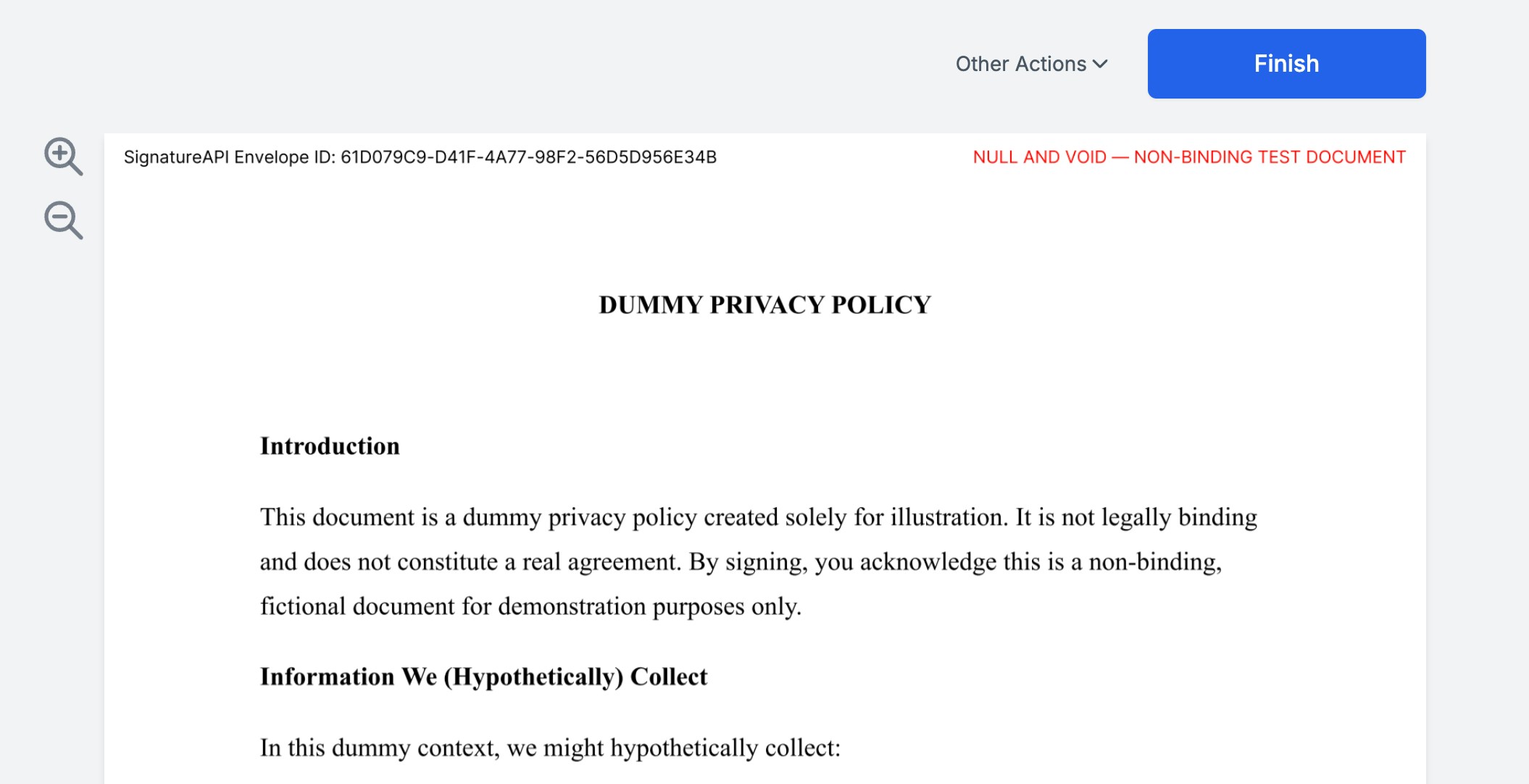
Now, you'll step into Jane Doe’s shoes as the signer. Go through the signing ceremony and sign the document as Jane would.
Click on the blue button in the email preview to go to the signing ceremony as Jane.
## Sign the envelope as Jane
Now, you'll step into Jane Doe’s shoes as the signer. Go through the signing ceremony and sign the document as Jane would.
 ## Check the envelope in the API
Once Jane has signed the document, let’s check the status of the envelope and the recipients to make sure everything is moving along smoothly.
To do this, we'll use the following curl command to retrieve the envelope’s status. Replace the API key with your test key and `00000000-0000-0000-0000-000000000000` with the envelope ID you received earlier.
```bash theme={null}
curl -X GET \
-H 'X-API-Key: key_test_xxxxxxxx' \
https://api.signatureapi.com/v1/envelopes/00000000-0000-0000-0000-000000000000
```
The response will look something like this (we redacted some of the parts that didn't change):
```JSON theme={null}
{
"id": "3cd512e8-0db8-4608-af95-bfcf9dd08620",
"status": "completed",
// ...
"deliverable": {
"id": "del_2gejfUSFk9H0dF20KklS2y",
"envelope_id": "3cd512e8-0db8-4608-af95-bfcf9dd08620",
"status": "processing",
"type": "standard",
"language": "en",
"timezone": "UTC",
"timestamp_format": "DD/MM/YYYY HH:mm:ss",
"url": null
},
// ...
"recipients": [
{
"id": "re_1RIbLpPWJL44QTBY6n8jBW",
"envelope_id": "3cd512e8-0db8-4608-af95-bfcf9dd08620",
"type": "signer",
"key": "visitor",
// ...
"status": "completed",
"completed_at": "2024-09-04T19:31:05.188Z",
"status_updated_at": "2024-09-04T19:31:05.438Z"
}
],
"created_at": "2024-09-04T19:30:24.822Z",
"completed_at": "2024-09-04T19:31:05.188Z"
}
```
Here’s what to check:
* **Recipient Status**: Inside the `recipients` array, the status should be marked as `completed`. This confirms Jane signed the document.
* **Envelope Status**: The envelope (root) object's status should also be set to `completed`, meaning the envelope process is finished as all the recipients signed the envelope.
* **Deliverable Status**: The deliverable object may initially show a `processing` status, which indicates SignatureAPI is still generating the final signed document. This can take up to two minutes. You can repeat the GET request to check when it's ready.
Once completed, the deliverable status will change to `generated`:
```JSON theme={null}
{
//...
"deliverable": {
"id": "del_2gejfUSFk9H0dF20KklS2y",
"envelope_id": "3cd512e8-0db8-4608-af95-bfcf9dd08620",
"status": "generated",
"type": "standard",
"language": "en",
"timezone": "UTC",
"timestamp_format": "DD/MM/YYYY HH:mm:ss",
"url": "https://s3.us-east-2.amazonaws.com/signatureapi-vault/envelopes/3cd512e8-0db8-4608-af95-bfcf9dd08620/deliverables/del_2gejfUSFk9H0dF20KklS2y/sealed.pdf?..."
},
//...
}
```
## Check the envelope in the dashboard
The deliverable is also sent to the recipients. In this case, Jane. To view the email Jane received with the completed document, follow these steps:
1. Go to the envelope page in your Dashboard.
2. Verify that the envelope is marked as completed.
3. In the "Emails" section, you'll see all the emails related to this envelope. Look for the one sent to Jane titled: "Completed: Dummy Consent."
## Check the envelope in the API
Once Jane has signed the document, let’s check the status of the envelope and the recipients to make sure everything is moving along smoothly.
To do this, we'll use the following curl command to retrieve the envelope’s status. Replace the API key with your test key and `00000000-0000-0000-0000-000000000000` with the envelope ID you received earlier.
```bash theme={null}
curl -X GET \
-H 'X-API-Key: key_test_xxxxxxxx' \
https://api.signatureapi.com/v1/envelopes/00000000-0000-0000-0000-000000000000
```
The response will look something like this (we redacted some of the parts that didn't change):
```JSON theme={null}
{
"id": "3cd512e8-0db8-4608-af95-bfcf9dd08620",
"status": "completed",
// ...
"deliverable": {
"id": "del_2gejfUSFk9H0dF20KklS2y",
"envelope_id": "3cd512e8-0db8-4608-af95-bfcf9dd08620",
"status": "processing",
"type": "standard",
"language": "en",
"timezone": "UTC",
"timestamp_format": "DD/MM/YYYY HH:mm:ss",
"url": null
},
// ...
"recipients": [
{
"id": "re_1RIbLpPWJL44QTBY6n8jBW",
"envelope_id": "3cd512e8-0db8-4608-af95-bfcf9dd08620",
"type": "signer",
"key": "visitor",
// ...
"status": "completed",
"completed_at": "2024-09-04T19:31:05.188Z",
"status_updated_at": "2024-09-04T19:31:05.438Z"
}
],
"created_at": "2024-09-04T19:30:24.822Z",
"completed_at": "2024-09-04T19:31:05.188Z"
}
```
Here’s what to check:
* **Recipient Status**: Inside the `recipients` array, the status should be marked as `completed`. This confirms Jane signed the document.
* **Envelope Status**: The envelope (root) object's status should also be set to `completed`, meaning the envelope process is finished as all the recipients signed the envelope.
* **Deliverable Status**: The deliverable object may initially show a `processing` status, which indicates SignatureAPI is still generating the final signed document. This can take up to two minutes. You can repeat the GET request to check when it's ready.
Once completed, the deliverable status will change to `generated`:
```JSON theme={null}
{
//...
"deliverable": {
"id": "del_2gejfUSFk9H0dF20KklS2y",
"envelope_id": "3cd512e8-0db8-4608-af95-bfcf9dd08620",
"status": "generated",
"type": "standard",
"language": "en",
"timezone": "UTC",
"timestamp_format": "DD/MM/YYYY HH:mm:ss",
"url": "https://s3.us-east-2.amazonaws.com/signatureapi-vault/envelopes/3cd512e8-0db8-4608-af95-bfcf9dd08620/deliverables/del_2gejfUSFk9H0dF20KklS2y/sealed.pdf?..."
},
//...
}
```
## Check the envelope in the dashboard
The deliverable is also sent to the recipients. In this case, Jane. To view the email Jane received with the completed document, follow these steps:
1. Go to the envelope page in your Dashboard.
2. Verify that the envelope is marked as completed.
3. In the "Emails" section, you'll see all the emails related to this envelope. Look for the one sent to Jane titled: "Completed: Dummy Consent."
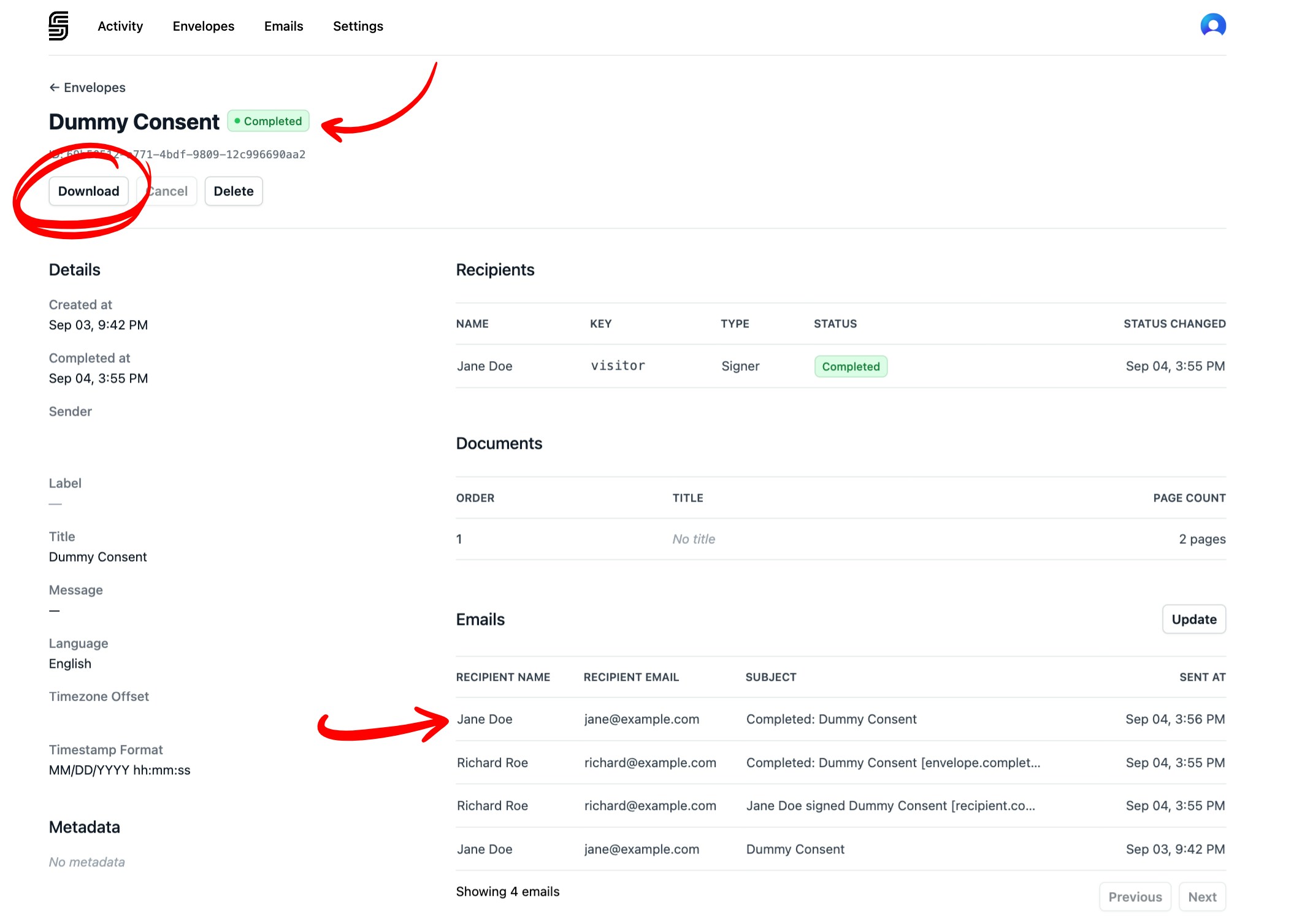 You’ll also notice that two additional notifications were sent to the account owner (Richard Roe). These notify you that Jane signed the envelope and that the envelope process is fully completed.
From the envelope page, you can download the signed document (the deliverable) by clicking the download button.
## What's Next
You’ve just scratched the surface of what SignatureAPI can do. Here are a few powerful features you can explore:
* Add multiple [documents](/docs/api/resources/documents/object) and [recipients](/docs/api/resources/recipients/object) to a single envelope for more complex workflows.
* [Customize envelope branding](/docs/api/resources/envelopes/branding) with your company logo, colors, and email customizations for a professional experience.
* [Embed the signing interface](/docs/embedded/introduction) directly into your web or mobile application, giving users a seamless experience.
* [Generate documents from templates](/docs/api/resources/documents/templates) with customizable fields and conditional logic for dynamic document creation.
* [Upload documents and templates](/docs/api/resources/uploads/create) to SignatureAPI, so you don’t have to host them yourself.
* Add [signatures](/docs/api/resources/places/signature), [dates](/docs/api/resources/places/date), or text fields to documents using either [placeholders](/docs/api/resources/places/positioning#placeholders) or [fixed positions](/docs/api/resources/places/positioning#fixed-positions) for precise placement.
* Use [webhooks](/docs/api/webhooks) to receive real-time notifications in your application when events happen.
* Customize the [language](/docs/api/resources/envelopes/language) of recipient interfaces and emails to match your audience.
* Adjust the [timestamp formats](/docs/api/resources/envelopes/timestamp-format) and [time zones](/docs/api/resources/envelopes/timezone) to suit your location and preferences.
You’ll also notice that two additional notifications were sent to the account owner (Richard Roe). These notify you that Jane signed the envelope and that the envelope process is fully completed.
From the envelope page, you can download the signed document (the deliverable) by clicking the download button.
## What's Next
You’ve just scratched the surface of what SignatureAPI can do. Here are a few powerful features you can explore:
* Add multiple [documents](/docs/api/resources/documents/object) and [recipients](/docs/api/resources/recipients/object) to a single envelope for more complex workflows.
* [Customize envelope branding](/docs/api/resources/envelopes/branding) with your company logo, colors, and email customizations for a professional experience.
* [Embed the signing interface](/docs/embedded/introduction) directly into your web or mobile application, giving users a seamless experience.
* [Generate documents from templates](/docs/api/resources/documents/templates) with customizable fields and conditional logic for dynamic document creation.
* [Upload documents and templates](/docs/api/resources/uploads/create) to SignatureAPI, so you don’t have to host them yourself.
* Add [signatures](/docs/api/resources/places/signature), [dates](/docs/api/resources/places/date), or text fields to documents using either [placeholders](/docs/api/resources/places/positioning#placeholders) or [fixed positions](/docs/api/resources/places/positioning#fixed-positions) for precise placement.
* Use [webhooks](/docs/api/webhooks) to receive real-time notifications in your application when events happen.
* Customize the [language](/docs/api/resources/envelopes/language) of recipient interfaces and emails to match your audience.
* Adjust the [timestamp formats](/docs/api/resources/envelopes/timestamp-format) and [time zones](/docs/api/resources/envelopes/timezone) to suit your location and preferences.