> ## Documentation Index
> Fetch the complete documentation index at: https://signatureapi-daf4ee54.mintlify.site/llms.txt
> Use this file to discover all available pages before exploring further.
# Multiple Recipients Signing Sequentially
> Route envelopes to recipients one at a time in a specific signing order
When sending an envelope for signatures, you can control how it’s sent to recipients using the `routing` property in the **[Envelope](https://signatureapi.com/docs/resources/envelopes/object#param-routing)**.
There are two options: **Sequential** and **Parallel**. By default, SignatureAPI uses sequential routing.
With **Sequential Routing**, the envelope is sent to one recipient at a time, in the order you specify in the envelope’s recipient array. The next recipient only receives the document after the previous one has signed.
* A single PDF document.
* Two recipients (signers) signing in sequential order, the first one with the key `disclosing_party` and the second one with the key `receiving_party`.
* Two signature places positioned with placeholders `[[disclosing_party_signature]]` and `[[receiving_party_signature]]`.
All other envelope settings use the default configuration:
* The recipient will receive an email with a link to sign.
* The account's default language, timezone, and timestamp format used.
## Prepare your Document
Placeholders are text markers within your PDF document indicating specific locations for items such as signatures, initials, or text inputs. Each placeholder follows the format `[[place_key]]`, where `place_key` uniquely identifies the specific location within your document.
In this example, we have prepared a document containing the placeholders `[[disclosing_party_signature]]` and `[[receiving_party_signature]]`. These placeholders mark the exact positions within the document where the signatures corresponding to each key (`disclosing_party_signature` and `receiving_party_signature`) will be inserted.
Download the PDF used in this example.
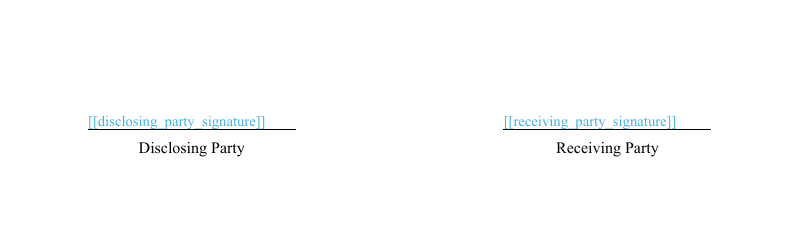 In our document, the placeholder is highlighted in blue for visibility. However, we recommend setting it to white so it remains invisible to the signer.
## Create the Envelope
When creating the envelope:
* Set the property `routing` to `sequential` (optional, this is the default).
* Add your recipient objects to the recipients property of the Envelope in the order you want. In this example we want the `disclosing_party` to be first, and the `receiving_party` the second, so we must add them in that order in the array.
* Add the signature place object for the two places to the `places` array inside the document object, with the following properties:
* `key`: This identifies the place within the document. Must match what’s inside the square brackets in the placeholder inside the document file, in this case: `disclosing_party_signature` for the `disclosing_party`, and `receiving_party_signature` for the `receiving_party`.
* `type`: As this is a signature place, we use the value `signature`.
* `recipient_key`: The key of the recipient that will sign in this place. In this example, `disclosing_party` and `receiving_party`
```json theme={null}
// POST https://api.signatureapi.com/v1/envelopes
// X-Api-Key:
{
"title": "Dummy NDA",
"message": "Please review and sign the following Non-Disclosure Agreement (NDA) for internal testing purposes. This document is not legally binding and is used solely for demonstration\n\nThank you for your cooperation.",
"routing": "sequential",
"documents": [
{
"url": "https://pub-9cb75390636c4a8a83a6f76da33d7f45.r2.dev/dummy-nda.pdf",
"places": [
{
"key": "disclosing_party_signature",
"type": "signature",
"recipient_key": "disclosing_party"
},
{
"key": "receiving_party_signature",
"type": "signature",
"recipient_key": "receiving_party"
}
]
}
],
"recipients": [
{
"type": "signer",
"key": "disclosing_party",
"name": "Jane Doe",
"email": "jane@example.com"
},
{
"type": "signer",
"key": "receiving_party",
"name": "Richard Roe",
"email": "richard@example.com"
}
]
}
```
## Result
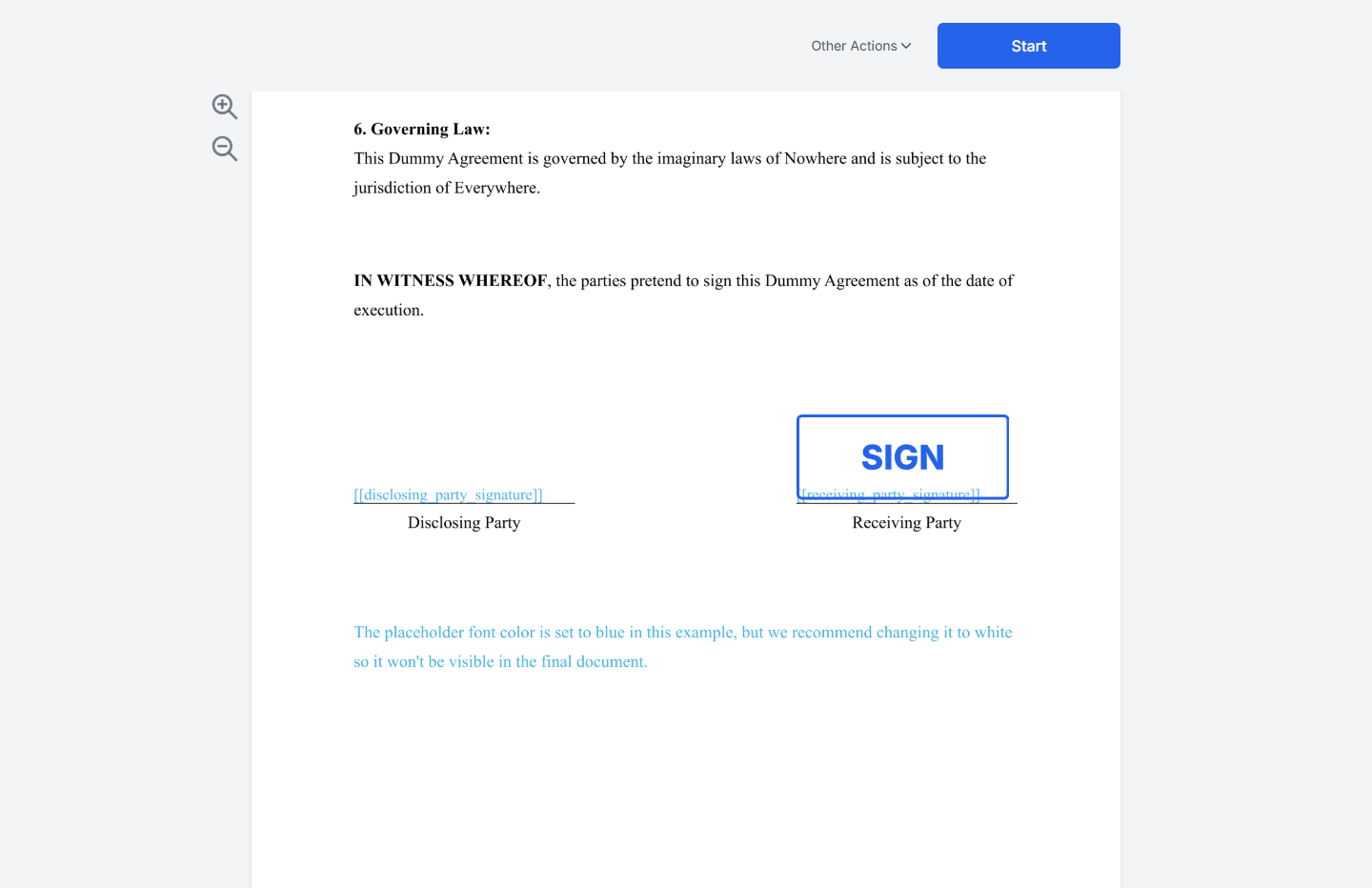
If the request is successful, SignatureAPI will send Jane Doe (the "disclosing\_party") an email with a link to sign, while Richard Roe (the "receiving\_party") will remain in `awaiting` status until Jane completes. Jane will click the link and place her signature on the signature line.
In our document, the placeholder is highlighted in blue for visibility. However, we recommend setting it to white so it remains invisible to the signer.
## Create the Envelope
When creating the envelope:
* Set the property `routing` to `sequential` (optional, this is the default).
* Add your recipient objects to the recipients property of the Envelope in the order you want. In this example we want the `disclosing_party` to be first, and the `receiving_party` the second, so we must add them in that order in the array.
* Add the signature place object for the two places to the `places` array inside the document object, with the following properties:
* `key`: This identifies the place within the document. Must match what’s inside the square brackets in the placeholder inside the document file, in this case: `disclosing_party_signature` for the `disclosing_party`, and `receiving_party_signature` for the `receiving_party`.
* `type`: As this is a signature place, we use the value `signature`.
* `recipient_key`: The key of the recipient that will sign in this place. In this example, `disclosing_party` and `receiving_party`
```json theme={null}
// POST https://api.signatureapi.com/v1/envelopes
// X-Api-Key:
{
"title": "Dummy NDA",
"message": "Please review and sign the following Non-Disclosure Agreement (NDA) for internal testing purposes. This document is not legally binding and is used solely for demonstration\n\nThank you for your cooperation.",
"routing": "sequential",
"documents": [
{
"url": "https://pub-9cb75390636c4a8a83a6f76da33d7f45.r2.dev/dummy-nda.pdf",
"places": [
{
"key": "disclosing_party_signature",
"type": "signature",
"recipient_key": "disclosing_party"
},
{
"key": "receiving_party_signature",
"type": "signature",
"recipient_key": "receiving_party"
}
]
}
],
"recipients": [
{
"type": "signer",
"key": "disclosing_party",
"name": "Jane Doe",
"email": "jane@example.com"
},
{
"type": "signer",
"key": "receiving_party",
"name": "Richard Roe",
"email": "richard@example.com"
}
]
}
```
## Result
If the request is successful, SignatureAPI will send Jane Doe (the "disclosing\_party") an email with a link to sign, while Richard Roe (the "receiving\_party") will remain in `awaiting` status until Jane completes. Jane will click the link and place her signature on the signature line.
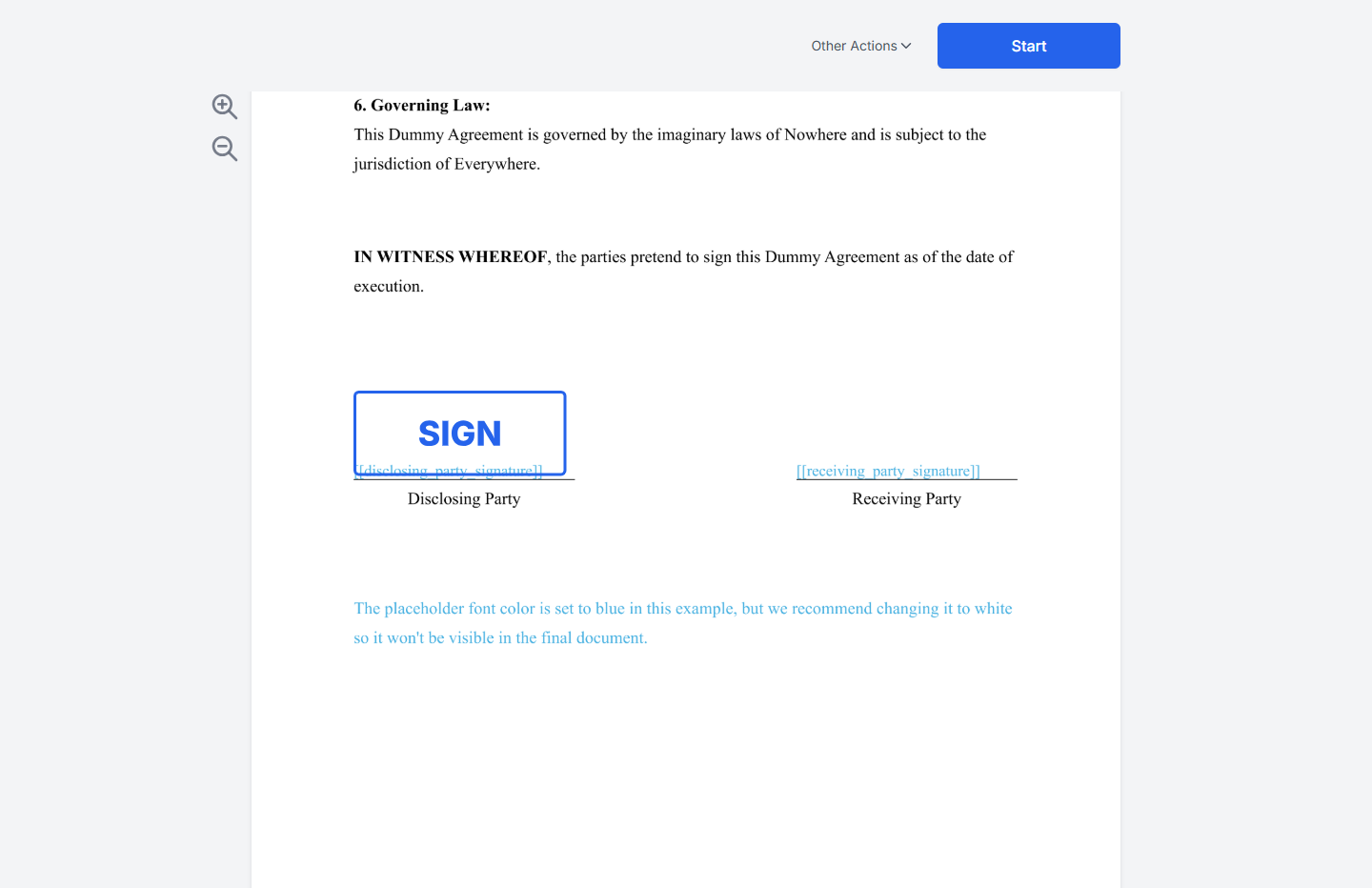
 After Jane completes, SignatureAPI will send Richard Roe (the "receiving\_party") an email with a link to sign. Richard will click the link, and will be able to place his signature on his signature line.
 ## Try It
[Try this example in Postman](/docs/api/postman) using your [test API key](/docs/api/test-mode) to create a free, non-binding test envelope. Test envelopes won't send emails, but you can review them in your dashboard.
## Keep Learning
* Learn about [parallel signing](/docs/api/guides/how-to/parallel-signing) for workflows where the order of signing is not important.
* Explore other [types of places](/docs/api/resources/places/object), such as [initials](/docs/api/resources/places/initials), [text inputs](/docs/api/resources/places/text-input), or [completion dates](/docs/api/resources/places/date).
* Position signatures using [precise coordinates](/docs/api/guides/how-to/use-fixed-positions.mdx).
## Try It
[Try this example in Postman](/docs/api/postman) using your [test API key](/docs/api/test-mode) to create a free, non-binding test envelope. Test envelopes won't send emails, but you can review them in your dashboard.
## Keep Learning
* Learn about [parallel signing](/docs/api/guides/how-to/parallel-signing) for workflows where the order of signing is not important.
* Explore other [types of places](/docs/api/resources/places/object), such as [initials](/docs/api/resources/places/initials), [text inputs](/docs/api/resources/places/text-input), or [completion dates](/docs/api/resources/places/date).
* Position signatures using [precise coordinates](/docs/api/guides/how-to/use-fixed-positions.mdx).